> ## Documentation Index
> Fetch the complete documentation index at: https://www.carstoragesoftware.com/docs/llms.txt
> Use this file to discover all available pages before exploring further.
# Export your vehicle inventory report
> Download a spreadsheet of every vehicle record for insurance audits, accountant handoffs, and offline reviews.
Use the **Cars Report** when you need every vehicle record in one file—not just what fits on the screen at once.
This is common before an insurance audit, when your accountant asks for a full inventory list, or when a manager wants to review declared values and parking details offline.
## What you will accomplish
You will open the Cars Report, choose which columns to include, and download a **CSV** or **Excel** file of your facility’s vehicle records.
**Expected outcome:** A file opens in Excel, Google Sheets, or Numbers with one row per car and the fields you selected.
## When to use the Cars Report
* Your insurance company or bank asks for a complete vehicle inventory.
* You need to share parking spots, declared values, or customer names with an owner who prefers spreadsheets.
* You want to review many cars at once without clicking **View** on each record.
* You are comparing active vs. archived cars and need both in one export (use filters on the main [Cars](https://www.carstoragesoftware.com/dashboard/cars) page first if you only want one group).
**Report vs. everyday Cars list**
The main [Cars](https://www.carstoragesoftware.com/dashboard/cars) page is for daily work—search, filters, and opening records. **Cars Report** is for downloading the full dataset. It does not replace [Find and filter cars](/docs/cars/find-and-filter-cars) for quick lookups.
## Before you start
* Sign in to the dashboard with a role that can view [Cars](https://www.carstoragesoftware.com/dashboard/cars).
* Know whether you need **CSV** (simple, opens everywhere) or **Excel** (`.xlsx`, better column formatting in Microsoft Excel).
* Decide which columns matter for your export—for example **Declared Value**, **Parking Spot**, **Customer Name**, or **Insurance Exp**.
## Step 1: Open Cars Report
In the left sidebar, open [Cars](https://www.carstoragesoftware.com/dashboard/cars).
**Expected result:** You see your facility’s vehicle list with **Search** and **Filters & Settings** near the top.
Near the top-right of the page, click **Report** (file icon on phones and small tablets).
**Why this matters:** **Report** opens a separate page built for export—not the same as scrolling the main list.
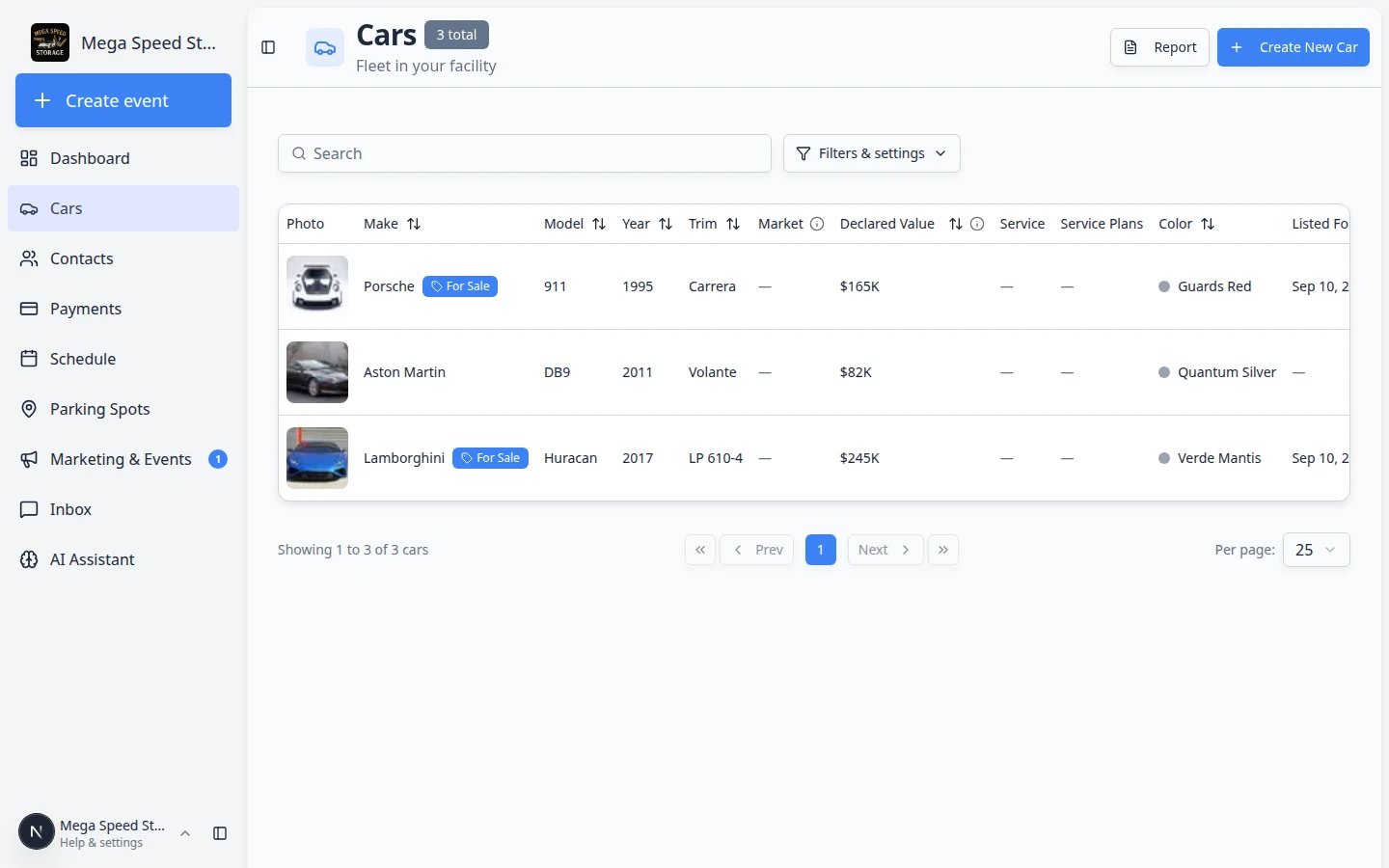 ***Report** sits beside **Create New Car** on desktop. On a phone, look for the file icon in the page header.*
The page title should read **Cars Report** with the subtitle **Export and review vehicle records**.
**Expected result:** You see a table of vehicles and an **Export** button above the list.
***Report** sits beside **Create New Car** on desktop. On a phone, look for the file icon in the page header.*
The page title should read **Cars Report** with the subtitle **Export and review vehicle records**.
**Expected result:** You see a table of vehicles and an **Export** button above the list.
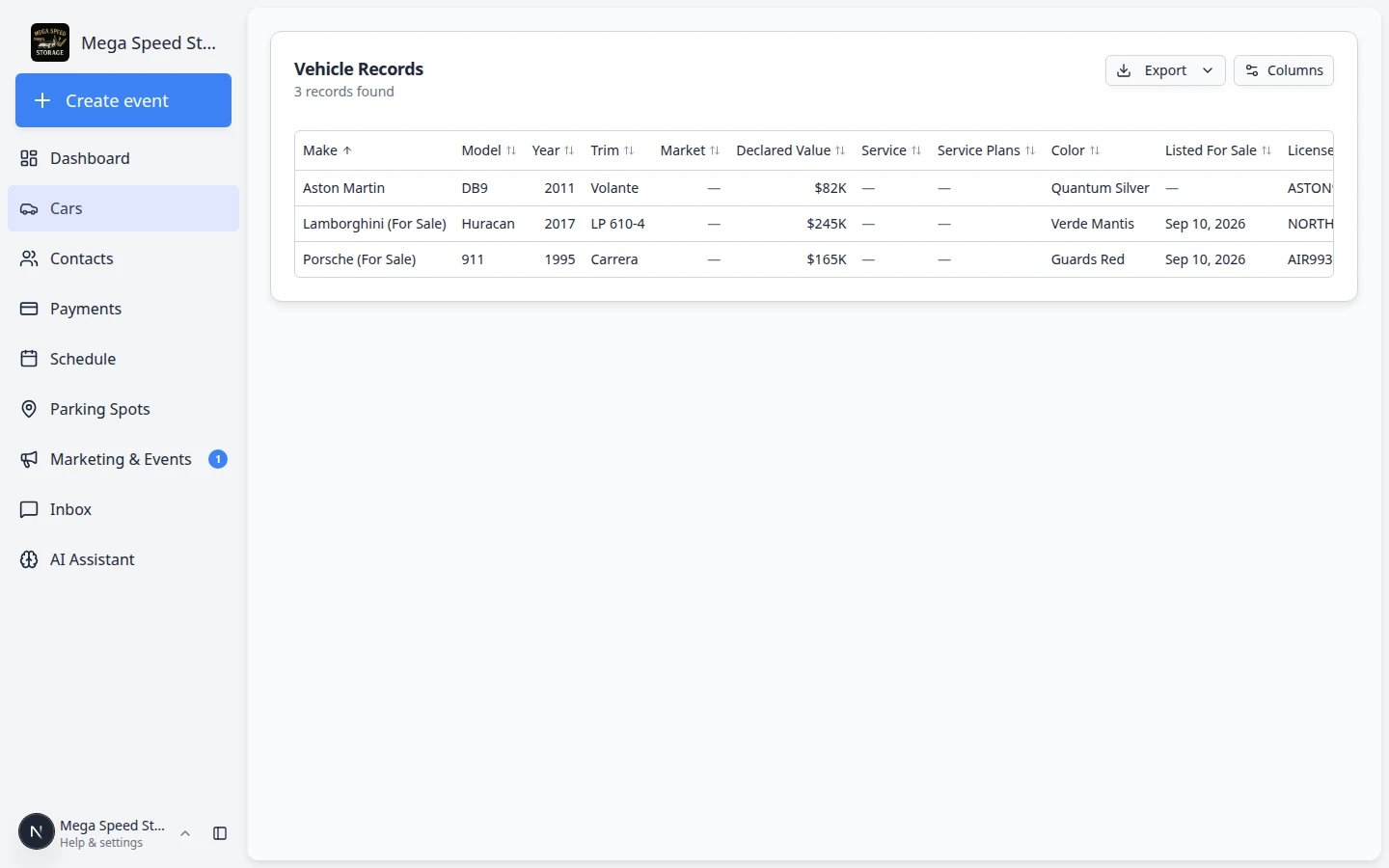 *Cars Report lists every record your account can access. The count under **Vehicle Records** tells you how many rows will export.*
## Step 2: Choose columns (optional)
Above the table, click **Columns** (same control as on the main Cars list).
Check or uncheck fields your recipient needs. You can show **VIN**, **License Plate**, **Declared Value**, **Market**, **Parking Spot**, **Customer Email**, **Archived**, and many others.
**Why this matters:** A shorter export is easier to read. An insurance audit may need VIN and declared value; your accountant may need customer names and spots.
Drag column names in the **Columns** panel to change the order in the table and in the export file.
**Expected result:** The on-screen table matches the column order you chose.
## Step 3: Export the file
Click the **Export** button above the vehicle table.
Choose **Export as CSV** or **Export as Excel**.
* **CSV** — plain text table; best when you will upload to another system.
* **Excel** — `.xlsx` file; best when your team lives in Microsoft Excel.
*Cars Report lists every record your account can access. The count under **Vehicle Records** tells you how many rows will export.*
## Step 2: Choose columns (optional)
Above the table, click **Columns** (same control as on the main Cars list).
Check or uncheck fields your recipient needs. You can show **VIN**, **License Plate**, **Declared Value**, **Market**, **Parking Spot**, **Customer Email**, **Archived**, and many others.
**Why this matters:** A shorter export is easier to read. An insurance audit may need VIN and declared value; your accountant may need customer names and spots.
Drag column names in the **Columns** panel to change the order in the table and in the export file.
**Expected result:** The on-screen table matches the column order you chose.
## Step 3: Export the file
Click the **Export** button above the vehicle table.
Choose **Export as CSV** or **Export as Excel**.
* **CSV** — plain text table; best when you will upload to another system.
* **Excel** — `.xlsx` file; best when your team lives in Microsoft Excel.
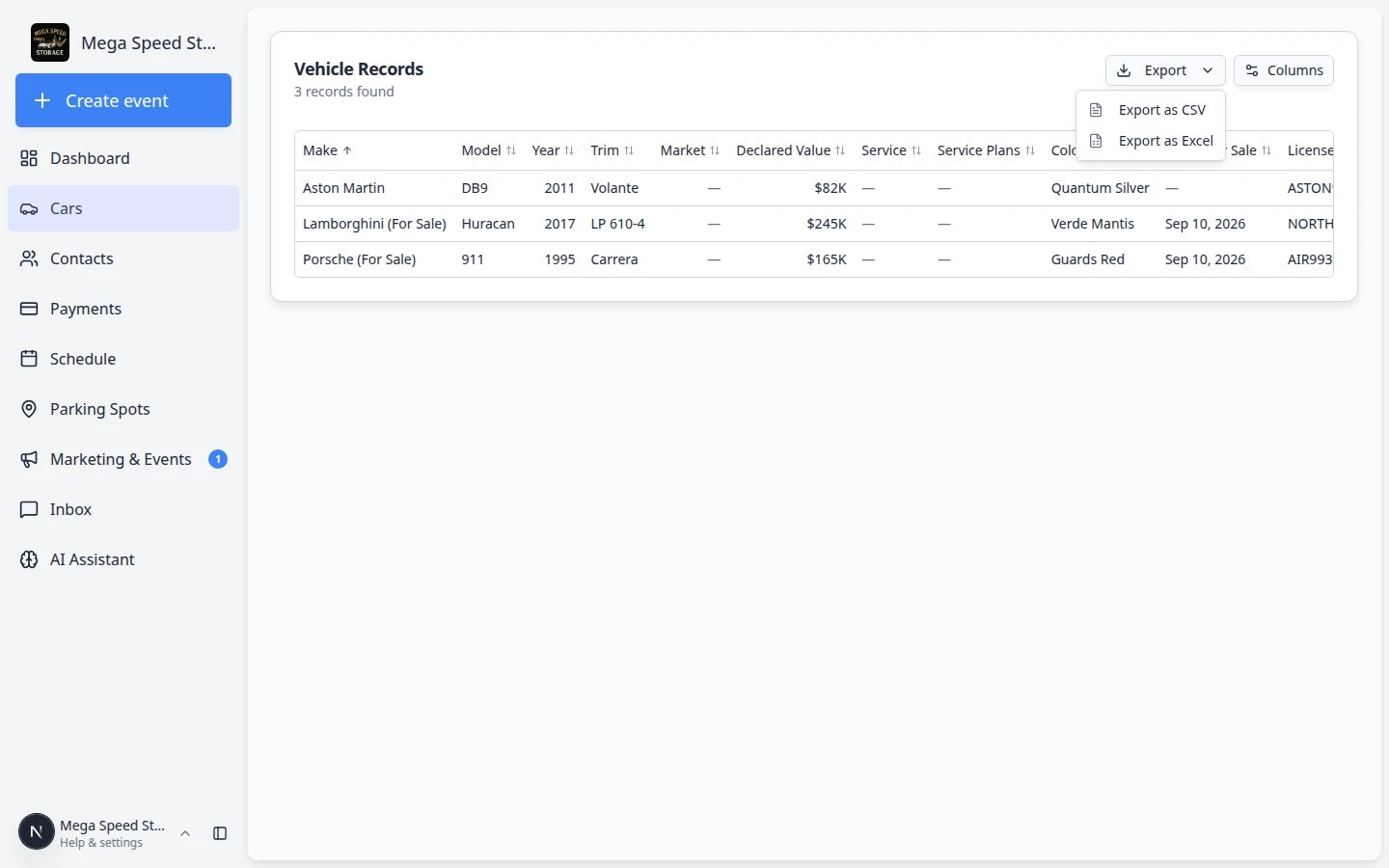 *The export uses the columns currently visible in the report table.*
Your browser downloads the file. Open it and spot-check a few rows.
**Expected outcome:** Row count matches the **Vehicle Records** count on the report page (unless your browser blocked the download).
## Step 4: Spot-check the export
Compare year, make, model, plate, and customer name against live records in the app.
If you expected departed vehicles in the file, make sure the **Archived** column is turned on in **Columns** before you export again.
Vehicle exports may include customer names, addresses, and values. Send the file only to people who should see that information.
**Why this matters:** Treat exports like sensitive customer records—not casual email attachments.
## Common mistakes to avoid
* Do not assume the main Cars list export exists—use **Report** for a full download.
* Do not export before choosing columns, then wonder why VIN or declared value is missing.
* Do not share exports on personal text threads when your facility policy requires secure file transfer.
## Troubleshooting
**Export is grayed out**
The report has zero vehicles, or the page is still loading. Wait for the spinner to finish. If the count is **0 records found**, your filters or account may limit visibility—ask a manager.
**I only need a few cars**
Use [Find and filter cars](/docs/cars/find-and-filter-cars) on the main [Cars](https://www.carstoragesoftware.com/dashboard/cars) page to narrow the list first, then open **Report** if your workflow supports the filtered set—or open each record individually when you only need one or two vehicles.
**Numbers look wrong in Excel**
Open the CSV in Excel using **Data → From Text/CSV** and set VIN and plate columns to **Text** so leading zeros are not dropped.
## What to do next
* Hide departed cars from daily work with [Archive or restore a vehicle](/docs/cars/archive-or-restore-a-vehicle).
* Review declared values on individual records with [View and edit vehicle details](/docs/cars/view-and-edit-vehicle-details).
* Import many new records at once with [Import vehicles from a spreadsheet](/docs/cars/import-vehicles-from-a-spreadsheet).
## Related topics
- [Archive or restore a vehicle](/docs/cars/archive-or-restore-a-vehicle.md)
- [Delete a vehicle record](/docs/cars/delete-a-vehicle-record.md)
- [Cars overview](/docs/cars/overview.md)
- [Export and use the customer report](/docs/contacts/export-and-use-the-customer-report.md)
- [Review the parking report](/docs/parking-spots/review-the-parking-report.md)
This documentation is built and hosted on [Mintlify](https://mintlify.com), a developer documentation platform.
*The export uses the columns currently visible in the report table.*
Your browser downloads the file. Open it and spot-check a few rows.
**Expected outcome:** Row count matches the **Vehicle Records** count on the report page (unless your browser blocked the download).
## Step 4: Spot-check the export
Compare year, make, model, plate, and customer name against live records in the app.
If you expected departed vehicles in the file, make sure the **Archived** column is turned on in **Columns** before you export again.
Vehicle exports may include customer names, addresses, and values. Send the file only to people who should see that information.
**Why this matters:** Treat exports like sensitive customer records—not casual email attachments.
## Common mistakes to avoid
* Do not assume the main Cars list export exists—use **Report** for a full download.
* Do not export before choosing columns, then wonder why VIN or declared value is missing.
* Do not share exports on personal text threads when your facility policy requires secure file transfer.
## Troubleshooting
**Export is grayed out**
The report has zero vehicles, or the page is still loading. Wait for the spinner to finish. If the count is **0 records found**, your filters or account may limit visibility—ask a manager.
**I only need a few cars**
Use [Find and filter cars](/docs/cars/find-and-filter-cars) on the main [Cars](https://www.carstoragesoftware.com/dashboard/cars) page to narrow the list first, then open **Report** if your workflow supports the filtered set—or open each record individually when you only need one or two vehicles.
**Numbers look wrong in Excel**
Open the CSV in Excel using **Data → From Text/CSV** and set VIN and plate columns to **Text** so leading zeros are not dropped.
## What to do next
* Hide departed cars from daily work with [Archive or restore a vehicle](/docs/cars/archive-or-restore-a-vehicle).
* Review declared values on individual records with [View and edit vehicle details](/docs/cars/view-and-edit-vehicle-details).
* Import many new records at once with [Import vehicles from a spreadsheet](/docs/cars/import-vehicles-from-a-spreadsheet).
## Related topics
- [Archive or restore a vehicle](/docs/cars/archive-or-restore-a-vehicle.md)
- [Delete a vehicle record](/docs/cars/delete-a-vehicle-record.md)
- [Cars overview](/docs/cars/overview.md)
- [Export and use the customer report](/docs/contacts/export-and-use-the-customer-report.md)
- [Review the parking report](/docs/parking-spots/review-the-parking-report.md)
This documentation is built and hosted on [Mintlify](https://mintlify.com), a developer documentation platform.