> ## Documentation Index
> Fetch the complete documentation index at: https://www.carstoragesoftware.com/docs/llms.txt
> Use this file to discover all available pages before exploring further.
# Record battery care and vehicle readings
> Save battery tender notes, tire pressure, fuel, and odometer numbers on a car so the next teammate does not have to walk the lot.
Use this guide when a stored car needs **battery care notes** or the latest **tire, fuel, and mileage** numbers on its record.
These fields live on the car page so anyone can answer “Is the tender connected?” or “What was the last mileage?” without opening a paper clipboard.
## What you will accomplish
You will fill in **Battery Information** and **Vehicle Readings** on one car so your team can protect the battery and track condition over time.
**Expected outcome:** The car record shows battery type and location, whether the customer left a charger, plus current tire pressure, fuel level, and odometer.
## When to use this guide
* A car arrives for long-term storage and you need to know where the battery is and how to keep it charged.
* A customer asks you to connect their own trickle charger whenever the car is parked.
* You just finished an engine start or lot walk and want the latest mileage, fuel, or tire numbers on the record.
* Insurance or pickup staff need a recent odometer number without walking to the bay.
**Readings on the car vs. readings in a visit**
Numbers you type here stay on the car as the latest snapshot. Photos and checklists from a scheduled visit still belong in a session. Use [Start a car session](/docs/cars/start-a-car-session) when you are doing a full intake or service walkthrough.
## Before you start
* Open the correct car from [Cars](https://www.carstoragesoftware.com/dashboard/cars).
* Have the battery location, charger notes, and current readings from the car in front of you.
* If you do not see **Battery Information** or **Vehicle Readings**, ask a manager to turn those blocks on in the car detail page layout under [Settings → Website & customer app](https://www.carstoragesoftware.com/dashboard/settings/website).
## Record battery care notes
Battery fields tell the next teammate how to keep a stored car ready to start.
Go to [Cars](https://www.carstoragesoftware.com/dashboard/cars) and click **View** on the vehicle.
**Expected result:** You see the year, make, and model at the top of the page.
In **Vehicle Details** on the left, scroll until you see the heading **BATTERY INFORMATION**.
**Expected result:** You see **Battery Type**, **Battery Location**, **Customer Trickle Charger**, and **Battery Notes**.
Click **Battery Type** and pick one of:
* **Lead Acid**
* **AGM**
* **Lithium**
Click away to save.
**Why this matters:** Lithium and lead-acid batteries need different chargers. The wrong charger can damage a stored car.
Click **Battery Location** and type where staff should look—for example **Under the rear seat, passenger side** or **Trunk, right side**.
**Expected result:** The next person can find the battery without searching the whole car.
Click **Customer Trickle Charger** and choose:
* **Customer provided** — the owner left their own charger for you to use
* **Not provided** — your facility uses its own tender
* **Not set** — you do not know yet
**Why this matters:** Staff should not unplug a customer-owned charger and replace it with a different unit.
In **Battery Notes**, write the care rule in plain language. Example: **Keep the CTEK tender connected whenever this car is parked. Customer supplies a CTEK 5.0.**
**Expected outcome:** Anyone who opens the record knows what to do after a service visit or a move.
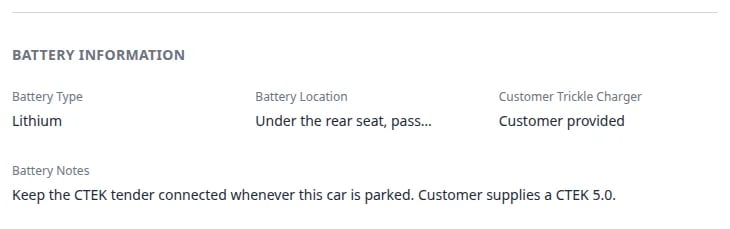 ***Battery Information** stores type, location, charger ownership, and care notes. Click a field to edit. The value saves when you leave the field.*
**Do not guess the battery type**
If you cannot see the battery label, leave **Battery Type** empty and add a note. A wrong type is worse than a blank field because someone may connect the wrong charger.
## Record tire, fuel, and odometer readings
**Vehicle Readings** has three cards: **Tire Pressure**, **Fuel Level**, and **Odometer**.
Stay on the same car page and scroll to **VEHICLE READINGS**.
**Expected result:** You see three cards side by side on a wide screen (they stack on a phone).
On the **Tire Pressure** card, click **Ideal Front PSI** and **Ideal Rear PSI**. Type the pressures from the door sticker or owner’s manual (for example **36** front and **38** rear).
Optional: enter **Tire Date Code (DOT)** as the four-digit week-and-year code on the tire sidewall (for example **2319**).
**Why this matters:** Later readings turn green when they are close to these targets, and yellow or red when they are not.
When a visit or lot walk has already saved pressures, the card shows **DF**, **PF**, **DR**, and **PR** (driver front, passenger front, driver rear, passenger rear) in PSI.
If you see **No tire pressure data yet**, log pressures during the next session or after a service-plan tire check. See [Assign service plans on a vehicle](/docs/cars/assign-service-plans-on-a-vehicle).
On the **Fuel Level** card, click **Fuel Level** and type a number from **0** to **100**. The card shows it as a percent (for example **62%**).
**Expected result:** The gauge updates and the date on the card shows today.
On the **Odometer** card, click **Odometer** and type the current miles or kilometers. Use **Units** to choose **Miles (mi)** or **Kilometers (km)**.
**Expected outcome:** The large number at the top of the card matches what is on the dash. After more readings, a small trend line appears.
***Battery Information** stores type, location, charger ownership, and care notes. Click a field to edit. The value saves when you leave the field.*
**Do not guess the battery type**
If you cannot see the battery label, leave **Battery Type** empty and add a note. A wrong type is worse than a blank field because someone may connect the wrong charger.
## Record tire, fuel, and odometer readings
**Vehicle Readings** has three cards: **Tire Pressure**, **Fuel Level**, and **Odometer**.
Stay on the same car page and scroll to **VEHICLE READINGS**.
**Expected result:** You see three cards side by side on a wide screen (they stack on a phone).
On the **Tire Pressure** card, click **Ideal Front PSI** and **Ideal Rear PSI**. Type the pressures from the door sticker or owner’s manual (for example **36** front and **38** rear).
Optional: enter **Tire Date Code (DOT)** as the four-digit week-and-year code on the tire sidewall (for example **2319**).
**Why this matters:** Later readings turn green when they are close to these targets, and yellow or red when they are not.
When a visit or lot walk has already saved pressures, the card shows **DF**, **PF**, **DR**, and **PR** (driver front, passenger front, driver rear, passenger rear) in PSI.
If you see **No tire pressure data yet**, log pressures during the next session or after a service-plan tire check. See [Assign service plans on a vehicle](/docs/cars/assign-service-plans-on-a-vehicle).
On the **Fuel Level** card, click **Fuel Level** and type a number from **0** to **100**. The card shows it as a percent (for example **62%**).
**Expected result:** The gauge updates and the date on the card shows today.
On the **Odometer** card, click **Odometer** and type the current miles or kilometers. Use **Units** to choose **Miles (mi)** or **Kilometers (km)**.
**Expected outcome:** The large number at the top of the card matches what is on the dash. After more readings, a small trend line appears.
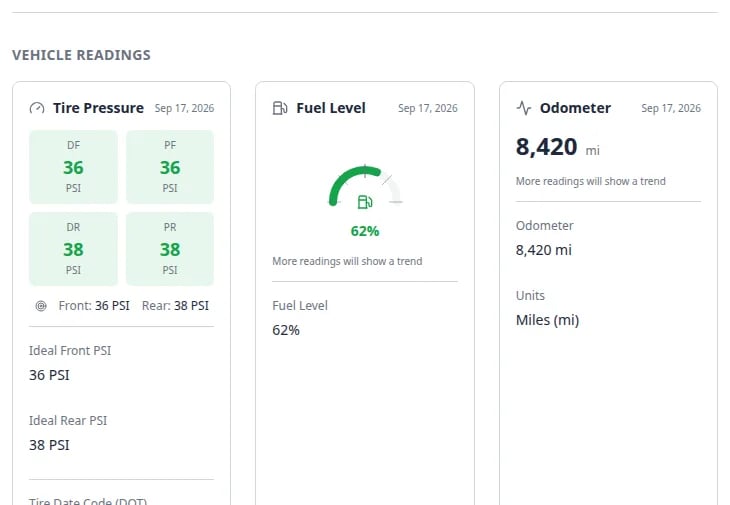 ***Vehicle Readings** keeps the latest tire, fuel, and odometer snapshot on the car. Enter target PSI so later checks are easy to compare.*
## What success looks like
* A teammate can find the battery and know which charger to use without calling the owner.
* Fuel, mileage, and tire targets are on the record before the next pickup or engine start.
* Service-plan checks such as **Tire pressure** or **Engine start** match the numbers you just saved.
## Common mistakes to avoid
**Do not mix up miles and kilometers**
Set **Units** before you type the odometer. A number without the right unit can look like the car has driven far more (or far less) than it has.
**Battery notes are for your team**
Write the note the way you would tell a new porter: where to look, which charger to use, and whether to leave it plugged in. Avoid shorthand only one person understands.
## Troubleshooting
**I do not see Battery Information or Vehicle Readings**
Those blocks can be hidden in the car detail page layout. Ask a manager to enable **Battery information** and **Vehicle readings** under [Settings → Website & customer app](https://www.carstoragesoftware.com/dashboard/settings/website).
**Tire pressure still says no data**
Ideal PSI can be typed on the car. The four corner readings usually arrive from a session or a service-plan check. Run [Start a car session](/docs/cars/start-a-car-session) or log the check from **Service Plans**.
**The number snapped back**
Click the field, type again, then click outside the field and wait a moment. If it still reverts, refresh the page. Another teammate may have edited the same car.
## What to do next
* Attach recurring care (engine starts, tire checks) with [Assign service plans on a vehicle](/docs/cars/assign-service-plans-on-a-vehicle).
* Capture photos and readings during a visit with [Start a car session](/docs/cars/start-a-car-session).
* Review other fields on the same page with [View and edit vehicle details](/docs/cars/view-and-edit-vehicle-details).
## Related topics
- [View and edit vehicle details](/docs/cars/view-and-edit-vehicle-details.md)
- [Track insurance and registration on a vehicle](/docs/cars/track-insurance-and-registration-on-a-vehicle.md)
- [Assign service plans on a vehicle](/docs/cars/assign-service-plans-on-a-vehicle.md)
- [Set up vehicle service plans](/docs/settings/set-up-vehicle-service-plans.md)
- [Link recurring billing to a vehicle](/docs/cars/link-recurring-billing-to-a-vehicle.md)
This documentation is built and hosted on [Mintlify](https://mintlify.com), a developer documentation platform.
***Vehicle Readings** keeps the latest tire, fuel, and odometer snapshot on the car. Enter target PSI so later checks are easy to compare.*
## What success looks like
* A teammate can find the battery and know which charger to use without calling the owner.
* Fuel, mileage, and tire targets are on the record before the next pickup or engine start.
* Service-plan checks such as **Tire pressure** or **Engine start** match the numbers you just saved.
## Common mistakes to avoid
**Do not mix up miles and kilometers**
Set **Units** before you type the odometer. A number without the right unit can look like the car has driven far more (or far less) than it has.
**Battery notes are for your team**
Write the note the way you would tell a new porter: where to look, which charger to use, and whether to leave it plugged in. Avoid shorthand only one person understands.
## Troubleshooting
**I do not see Battery Information or Vehicle Readings**
Those blocks can be hidden in the car detail page layout. Ask a manager to enable **Battery information** and **Vehicle readings** under [Settings → Website & customer app](https://www.carstoragesoftware.com/dashboard/settings/website).
**Tire pressure still says no data**
Ideal PSI can be typed on the car. The four corner readings usually arrive from a session or a service-plan check. Run [Start a car session](/docs/cars/start-a-car-session) or log the check from **Service Plans**.
**The number snapped back**
Click the field, type again, then click outside the field and wait a moment. If it still reverts, refresh the page. Another teammate may have edited the same car.
## What to do next
* Attach recurring care (engine starts, tire checks) with [Assign service plans on a vehicle](/docs/cars/assign-service-plans-on-a-vehicle).
* Capture photos and readings during a visit with [Start a car session](/docs/cars/start-a-car-session).
* Review other fields on the same page with [View and edit vehicle details](/docs/cars/view-and-edit-vehicle-details).
## Related topics
- [View and edit vehicle details](/docs/cars/view-and-edit-vehicle-details.md)
- [Track insurance and registration on a vehicle](/docs/cars/track-insurance-and-registration-on-a-vehicle.md)
- [Assign service plans on a vehicle](/docs/cars/assign-service-plans-on-a-vehicle.md)
- [Set up vehicle service plans](/docs/settings/set-up-vehicle-service-plans.md)
- [Link recurring billing to a vehicle](/docs/cars/link-recurring-billing-to-a-vehicle.md)
This documentation is built and hosted on [Mintlify](https://mintlify.com), a developer documentation platform.