> ## Documentation Index
> Fetch the complete documentation index at: https://www.carstoragesoftware.com/docs/llms.txt
> Use this file to discover all available pages before exploring further.
# Customize the contact page
> Choose which blocks appear on every customer's contact page, hide ones your team never uses, and drag the rest into the order you open most.
You will make every customer's page easier to use—without deleting any data.
When a customer calls, your team should see the blocks they need first: name and phone, cars, activity, then billing. Blocks you never use (for example **Market Interests** or **QuickBooks**) can stay hidden so staff stop scrolling past empty cards.
The layout is **team-wide**. Every staff member sees the same contact page. Customers do **not** see this change in their portal.
## What you will accomplish
* Open the **Contact page** layout editor in [Settings > CRM](https://www.carstoragesoftware.com/dashboard/settings/crm).
* Know what each block is for, and which blocks only appear when there is something to show.
* Turn a block off so it no longer appears on customer pages.
* Drag a block up or down **inside its column** so the sections you open most sit near the top.
* Confirm the change on a real customer record, then reset if you want the defaults back.
## When to use this
Use this guide when:
* Front-desk staff complain the customer page is "too long."
* Your facility does not sell cars and never uses **Market Interests**.
* You do not use QuickBooks, so that card is always empty.
* You want **Activity Feed** or **Billing Setup** higher so people see it during a phone call.
* A new hire asks, "Where did Additional Contacts go?" after someone hid the block.
Skip this guide if you only need to edit one customer's name or phone. That is [Edit customer details](/docs/contacts/edit-customer-details).
## Before you start
* You have the **Contacts** permission, or you are a facility admin. Anyone can **look** at this page. Only people with Contacts permission can **change** it.
* Open one customer first—try [All Contacts](https://www.carstoragesoftware.com/dashboard/contacts/all)—so you know which blocks you actually use.
* Tell your team before you hide a block they rely on. The change applies to **every** customer page at once.
**Hiding a block does not delete data**
Turning a block off only hides it on the page. Notes, cars, invoices, and documents stay in the system. Reports, the activity timeline, and the portal still use that information.
## Open the Contact page editor
Open [Settings > CRM](https://www.carstoragesoftware.com/dashboard/settings/crm).
**Expected result:** The page title says **CRM**. Near the top you see jump links: **Stages**, **Customer types**, **Customer sources**, **Vendor types**, and **Contact page**.
Click the **Contact page** jump link.
**Why this matters:** CRM settings is a long page. The jump link scrolls you past stages and types so you land on the layout editor.
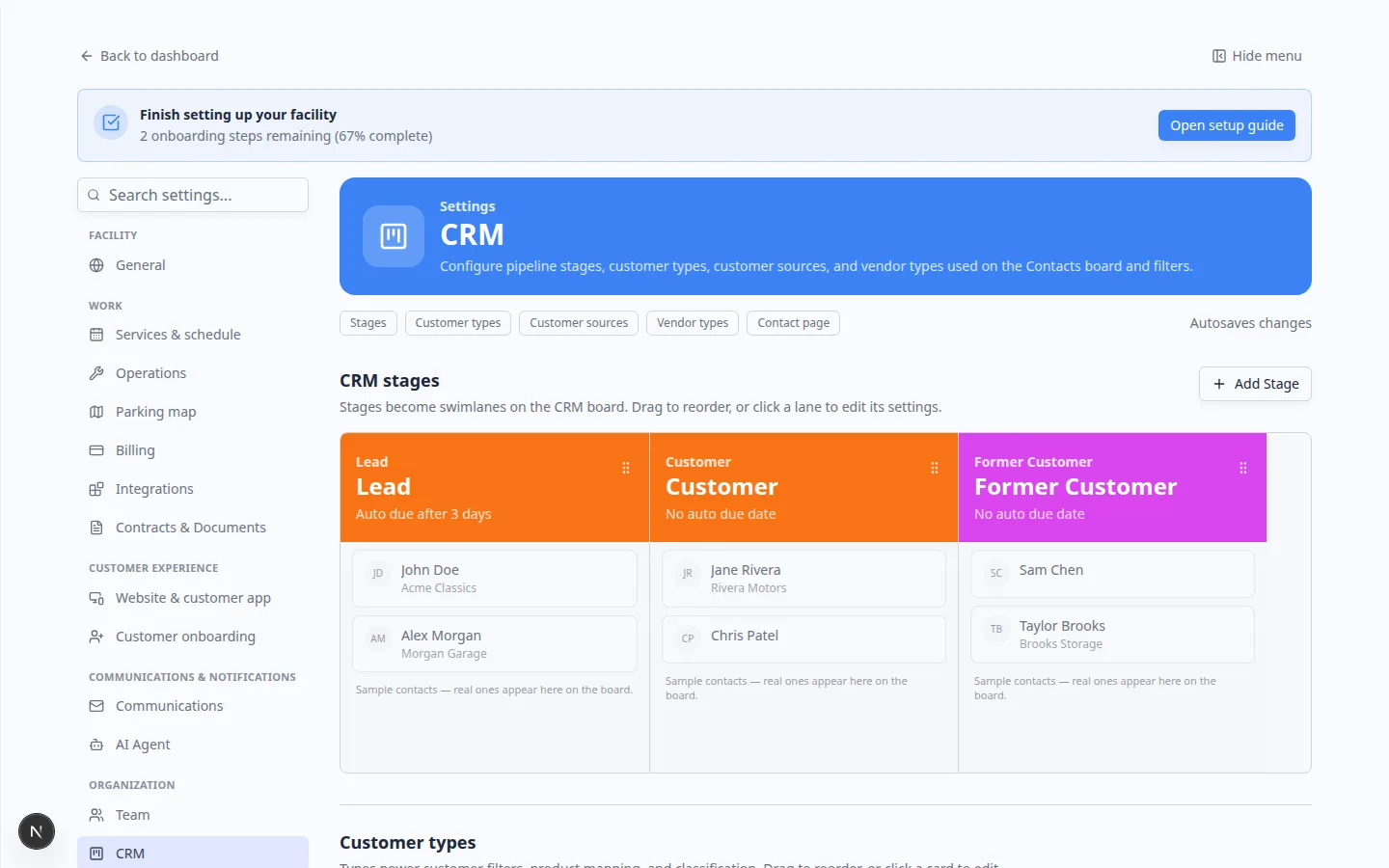 *On [Settings > CRM](https://www.carstoragesoftware.com/dashboard/settings/crm), click **Contact page** in the jump links. You do not need to change stages or customer types to rearrange the contact page.*
## Understand the layout preview
The **Contact page** section is a preview of [a customer record](https://www.carstoragesoftware.com/dashboard/contacts/all). Every block is a card sitting where it will load:
* **Left column** — wide area: personal details, cars, portfolio, documents
* **Right column** — narrower area: onboarding, activity, billing
* **Below the columns** — full-width area: CRM, additional contacts, market interests, payments, and danger zone
*On [Settings > CRM](https://www.carstoragesoftware.com/dashboard/settings/crm), click **Contact page** in the jump links. You do not need to change stages or customer types to rearrange the contact page.*
## Understand the layout preview
The **Contact page** section is a preview of [a customer record](https://www.carstoragesoftware.com/dashboard/contacts/all). Every block is a card sitting where it will load:
* **Left column** — wide area: personal details, cars, portfolio, documents
* **Right column** — narrower area: onboarding, activity, billing
* **Below the columns** — full-width area: CRM, additional contacts, market interests, payments, and danger zone
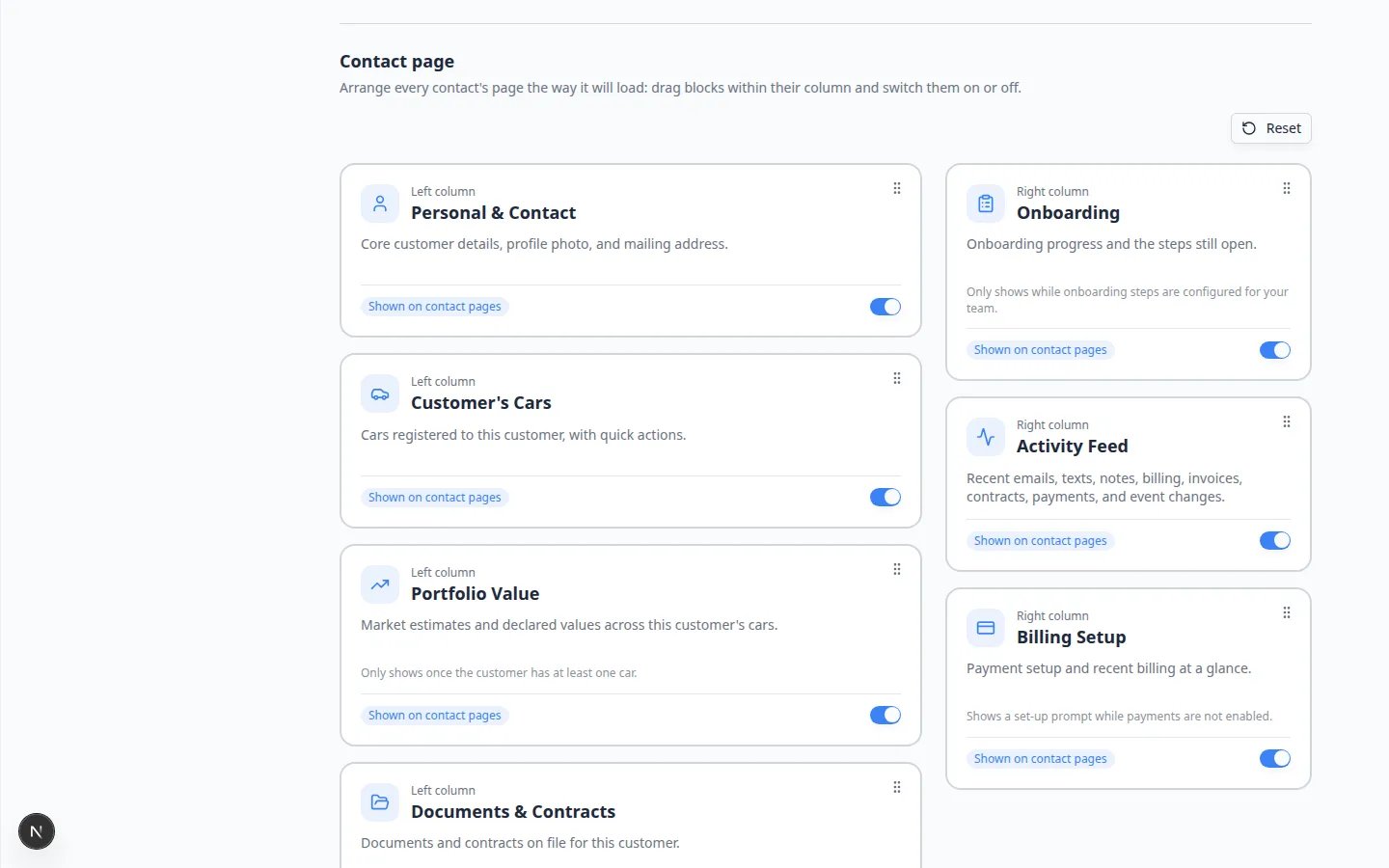 *Each card shows its column name, a short description, a **Shown on contact pages** or **Hidden** label, a switch, and a drag handle in the top-right corner.*
| What you see on the card | What it means |
| - | - |
| Small label such as **Left column** | Which part of the customer page this block lives on. A block cannot move to another column. |
| Bold title such as **Personal & Contact** | The same name you will see on the customer page (or a close match—see the table below). |
| **Shown on contact pages** | The switch is on. Staff will see this block when there is something to show. |
| **Hidden** on a gray dashed card | The switch is off. The block will not appear on any customer page. |
| Grip dots in the top-right corner | Drag handle. Use this to reorder **inside that column only**. |
| **Reset** | Restores the default order and turns every block back on. |
| **Saved** or **Saving…** | Changes save by themselves. You do not click a Save button. |
**Why a block cannot change columns**
The customer page is built as a wide left column, a slimmer right column, then a full-width area underneath. Dragging **Customer's Cars** into the right column would squeeze photos into a narrow strip. The editor keeps each block in the column that fits it.
## What each block is for
Use this list when you decide what to hide. Names below match the cards in [Settings > CRM](https://www.carstoragesoftware.com/dashboard/settings/crm).
| Card name | Where it sits | What staff use it for | When it may stay empty |
| - | - | - | - |
| **Personal & Contact** | Left | Name, company, email, phone, address, photo | Almost never—keep this on |
| **Customer's Cars** | Left | Vehicles linked to this person, plus **Assign Car** | Empty until you [link a car](/docs/contacts/link-cars-and-documents) |
| **Portfolio Value** | Left | Market and declared values across their cars | Only shows after the customer has at least one car |
| **Documents & Contracts** | Left | Files and agreements on this record | Empty until you add documents |
| **Onboarding** | Right | Steps still open for a new customer | Only shows when your team has onboarding steps configured |
| **Activity Feed** | Right | Recent emails, texts, notes, billing, and schedule changes | New records can look quiet at first—see [Review customer activity and history](/docs/contacts/review-customer-activity-and-history) |
| **Billing Setup** | Right | Payment processing status and **Add to Stripe** or **Set up billing** | Shows a set-up prompt until payments are connected—see [Manage billing on a customer record](/docs/contacts/manage-billing-on-a-customer-record) |
| **CRM Information** | Below | Stage, source, customer groups, and team notes | Keep this on if you use the Contacts board |
| **Additional Contacts** | Below | Spouse, assistant, bookkeeper—the page heading says **Contacts** | Empty until you add people—see [Manage additional contacts](/docs/contacts/manage-additional-contacts) |
| **Market Interests** | Below | Cars this customer wants to buy | Hide this if your facility does not source or sell cars |
| **Past Social Events** | Below | Events they attended or RSVP'd to | Empty if they have not been to a social event |
| **Form Submissions** | Below | Responses this customer sent on your marketing forms | Only shows when a submission is linked to this contact or matches their email |
| **Account Balance** | Below | Prepaid credit or amount owed | Needs payments and a Stripe customer record |
| **Statement & Recurring Payments** | Below | Current statement and monthly plans | Needs payments to be enabled |
| **Invoice Billing & Fee Settings** | Below | How this customer is invoiced and any fee overrides | Needs payments to be enabled |
| **QuickBooks** | Below | QuickBooks customer link | Only shows when QuickBooks is connected |
| **Danger Zone / Recover** | Below | Archive, delete, or recover the customer | Hide this if only managers should see those buttons |
**The page title may not match the card title**
The settings card **Additional Contacts** becomes a section titled **Contacts** on the customer page. **Danger Zone / Recover** appears as **Danger Zone**. If a teammate cannot find a section, check this list before you assume the block was deleted.
## Turn a block on or off
Scroll the **Contact page** preview until you see the block—for example **Market Interests**.
Click the switch. The card turns gray and dashed. The label changes from **Shown on contact pages** to **Hidden**.
**Expected result:** **Saved** appears next to **Reset** after a moment. You do not click Save.
**Why this matters:** Autosave means the next teammate who opens a customer already sees the new layout. If you hide **Activity Feed** by accident, turn it back on right away and tell the team.
**Portfolio Value**, **Account Balance**, and **QuickBooks** can stay on even if they hide themselves on some customers. Turning them **on** does not force an empty card to appear.
**Expected result:** A customer with no cars still will not show **Portfolio Value**. A customer with cars will.
*Each card shows its column name, a short description, a **Shown on contact pages** or **Hidden** label, a switch, and a drag handle in the top-right corner.*
| What you see on the card | What it means |
| - | - |
| Small label such as **Left column** | Which part of the customer page this block lives on. A block cannot move to another column. |
| Bold title such as **Personal & Contact** | The same name you will see on the customer page (or a close match—see the table below). |
| **Shown on contact pages** | The switch is on. Staff will see this block when there is something to show. |
| **Hidden** on a gray dashed card | The switch is off. The block will not appear on any customer page. |
| Grip dots in the top-right corner | Drag handle. Use this to reorder **inside that column only**. |
| **Reset** | Restores the default order and turns every block back on. |
| **Saved** or **Saving…** | Changes save by themselves. You do not click a Save button. |
**Why a block cannot change columns**
The customer page is built as a wide left column, a slimmer right column, then a full-width area underneath. Dragging **Customer's Cars** into the right column would squeeze photos into a narrow strip. The editor keeps each block in the column that fits it.
## What each block is for
Use this list when you decide what to hide. Names below match the cards in [Settings > CRM](https://www.carstoragesoftware.com/dashboard/settings/crm).
| Card name | Where it sits | What staff use it for | When it may stay empty |
| - | - | - | - |
| **Personal & Contact** | Left | Name, company, email, phone, address, photo | Almost never—keep this on |
| **Customer's Cars** | Left | Vehicles linked to this person, plus **Assign Car** | Empty until you [link a car](/docs/contacts/link-cars-and-documents) |
| **Portfolio Value** | Left | Market and declared values across their cars | Only shows after the customer has at least one car |
| **Documents & Contracts** | Left | Files and agreements on this record | Empty until you add documents |
| **Onboarding** | Right | Steps still open for a new customer | Only shows when your team has onboarding steps configured |
| **Activity Feed** | Right | Recent emails, texts, notes, billing, and schedule changes | New records can look quiet at first—see [Review customer activity and history](/docs/contacts/review-customer-activity-and-history) |
| **Billing Setup** | Right | Payment processing status and **Add to Stripe** or **Set up billing** | Shows a set-up prompt until payments are connected—see [Manage billing on a customer record](/docs/contacts/manage-billing-on-a-customer-record) |
| **CRM Information** | Below | Stage, source, customer groups, and team notes | Keep this on if you use the Contacts board |
| **Additional Contacts** | Below | Spouse, assistant, bookkeeper—the page heading says **Contacts** | Empty until you add people—see [Manage additional contacts](/docs/contacts/manage-additional-contacts) |
| **Market Interests** | Below | Cars this customer wants to buy | Hide this if your facility does not source or sell cars |
| **Past Social Events** | Below | Events they attended or RSVP'd to | Empty if they have not been to a social event |
| **Form Submissions** | Below | Responses this customer sent on your marketing forms | Only shows when a submission is linked to this contact or matches their email |
| **Account Balance** | Below | Prepaid credit or amount owed | Needs payments and a Stripe customer record |
| **Statement & Recurring Payments** | Below | Current statement and monthly plans | Needs payments to be enabled |
| **Invoice Billing & Fee Settings** | Below | How this customer is invoiced and any fee overrides | Needs payments to be enabled |
| **QuickBooks** | Below | QuickBooks customer link | Only shows when QuickBooks is connected |
| **Danger Zone / Recover** | Below | Archive, delete, or recover the customer | Hide this if only managers should see those buttons |
**The page title may not match the card title**
The settings card **Additional Contacts** becomes a section titled **Contacts** on the customer page. **Danger Zone / Recover** appears as **Danger Zone**. If a teammate cannot find a section, check this list before you assume the block was deleted.
## Turn a block on or off
Scroll the **Contact page** preview until you see the block—for example **Market Interests**.
Click the switch. The card turns gray and dashed. The label changes from **Shown on contact pages** to **Hidden**.
**Expected result:** **Saved** appears next to **Reset** after a moment. You do not click Save.
**Why this matters:** Autosave means the next teammate who opens a customer already sees the new layout. If you hide **Activity Feed** by accident, turn it back on right away and tell the team.
**Portfolio Value**, **Account Balance**, and **QuickBooks** can stay on even if they hide themselves on some customers. Turning them **on** does not force an empty card to appear.
**Expected result:** A customer with no cars still will not show **Portfolio Value**. A customer with cars will.
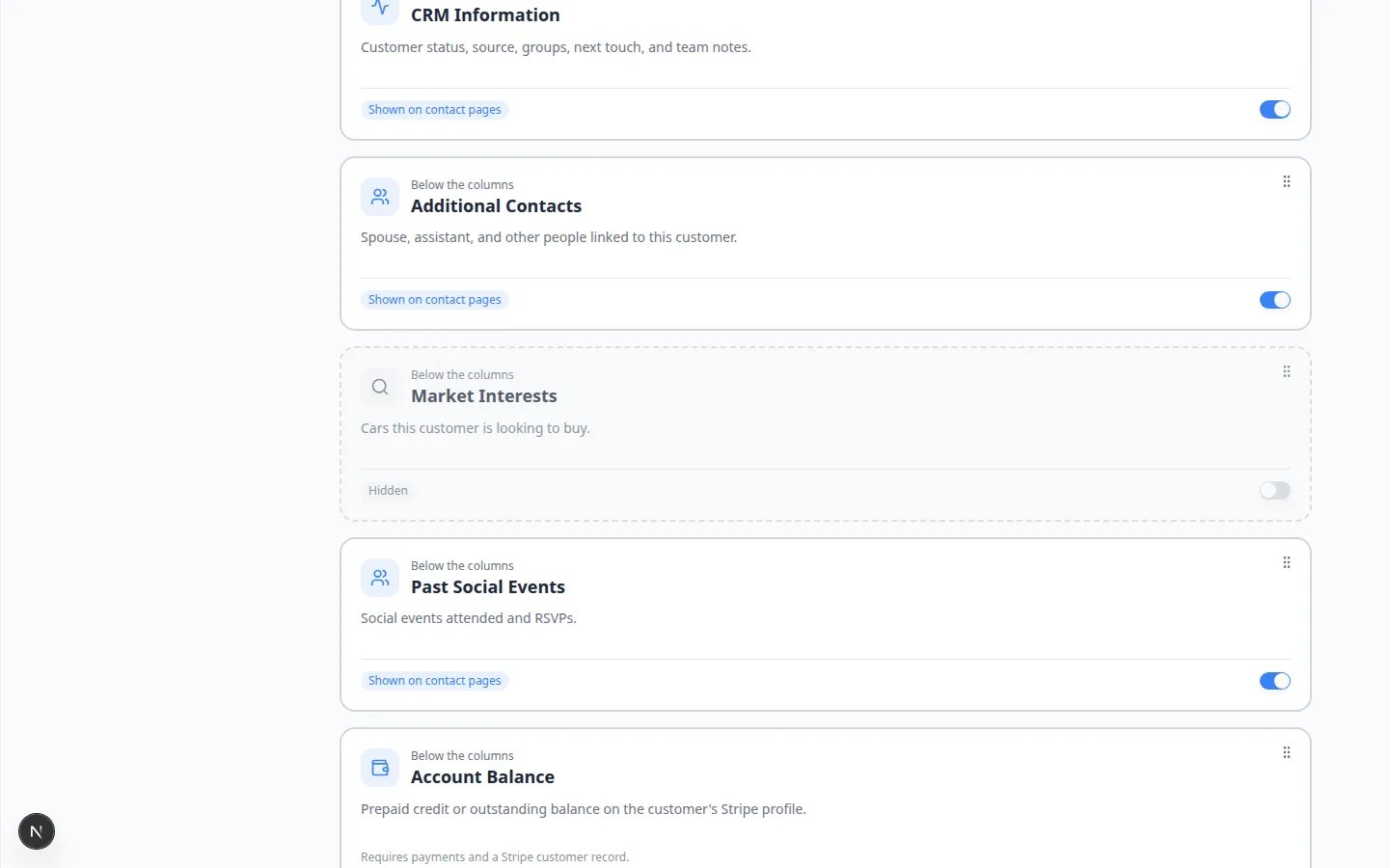 *A hidden card looks faded with a dashed border and says **Hidden**. Neighboring cards stay solid. Here **Market Interests** is off so staff who do not source cars skip that empty section.*
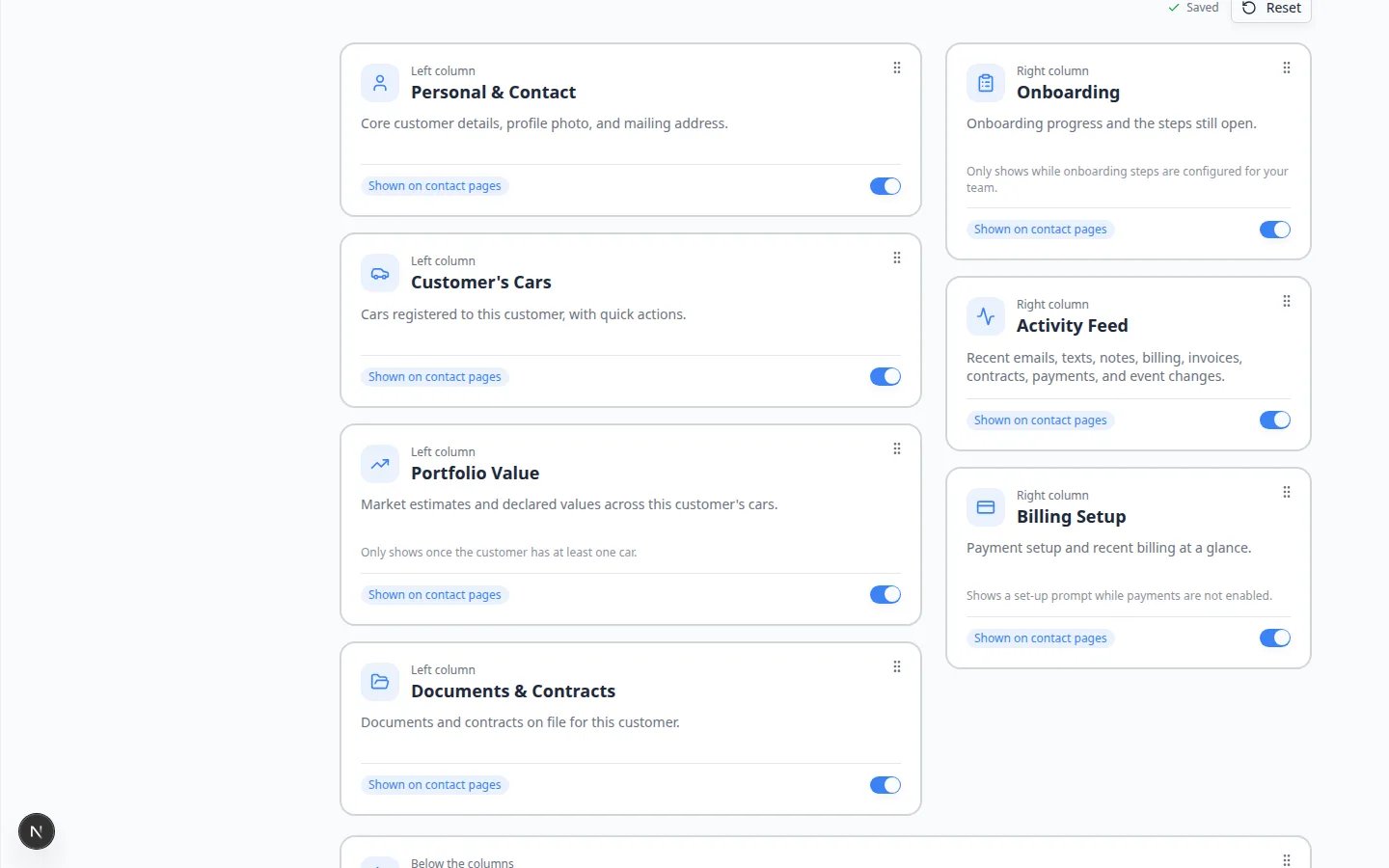 *Watch for **Saved** next to **Reset**. If you see **Save failed**, try again or ask an admin to check your Contacts permission.*
## Reorder blocks
On the card you want to move, click and hold the grip dots in the **top-right** corner. The handle is labeled **Reorder** plus the block name if you use a screen reader.
Move **Customer's Cars** above **Documents & Contracts** in the left column if your team talks about vehicles first.
You cannot drag a left-column card into the right column.
Tab to the handle, press **Space**, use the **arrow keys**, then press **Space** again to drop it.
**Expected result:** The card stays in its column. **Saved** appears when the new order is stored.
**A common mix-up**
If a card will not drop where you want it, you are probably trying to change columns. Put it higher or lower in **its own** column instead.
## Check a real customer page
Go to [All Contacts](https://www.carstoragesoftware.com/dashboard/contacts/all) and open a customer you know well.
You should still see **Personal & Contact** on the left and **Activity Feed** plus **Billing Setup** on the right, unless you hid those cards.
If you hid **Market Interests**, the page jumps from **Contacts** (additional people) to **Past Social Events**. The hidden block is gone—not grayed out.
**Expected result:** Hidden blocks do not leave a blank hole. Remaining blocks keep their column.
*Watch for **Saved** next to **Reset**. If you see **Save failed**, try again or ask an admin to check your Contacts permission.*
## Reorder blocks
On the card you want to move, click and hold the grip dots in the **top-right** corner. The handle is labeled **Reorder** plus the block name if you use a screen reader.
Move **Customer's Cars** above **Documents & Contracts** in the left column if your team talks about vehicles first.
You cannot drag a left-column card into the right column.
Tab to the handle, press **Space**, use the **arrow keys**, then press **Space** again to drop it.
**Expected result:** The card stays in its column. **Saved** appears when the new order is stored.
**A common mix-up**
If a card will not drop where you want it, you are probably trying to change columns. Put it higher or lower in **its own** column instead.
## Check a real customer page
Go to [All Contacts](https://www.carstoragesoftware.com/dashboard/contacts/all) and open a customer you know well.
You should still see **Personal & Contact** on the left and **Activity Feed** plus **Billing Setup** on the right, unless you hid those cards.
If you hid **Market Interests**, the page jumps from **Contacts** (additional people) to **Past Social Events**. The hidden block is gone—not grayed out.
**Expected result:** Hidden blocks do not leave a blank hole. Remaining blocks keep their column.
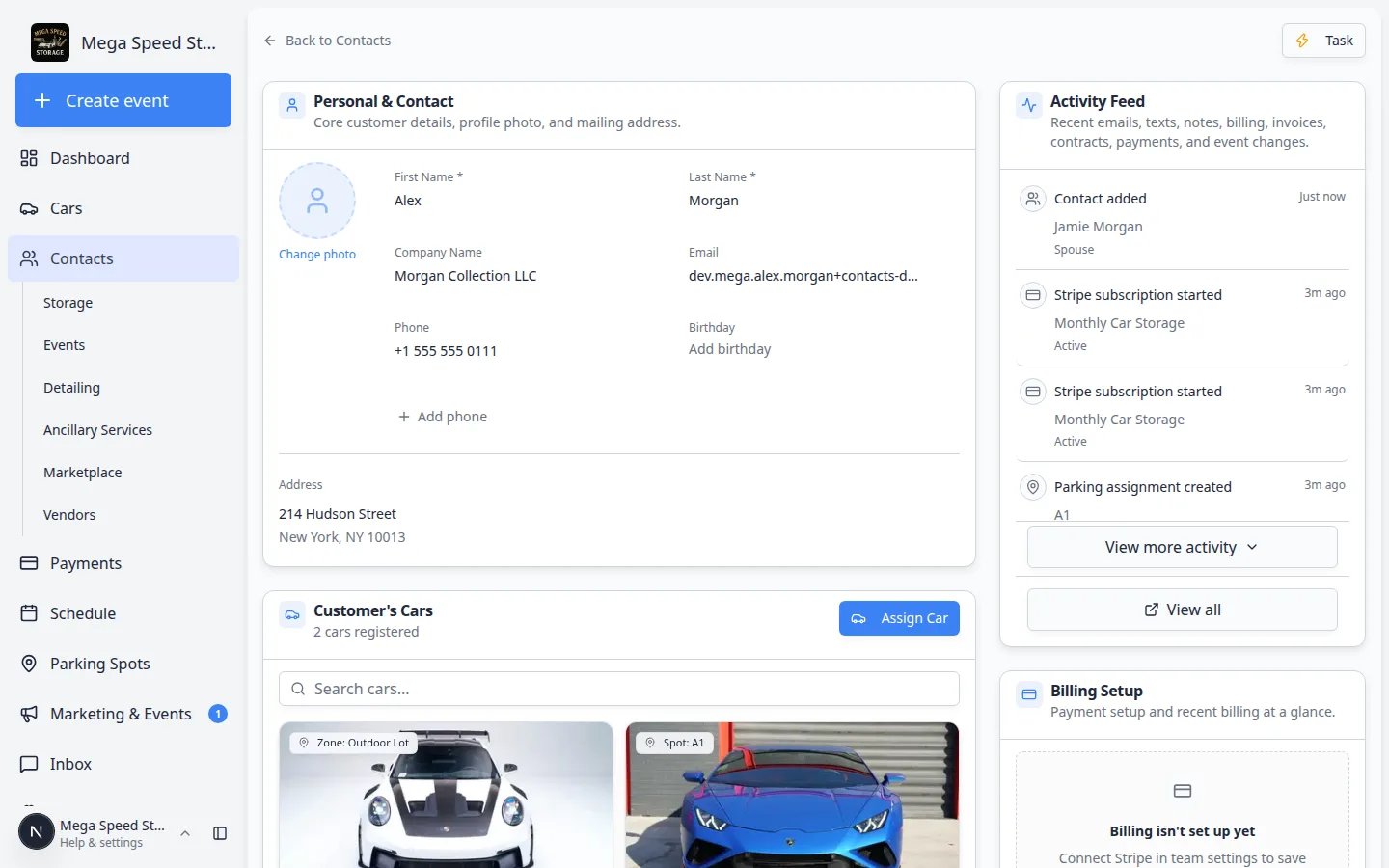 *A typical customer page after setup: **Personal & Contact** and **Customer's Cars** on the left, **Activity Feed** and **Billing Setup** on the right.*
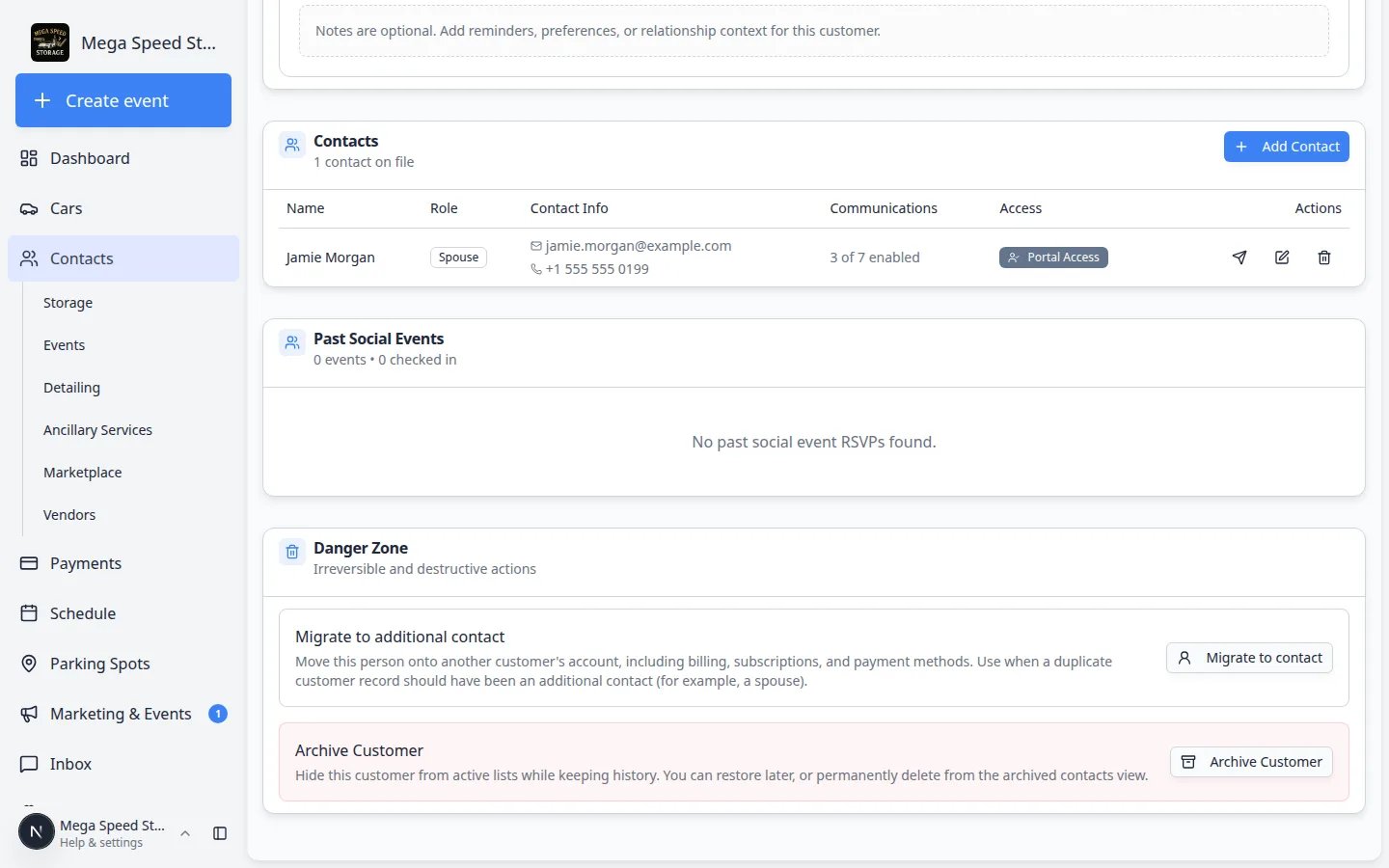 *After **Market Interests** is hidden, **Contacts** (additional people) sits above **Past Social Events**. The **Contacts** heading on the page is the **Additional Contacts** card in settings.*
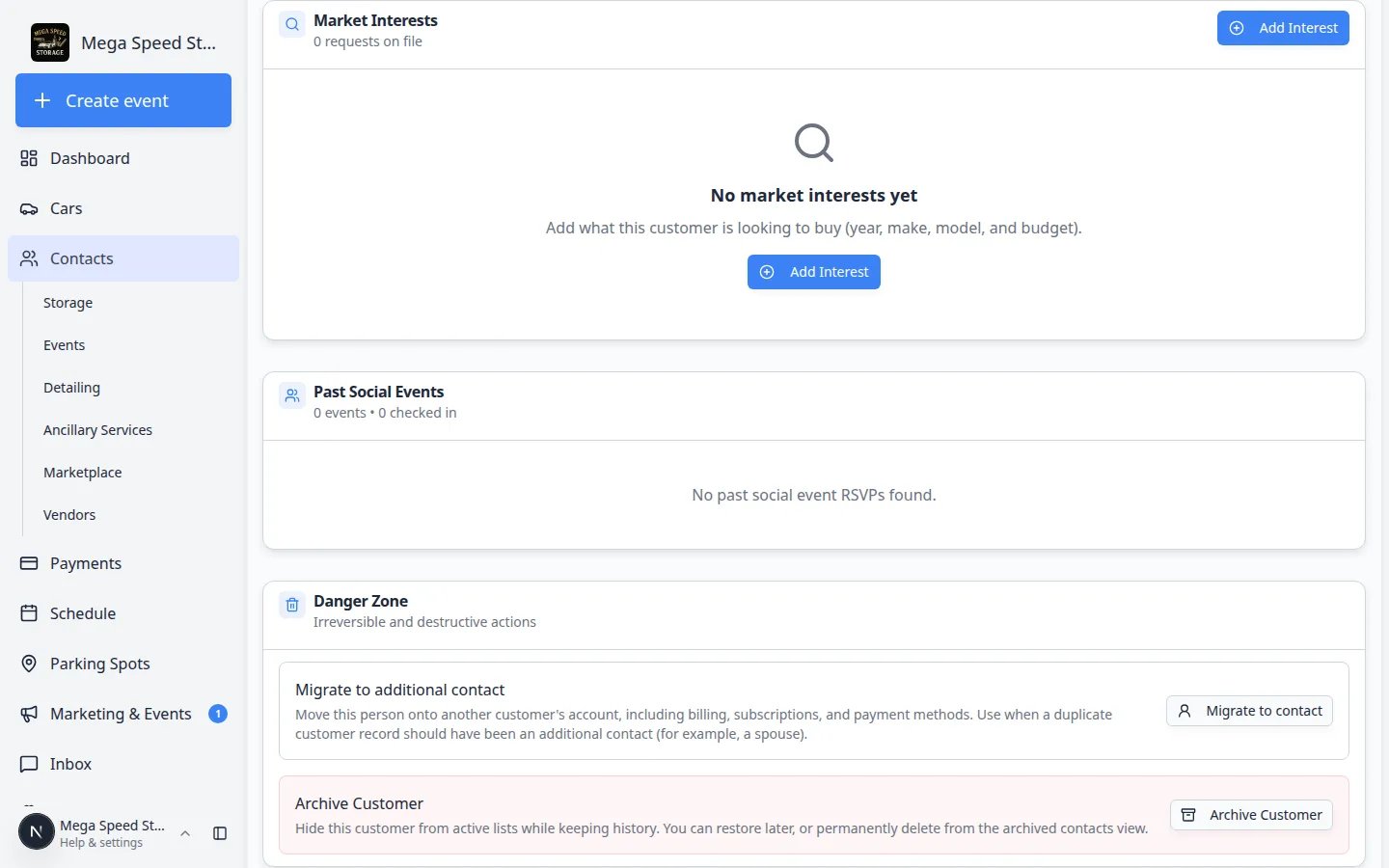 *When **Market Interests** is on, the block appears even if the list is empty. Hide it if your team never records cars a customer wants to buy.*
## Reset to the default layout
Open [Settings > CRM](https://www.carstoragesoftware.com/dashboard/settings/crm#contact-page).
Click **Reset** in the upper-right of the Contact page section.
**Expected result:** Every block turns back on, order returns to the default, and you may see a confirmation that settings were reset.
Hidden blocks reappear. Tell your team if you restored a section they had asked to hide.
## Suggested layouts
| If your facility mostly… | Consider hiding | Keep near the top |
| - | - | - |
| Stores cars and rarely sells | **Market Interests**, **QuickBooks** (if unused) | **Personal & Contact**, **Customer's Cars**, **Activity Feed** |
| Handles lots of phone calls | Nothing in the right column | **Activity Feed** and **Billing Setup** stay on the right so they stay visible while you talk |
| Does not take card payments yet | You can leave billing cards on | **Billing Setup** still shows **Set up billing** so an admin can finish [Connect payment processing](/docs/settings/connect-payment-processing) |
| Restricts who can archive customers | **Danger Zone / Recover** | Managers can still recover records from archived views; ask an admin if you are unsure |
## Troubleshooting
**A block is switched on but I still do not see it**
It is probably a **conditional** block. **Portfolio Value** needs a car. **Account Balance**, **Statement & Recurring Payments**, and **Invoice Billing & Fee Settings** need payments. **QuickBooks** needs that integration. **Onboarding** needs onboarding steps. Click **Reset** only if you also changed the order and want the defaults back.
**I do not see a Save button**
That is normal. The editor writes changes after you flip a switch or drop a card. Look for **Saving…** then **Saved** next to **Reset**.
**The switches are gray and I cannot drag**
You can view the layout but you do not have the **Contacts** permission. Ask an admin to update you in [Settings > Team](https://www.carstoragesoftware.com/dashboard/settings/team)—see [Manage team permissions](/docs/settings/manage-team-permissions).
**A teammate says Additional Contacts disappeared**
On the customer page the section is titled **Contacts**. In settings the card is **Additional Contacts**. If both are missing, someone turned the switch off. Turn it back on, then follow [Manage additional contacts](/docs/contacts/manage-additional-contacts).
**I hid the wrong block during a busy day**
Turn the switch back on, or click **Reset**. No customer data was deleted. Refresh any customer tabs that were already open so they pick up the new layout.
## What to do next
* Walk one teammate through a customer page and confirm the new order feels faster.
* Add a spouse or bookkeeper: [Manage additional contacts](/docs/contacts/manage-additional-contacts)
* Review billing status on the same page: [Manage billing on a customer record](/docs/contacts/manage-billing-on-a-customer-record)
* Use the Activity Feed during callbacks: [Review customer activity and history](/docs/contacts/review-customer-activity-and-history)
* If you also change stages or customer types, use [Configure CRM settings](/docs/settings/configure-crm-settings).
## Related topics
- [Contacts overview](/docs/contacts/overview.md)
- [Manage additional contacts](/docs/contacts/manage-additional-contacts.md)
- [Manage billing on a customer record](/docs/contacts/manage-billing-on-a-customer-record.md)
- [Review customer activity and history](/docs/contacts/review-customer-activity-and-history.md)
- [Find and filter contacts](/docs/contacts/find-and-filter-contacts.md)
This documentation is built and hosted on [Mintlify](https://mintlify.com), a developer documentation platform.
*When **Market Interests** is on, the block appears even if the list is empty. Hide it if your team never records cars a customer wants to buy.*
## Reset to the default layout
Open [Settings > CRM](https://www.carstoragesoftware.com/dashboard/settings/crm#contact-page).
Click **Reset** in the upper-right of the Contact page section.
**Expected result:** Every block turns back on, order returns to the default, and you may see a confirmation that settings were reset.
Hidden blocks reappear. Tell your team if you restored a section they had asked to hide.
## Suggested layouts
| If your facility mostly… | Consider hiding | Keep near the top |
| - | - | - |
| Stores cars and rarely sells | **Market Interests**, **QuickBooks** (if unused) | **Personal & Contact**, **Customer's Cars**, **Activity Feed** |
| Handles lots of phone calls | Nothing in the right column | **Activity Feed** and **Billing Setup** stay on the right so they stay visible while you talk |
| Does not take card payments yet | You can leave billing cards on | **Billing Setup** still shows **Set up billing** so an admin can finish [Connect payment processing](/docs/settings/connect-payment-processing) |
| Restricts who can archive customers | **Danger Zone / Recover** | Managers can still recover records from archived views; ask an admin if you are unsure |
## Troubleshooting
**A block is switched on but I still do not see it**
It is probably a **conditional** block. **Portfolio Value** needs a car. **Account Balance**, **Statement & Recurring Payments**, and **Invoice Billing & Fee Settings** need payments. **QuickBooks** needs that integration. **Onboarding** needs onboarding steps. Click **Reset** only if you also changed the order and want the defaults back.
**I do not see a Save button**
That is normal. The editor writes changes after you flip a switch or drop a card. Look for **Saving…** then **Saved** next to **Reset**.
**The switches are gray and I cannot drag**
You can view the layout but you do not have the **Contacts** permission. Ask an admin to update you in [Settings > Team](https://www.carstoragesoftware.com/dashboard/settings/team)—see [Manage team permissions](/docs/settings/manage-team-permissions).
**A teammate says Additional Contacts disappeared**
On the customer page the section is titled **Contacts**. In settings the card is **Additional Contacts**. If both are missing, someone turned the switch off. Turn it back on, then follow [Manage additional contacts](/docs/contacts/manage-additional-contacts).
**I hid the wrong block during a busy day**
Turn the switch back on, or click **Reset**. No customer data was deleted. Refresh any customer tabs that were already open so they pick up the new layout.
## What to do next
* Walk one teammate through a customer page and confirm the new order feels faster.
* Add a spouse or bookkeeper: [Manage additional contacts](/docs/contacts/manage-additional-contacts)
* Review billing status on the same page: [Manage billing on a customer record](/docs/contacts/manage-billing-on-a-customer-record)
* Use the Activity Feed during callbacks: [Review customer activity and history](/docs/contacts/review-customer-activity-and-history)
* If you also change stages or customer types, use [Configure CRM settings](/docs/settings/configure-crm-settings).
## Related topics
- [Contacts overview](/docs/contacts/overview.md)
- [Manage additional contacts](/docs/contacts/manage-additional-contacts.md)
- [Manage billing on a customer record](/docs/contacts/manage-billing-on-a-customer-record.md)
- [Review customer activity and history](/docs/contacts/review-customer-activity-and-history.md)
- [Find and filter contacts](/docs/contacts/find-and-filter-contacts.md)
This documentation is built and hosted on [Mintlify](https://mintlify.com), a developer documentation platform.