> ## Documentation Index
> Fetch the complete documentation index at: https://www.carstoragesoftware.com/docs/llms.txt
> Use this file to discover all available pages before exploring further.
# Turn on custom statuses for an event type
> Show your team's progress labels on one service so the calendar and Progress board match how the shop actually works.
## What you will accomplish
You will turn on **Enable Custom Statuses** for one service and attach the labels your team already uses—such as **Queued for shop**, **In the bay**, **Waiting on parts**, and **Ready for owner**.
After that, staff can change the label on the event. The [Schedule](https://www.carstoragesoftware.com/dashboard/schedule) **Progress** view can show those labels as columns. Everyone sees the same picture of what is waiting, active, stuck, or finished.
## When to use this
Turn custom statuses on when the built-in labels (**To Do**, **In Progress**, **Done**) are not specific enough.
Good fits:
* Shop work that pauses for parts (**Waiting on parts**).
* A busy service day where you need to see which cars are **In the bay**.
* Handoffs where the last step is **Ready for owner**, not only **Done**.
Leave the switch off for simple visits that only need scheduled vs finished.
**Create the labels first if the library is empty**
Statuses are shared across the facility. You can create a new label from this page with **Add status** → **Create new custom status…**, or build the library first in [Manage custom statuses and amenities](/docs/settings/manage-custom-statuses-and-amenities).
This guide is about **turning the labels on for one event type**. A status you never attach here will not appear on that service.
## Before you start
* You can open [Settings > Services & schedule](https://www.carstoragesoftware.com/dashboard/settings/events) as an owner or admin.
* The event type already exists. If not, start with [Configure event types](/docs/events/configure-event-types).
* Agree on three to five labels the floor team will actually say out loud. More labels slow people down.
* Know which built-in bucket each label belongs to: **To Do**, **In Progress**, **Blocked**, or **Done**.
## Open the service and turn on Enable Custom Statuses
Go to [Settings > Services & schedule](https://www.carstoragesoftware.com/dashboard/settings/events).
Find the service—for example **Internal Service**—and click **Advanced**.
**Expected result:** The **Edit Event Type** page opens and saves as you work.
The switch sits just below **Checklist Items** (if you use a checklist).
The helper text explains that these statuses appear on the calendar and progress board. Each one maps to **To Do**, **In Progress**, **Blocked**, or **Done** so billing, reporting, and notifications stay consistent.
Flip **Enable Custom Statuses** on.
**Expected result:** A **Custom Statuses** table appears. If nothing is attached yet, you see **No custom statuses assigned yet**.
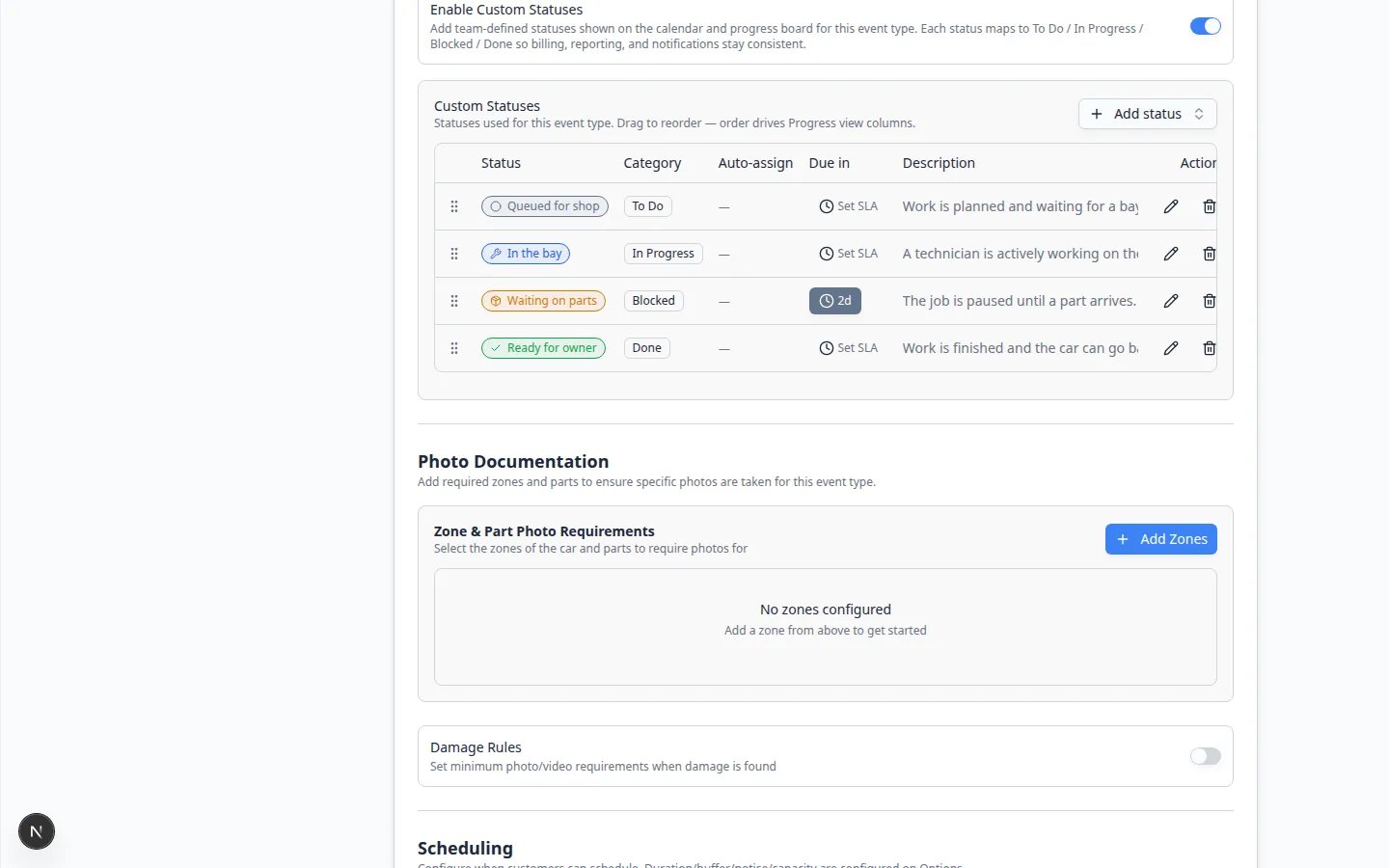 *Attach only the labels this service needs. **Category** keeps each label in To Do, In Progress, Blocked, or Done. Drag the handle to change column order on the Progress board.*
## Add statuses to this service
Click **Add status** on the right of the **Custom Statuses** heading.
**Expected result:** A search list opens with **Search statuses…**, plus groups named **Defaults**, **Team library** (if you already created labels), and **Create**.
Under **Defaults**, click **To Do**, **In Progress**, **Blocked**, or **Done**.
Use this when you have not named shop-specific labels yet.
If your facility already created names such as **Waiting on parts**, click that row.
**Expected result:** The table gains a row with the name, category, and description.
Click **Create new custom status…**. Fill in the name, description, category, color, and icon the same way you would in [Manage custom statuses and amenities](/docs/settings/manage-custom-statuses-and-amenities).
**Expected result:** The new label is saved to the team library **and** attached to this event type.
*Attach only the labels this service needs. **Category** keeps each label in To Do, In Progress, Blocked, or Done. Drag the handle to change column order on the Progress board.*
## Add statuses to this service
Click **Add status** on the right of the **Custom Statuses** heading.
**Expected result:** A search list opens with **Search statuses…**, plus groups named **Defaults**, **Team library** (if you already created labels), and **Create**.
Under **Defaults**, click **To Do**, **In Progress**, **Blocked**, or **Done**.
Use this when you have not named shop-specific labels yet.
If your facility already created names such as **Waiting on parts**, click that row.
**Expected result:** The table gains a row with the name, category, and description.
Click **Create new custom status…**. Fill in the name, description, category, color, and icon the same way you would in [Manage custom statuses and amenities](/docs/settings/manage-custom-statuses-and-amenities).
**Expected result:** The new label is saved to the team library **and** attached to this event type.
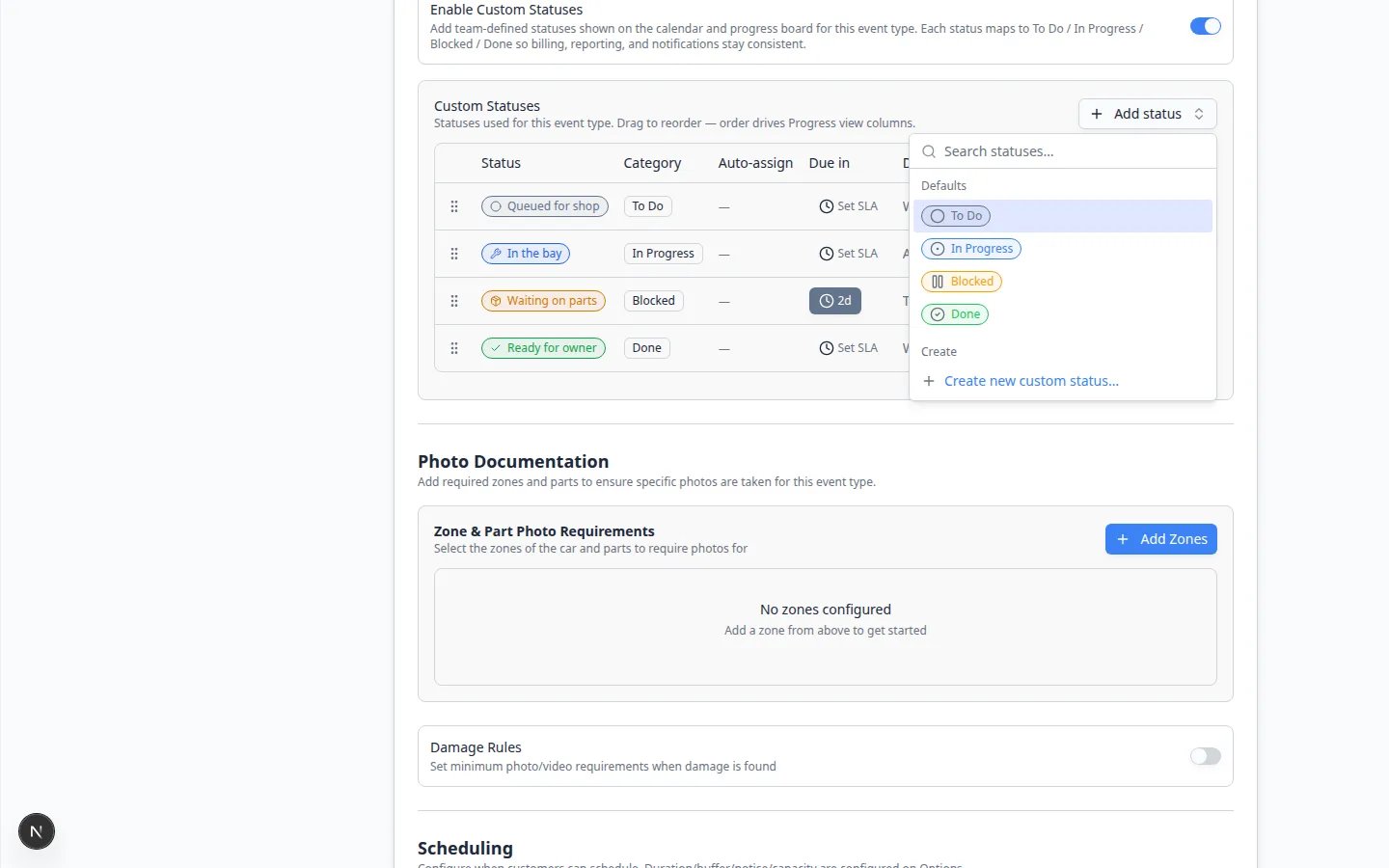 ***Add status** lets you reuse **Defaults**, pick from **Team library**, or **Create new custom status…**. Already-attached defaults may show as **Added**.*
## Understand the table columns
| Column | What it means |
| - | - |
| **Status** | The name staff see (for example **In the bay**). |
| **Category** | The built-in bucket: **To Do**, **In Progress**, **Blocked**, or **Done**. |
| **Auto-assign** | An optional teammate who is added when this status is chosen. |
| **Due in** | Optional time limit for how long a job should stay in this status. Click **Set SLA** if waiting too long should show as overdue. |
| **Description** | A short note so new staff pick the right label. |
Drag the handle on the left to reorder rows. The order becomes the column order on the **Progress** view when staff filter to this event type.
Use the pencil to edit a label. Use the trash can to remove it from **this** service. Removing it here does not always delete it from the team library.
## See the labels where staff work
On [Schedule](https://www.carstoragesoftware.com/dashboard/schedule), open an appointment that uses this event type. Click **Open Event**.
At the top of the walkthrough you should see the current label—for example **Queued for shop**.
**Expected result:** Staff can change the label as the job moves (queued → in the bay → ready for owner).
Go to [Schedule](https://www.carstoragesoftware.com/dashboard/schedule). Open **Filters & settings**, then choose **Progress**.
**Expected result:** You see columns that match the labels you attached, grouped by To Do / In Progress / Blocked / Done. See [Track work in the Progress view](/docs/schedule/track-work-in-progress-view).
***Add status** lets you reuse **Defaults**, pick from **Team library**, or **Create new custom status…**. Already-attached defaults may show as **Added**.*
## Understand the table columns
| Column | What it means |
| - | - |
| **Status** | The name staff see (for example **In the bay**). |
| **Category** | The built-in bucket: **To Do**, **In Progress**, **Blocked**, or **Done**. |
| **Auto-assign** | An optional teammate who is added when this status is chosen. |
| **Due in** | Optional time limit for how long a job should stay in this status. Click **Set SLA** if waiting too long should show as overdue. |
| **Description** | A short note so new staff pick the right label. |
Drag the handle on the left to reorder rows. The order becomes the column order on the **Progress** view when staff filter to this event type.
Use the pencil to edit a label. Use the trash can to remove it from **this** service. Removing it here does not always delete it from the team library.
## See the labels where staff work
On [Schedule](https://www.carstoragesoftware.com/dashboard/schedule), open an appointment that uses this event type. Click **Open Event**.
At the top of the walkthrough you should see the current label—for example **Queued for shop**.
**Expected result:** Staff can change the label as the job moves (queued → in the bay → ready for owner).
Go to [Schedule](https://www.carstoragesoftware.com/dashboard/schedule). Open **Filters & settings**, then choose **Progress**.
**Expected result:** You see columns that match the labels you attached, grouped by To Do / In Progress / Blocked / Done. See [Track work in the Progress view](/docs/schedule/track-work-in-progress-view).
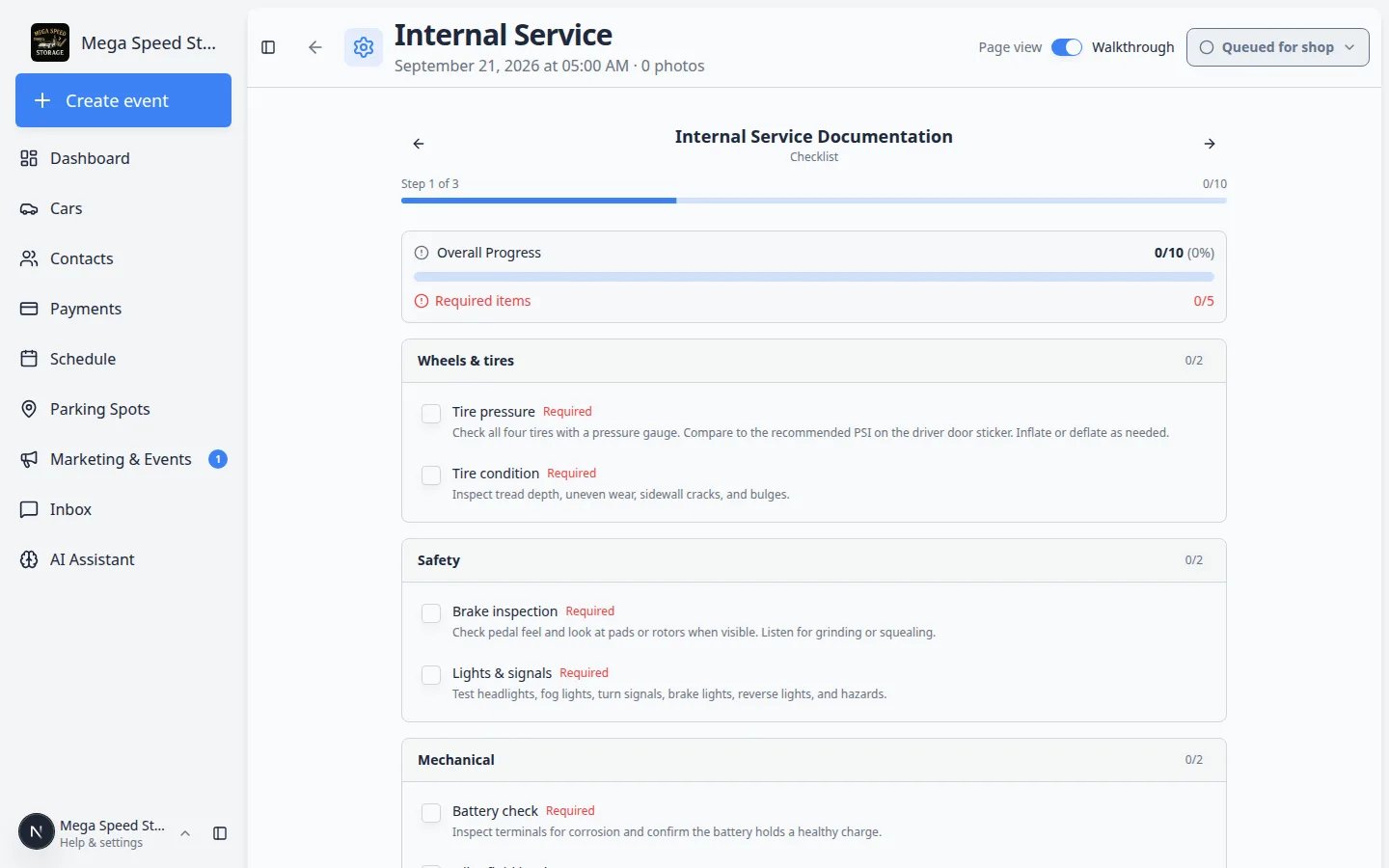 *After the switch is on, the event header shows the current custom status (here **Queued for shop**). Staff change it as the job moves.*
## What success looks like
* This service shows the shop's real words—not only To Do and Done.
* A blocked job (**Waiting on parts**) is easy to spot on the Progress board.
* Each label still maps to To Do / In Progress / Blocked / Done, so reports stay comparable.
* Teammates do not invent extra names in the notes field.
## Troubleshooting
**Staff still only see To Do, In Progress, and Done**
Confirm **Enable Custom Statuses** is on **and** at least one status is listed in the table. A switch with an empty table does not change the calendar.
**The new label exists in Settings but not on this event**
Creating a status in [Manage custom statuses and amenities](/docs/settings/manage-custom-statuses-and-amenities) only adds it to the library. Return here, click **Add status**, and attach it to this event type.
**The Progress board columns look wrong**
Drag the rows in the **Custom Statuses** table. Column order follows this list when staff filter to this event type.
**I do not see Enable Custom Statuses**
Open **Advanced** on the service card, not only the guided **Set up** wizard. The switch is on the full **Edit Event Type** page.
## What to do next
If this service also needs a check-off list during the visit, continue with [Set up event checklists](/docs/events/set-up-event-checklists).
To rename or color labels for the whole facility, use [Manage custom statuses and amenities](/docs/settings/manage-custom-statuses-and-amenities).
Then run [Test an event setup](/docs/events/test-an-event-setup) and show the floor team where to change the status on **Open Event**.
## Related topics
- [Configure scheduling and booking options](/docs/events/configure-scheduling-and-booking-options.md)
- [Set up event checklists](/docs/events/set-up-event-checklists.md)
- [Manage custom statuses and amenities](/docs/settings/manage-custom-statuses-and-amenities.md)
- [Track work in the Progress view](/docs/schedule/track-work-in-progress-view.md)
- [Set up event notifications and reminders](/docs/events/set-up-event-notifications-and-reminders.md)
This documentation is built and hosted on [Mintlify](https://mintlify.com), a developer documentation platform.
*After the switch is on, the event header shows the current custom status (here **Queued for shop**). Staff change it as the job moves.*
## What success looks like
* This service shows the shop's real words—not only To Do and Done.
* A blocked job (**Waiting on parts**) is easy to spot on the Progress board.
* Each label still maps to To Do / In Progress / Blocked / Done, so reports stay comparable.
* Teammates do not invent extra names in the notes field.
## Troubleshooting
**Staff still only see To Do, In Progress, and Done**
Confirm **Enable Custom Statuses** is on **and** at least one status is listed in the table. A switch with an empty table does not change the calendar.
**The new label exists in Settings but not on this event**
Creating a status in [Manage custom statuses and amenities](/docs/settings/manage-custom-statuses-and-amenities) only adds it to the library. Return here, click **Add status**, and attach it to this event type.
**The Progress board columns look wrong**
Drag the rows in the **Custom Statuses** table. Column order follows this list when staff filter to this event type.
**I do not see Enable Custom Statuses**
Open **Advanced** on the service card, not only the guided **Set up** wizard. The switch is on the full **Edit Event Type** page.
## What to do next
If this service also needs a check-off list during the visit, continue with [Set up event checklists](/docs/events/set-up-event-checklists).
To rename or color labels for the whole facility, use [Manage custom statuses and amenities](/docs/settings/manage-custom-statuses-and-amenities).
Then run [Test an event setup](/docs/events/test-an-event-setup) and show the floor team where to change the status on **Open Event**.
## Related topics
- [Configure scheduling and booking options](/docs/events/configure-scheduling-and-booking-options.md)
- [Set up event checklists](/docs/events/set-up-event-checklists.md)
- [Manage custom statuses and amenities](/docs/settings/manage-custom-statuses-and-amenities.md)
- [Track work in the Progress view](/docs/schedule/track-work-in-progress-view.md)
- [Set up event notifications and reminders](/docs/events/set-up-event-notifications-and-reminders.md)
This documentation is built and hosted on [Mintlify](https://mintlify.com), a developer documentation platform.