> ## Documentation Index
> Fetch the complete documentation index at: https://www.carstoragesoftware.com/docs/llms.txt
> Use this file to discover all available pages before exploring further.
# Configure the customer shop
> Choose how signed-in customers see prices, product options, and filter tags on the Shop page.
## What you will accomplish
Signed-in customers will open **Shop** in the customer app and see products that are easy to scan: grouped options when you want one card per product, prices that match how you talk about cost, and filter tags in a helpful order.
When you finish, your team can explain a price on the phone and have it match what the customer sees on their screen.
## When to use this guide
Use this guide when customers buy storage plans, services, or memberships from the signed-in **Shop** page.
You might need this when:
* A customer says the shop price does not match the invoice
* One product has several price options and the list looks too long
* You added tags such as **Storage**, **Detailing**, or **Membership** and want them in a clear order
* You are about to invite customers to pay online for the first time
**Shop is not the same as the public marketplace**
**Shop** is what **signed-in customers** see in the customer app (the **Shop** tab).
The **public marketplace** is what **anyone with the link** can open to browse cars or products. See [Publish marketplace listings](/docs/facility-web-pages/publish-marketplace-listings) for the public page, and [Test marketplace checkout](/docs/facility-web-pages/test-marketplace-checkout) before you share a buy link.
## Before you start
* You can open [Settings > Website & customer app](https://www.carstoragesoftware.com/dashboard/settings/website).
* At least one product or plan exists in [Payments > Products and services](https://www.carstoragesoftware.com/dashboard/payments/products).
* If you will collect payment, finish [Connect payment processing](/docs/settings/connect-payment-processing) first.
* You know whether customers should see tax and processing fees **in** the listed price, or added later at checkout.
**Checkout still charges the correct total**
The Shop switches only change **how list prices look**. Checkout still collects the right tax and fees. Turn the switches on when you want the card price to look like the final card or ACH total.
## Step 1: Open the Shop page in Customer app
In the dashboard sidebar, open **Settings**, then **Website & customer app**.
You can also go directly to [Settings > Website & customer app](https://www.carstoragesoftware.com/dashboard/settings/website).
**Expected result:** The page title is **Website & customer app**. You see **Shareable links** at the top.
Scroll to the **Customer app** section.
**Expected result:** You see a phone-sized live preview and a row of page names such as **Home**, **Events**, **Cars**, **Schedule**, **Shop**, **Billing**, **Documents**, and **Settings**.
Click **Shop** in that page row (labeled **Customer app pages**).
**Why this matters:** Shop settings only appear after you select **Shop**. If you stay on **Home**, you will edit the home screen instead.
**Expected result:** The editor shows **Shop catalog** and **Shop filter tags**. The preview shows the Shop page.
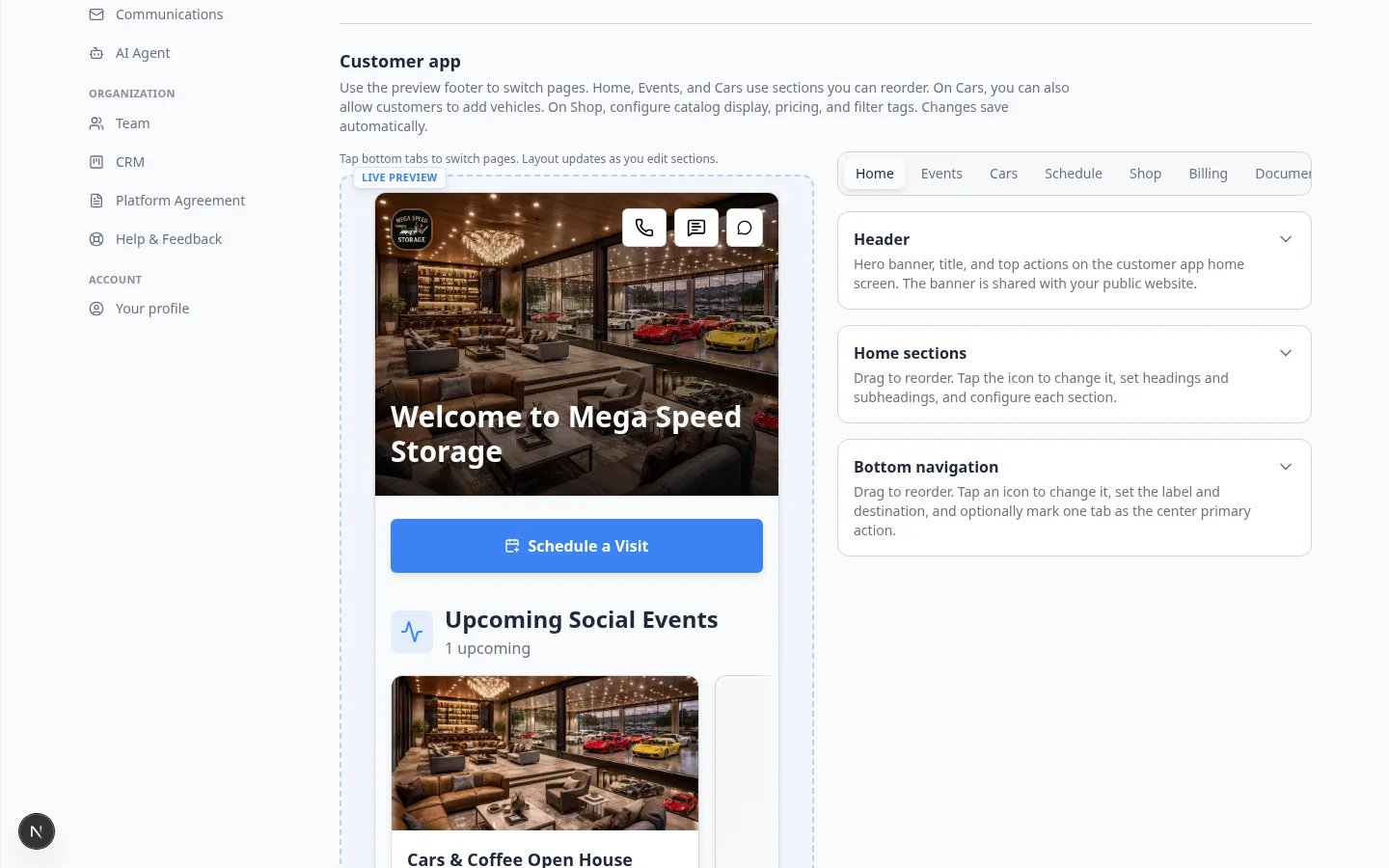 *Click **Shop** in the page row under **Customer app**. This is how you switch from the home screen to shop settings.*
## Step 2: Set Shop catalog display
**Shop catalog** controls how product cards look.
On the **Shop** page, expand **Shop catalog** if it is collapsed.
**Expected result:** You see three switches: **Group product options**, **Show prices including tax**, and **Show prices including processing fees**.
Turn **Group product options** **on** when one product has several prices (for example Indoor / Outdoor, or Monthly / Annual).
Customers see one card, then click through to pick an option.
Turn it **off** when every price should appear as its own card on the list.
**Why this matters:** A long list of nearly identical cards is hard to scan on a phone. Grouping keeps the shop short.
Turn **Show prices including tax** **on** when you want shop cards to show the tax-included total.
Turn it **off** when you want the card to show the amount **before** tax.
Checkout still adds the correct tax either way.
Turn **Show prices including processing fees** **on** when the card should show the card or bank fee already included.
Turn it **off** when the card should show the service amount **before** those fees.
**Expected result:** Each switch saves on its own. You may see a short **Saved** message. The phone preview updates to match.
*Click **Shop** in the page row under **Customer app**. This is how you switch from the home screen to shop settings.*
## Step 2: Set Shop catalog display
**Shop catalog** controls how product cards look.
On the **Shop** page, expand **Shop catalog** if it is collapsed.
**Expected result:** You see three switches: **Group product options**, **Show prices including tax**, and **Show prices including processing fees**.
Turn **Group product options** **on** when one product has several prices (for example Indoor / Outdoor, or Monthly / Annual).
Customers see one card, then click through to pick an option.
Turn it **off** when every price should appear as its own card on the list.
**Why this matters:** A long list of nearly identical cards is hard to scan on a phone. Grouping keeps the shop short.
Turn **Show prices including tax** **on** when you want shop cards to show the tax-included total.
Turn it **off** when you want the card to show the amount **before** tax.
Checkout still adds the correct tax either way.
Turn **Show prices including processing fees** **on** when the card should show the card or bank fee already included.
Turn it **off** when the card should show the service amount **before** those fees.
**Expected result:** Each switch saves on its own. You may see a short **Saved** message. The phone preview updates to match.
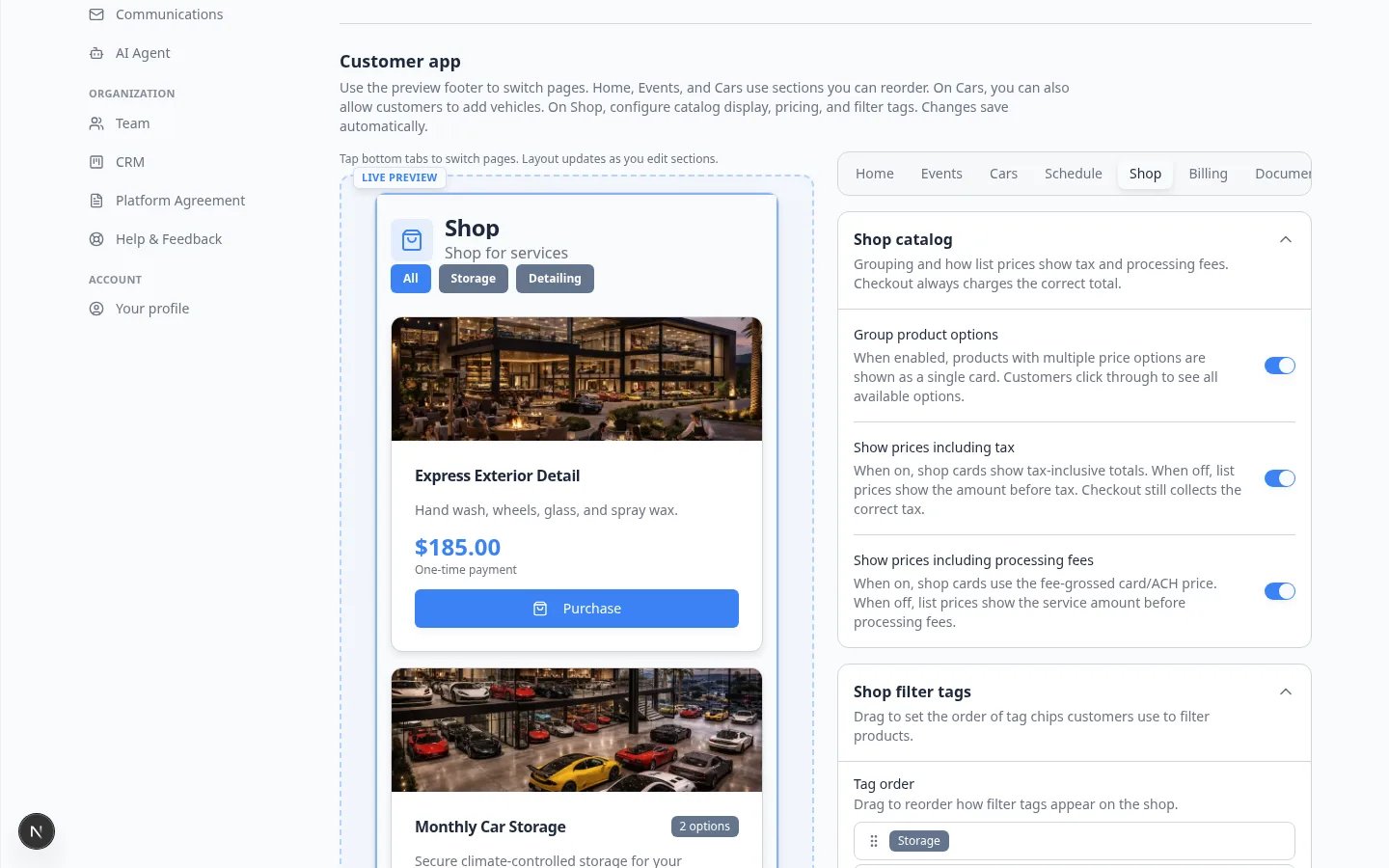 ***Shop catalog** has three switches. Changes save automatically. Checkout still charges the correct total.*
### What each switch means in plain English
| Switch | When it is on | When it is off |
| - | - | - |
| **Group product options** | One card per product. The customer opens it to see every price option. | Each price option is its own card on the shop list. |
| **Show prices including tax** | The number on the card includes tax. | The number on the card is before tax. |
| **Show prices including processing fees** | The number on the card includes card or bank fees. | The number on the card is the service amount only. |
## Step 3: Put filter tags in a helpful order
**Shop filter tags** are the chips customers tap to narrow the list (for example **Storage**, **Detailing**, **Membership**).
Tags come from each product. You add them on the product in [Payments > Products and services](https://www.carstoragesoftware.com/dashboard/payments/products). This settings page only **orders** tags that already exist.
Still on the **Shop** page, expand **Shop filter tags**.
Open [Payments > Products and services](https://www.carstoragesoftware.com/dashboard/payments/products), edit a product, and add customer-facing tags such as **Storage** or **Detailing**.
Come back to **Shop filter tags**. The tags appear after you save the product.
**Why this matters:** Empty tag chips confuse customers. Add tags only when you have more than one kind of product.
Drag the handle on the left of each tag.
Put the most common choice first. Many facilities use: **Storage** → **Services** → **Membership**.
After you drag, click **Save** if a Save button appears.
**Expected result:** The preview filter chips match the new order.
***Shop catalog** has three switches. Changes save automatically. Checkout still charges the correct total.*
### What each switch means in plain English
| Switch | When it is on | When it is off |
| - | - | - |
| **Group product options** | One card per product. The customer opens it to see every price option. | Each price option is its own card on the shop list. |
| **Show prices including tax** | The number on the card includes tax. | The number on the card is before tax. |
| **Show prices including processing fees** | The number on the card includes card or bank fees. | The number on the card is the service amount only. |
## Step 3: Put filter tags in a helpful order
**Shop filter tags** are the chips customers tap to narrow the list (for example **Storage**, **Detailing**, **Membership**).
Tags come from each product. You add them on the product in [Payments > Products and services](https://www.carstoragesoftware.com/dashboard/payments/products). This settings page only **orders** tags that already exist.
Still on the **Shop** page, expand **Shop filter tags**.
Open [Payments > Products and services](https://www.carstoragesoftware.com/dashboard/payments/products), edit a product, and add customer-facing tags such as **Storage** or **Detailing**.
Come back to **Shop filter tags**. The tags appear after you save the product.
**Why this matters:** Empty tag chips confuse customers. Add tags only when you have more than one kind of product.
Drag the handle on the left of each tag.
Put the most common choice first. Many facilities use: **Storage** → **Services** → **Membership**.
After you drag, click **Save** if a Save button appears.
**Expected result:** The preview filter chips match the new order.
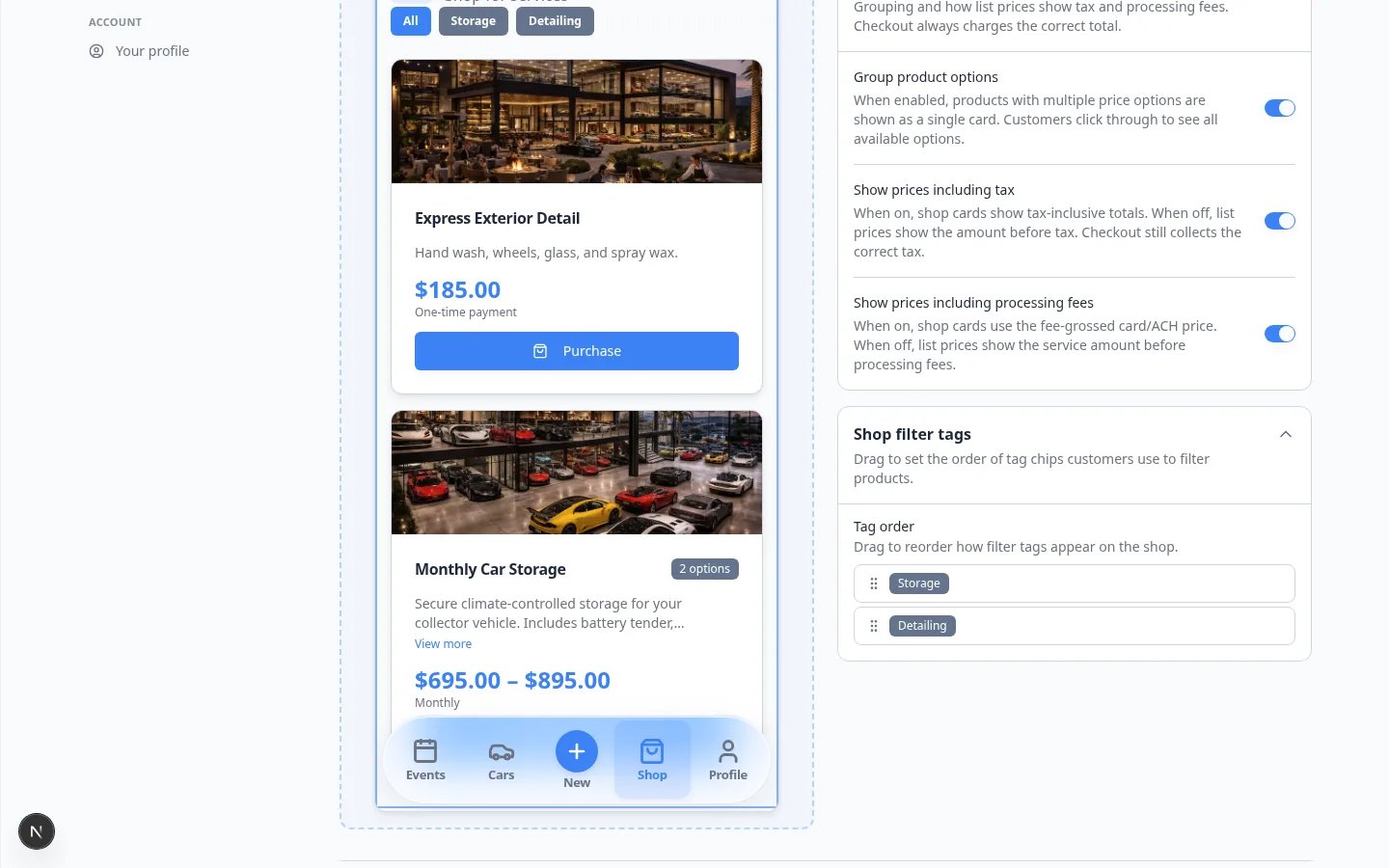 *Drag tags into the order customers should tap first. Click **Save** if it appears after you reorder.*
**Keep tag names short**
Use one or two words customers already say, such as **Storage** or **Detail**. Avoid staff codes such as **SKU-INT-01**.
## Step 4: Confirm Shop appears in bottom navigation
If customers cannot find Shop, the **Shop** tab may be missing from **bottom navigation** on the **Home** page.
In **Customer app**, click **Home**.
Expand **Bottom navigation**. Confirm a tab labeled **Shop** (or similar) is present and points to the shop page.
If you removed it earlier, click **Add nav item** and add Shop back.
See [Customize the customer mobile app](/docs/facility-web-pages/customize-the-customer-mobile-app) for home screen and tab help.
## Step 5: Preview like a customer
Scroll to **Shareable links** at the top of the same settings page. Click **Copy** on **Customer login**.
Use a private or incognito window so you are not signed in as staff.
Enter an email from a test customer in [Contacts](https://www.carstoragesoftware.com/dashboard/contacts).
Open **Shop** from the bottom tabs.
**Expected result:** Product names, grouped options, prices, and tag chips match the preview you set in **Customer app**.
*Drag tags into the order customers should tap first. Click **Save** if it appears after you reorder.*
**Keep tag names short**
Use one or two words customers already say, such as **Storage** or **Detail**. Avoid staff codes such as **SKU-INT-01**.
## Step 4: Confirm Shop appears in bottom navigation
If customers cannot find Shop, the **Shop** tab may be missing from **bottom navigation** on the **Home** page.
In **Customer app**, click **Home**.
Expand **Bottom navigation**. Confirm a tab labeled **Shop** (or similar) is present and points to the shop page.
If you removed it earlier, click **Add nav item** and add Shop back.
See [Customize the customer mobile app](/docs/facility-web-pages/customize-the-customer-mobile-app) for home screen and tab help.
## Step 5: Preview like a customer
Scroll to **Shareable links** at the top of the same settings page. Click **Copy** on **Customer login**.
Use a private or incognito window so you are not signed in as staff.
Enter an email from a test customer in [Contacts](https://www.carstoragesoftware.com/dashboard/contacts).
Open **Shop** from the bottom tabs.
**Expected result:** Product names, grouped options, prices, and tag chips match the preview you set in **Customer app**.
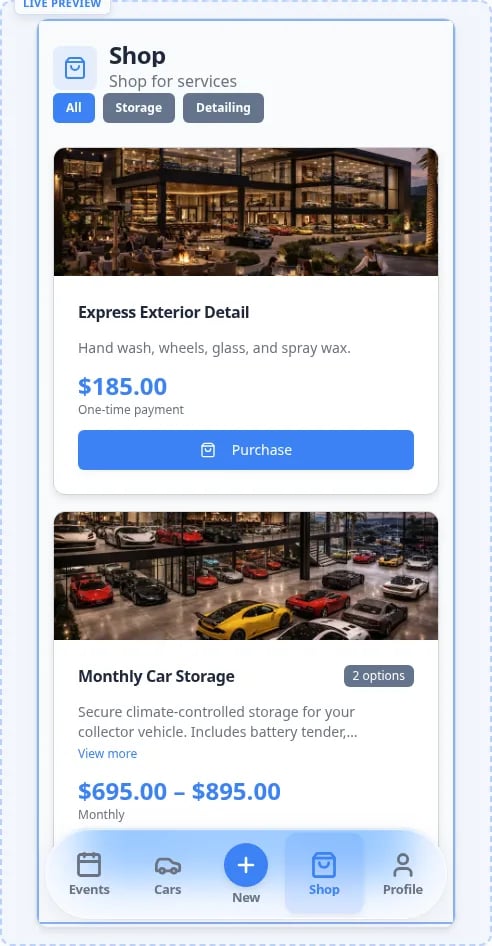 *After sign-in, **Shop** should match the catalog switches and tag order you set. Grouped storage shows one card with a price range. If it does not match, refresh or sign out and back in.*
## What success looks like
* You opened **Shop** from the page row in [Settings > Website & customer app](https://www.carstoragesoftware.com/dashboard/settings/website).
* **Group product options** matches how you want the list to look.
* Tax and fee switches match how your team quotes prices on the phone.
* Filter tags are in a customer-friendly order—or hidden because you have no tags yet.
* A test customer can open **Shop** from the customer app and see the same layout.
## Troubleshooting
**I do not see Shop catalog**
Click **Shop** in the page row under **Customer app**. Those settings do not appear on **Home**.
**The shop looks empty**
Add or turn on products in [Payments > Products and services](https://www.carstoragesoftware.com/dashboard/payments/products). Confirm the item is active and set to show to customers. Then refresh the preview.
**The customer sees a different price than I quoted**
Check **Show prices including tax** and **Show prices including processing fees**. Then walk through [Test marketplace checkout](/docs/facility-web-pages/test-marketplace-checkout) so the checkout total matches your quote.
**No shop tags yet**
Tags appear here only after you add them on a product. Open the product, add short tags, then return to **Shop filter tags**.
**Customers cannot find Shop**
On **Home**, check **Bottom navigation** for a **Shop** tab. Also confirm [Connect payment processing](/docs/settings/connect-payment-processing) is ready before you ask customers to pay.
## What to do next
* [Let customers add their own cars](/docs/facility-web-pages/let-customers-add-their-own-cars) if owners should add vehicles from the **Cars** page
* [Publish marketplace listings](/docs/facility-web-pages/publish-marketplace-listings) if guests should browse without signing in
* [Test marketplace checkout](/docs/facility-web-pages/test-marketplace-checkout) before you share a buy link
* [Go live checklist for public pages](/docs/facility-web-pages/go-live-checklist-for-public-pages) before a wide launch
## Related topics
- [Customize the customer mobile app](/docs/facility-web-pages/customize-the-customer-mobile-app.md)
- [Let customers add their own cars](/docs/facility-web-pages/let-customers-add-their-own-cars.md)
- [Go live checklist for public pages](/docs/facility-web-pages/go-live-checklist-for-public-pages.md)
- [Facility Web Pages overview](/docs/facility-web-pages/overview.md)
- [Configure customer onboarding](/docs/settings/configure-customer-onboarding.md)
This documentation is built and hosted on [Mintlify](https://mintlify.com), a developer documentation platform.
*After sign-in, **Shop** should match the catalog switches and tag order you set. Grouped storage shows one card with a price range. If it does not match, refresh or sign out and back in.*
## What success looks like
* You opened **Shop** from the page row in [Settings > Website & customer app](https://www.carstoragesoftware.com/dashboard/settings/website).
* **Group product options** matches how you want the list to look.
* Tax and fee switches match how your team quotes prices on the phone.
* Filter tags are in a customer-friendly order—or hidden because you have no tags yet.
* A test customer can open **Shop** from the customer app and see the same layout.
## Troubleshooting
**I do not see Shop catalog**
Click **Shop** in the page row under **Customer app**. Those settings do not appear on **Home**.
**The shop looks empty**
Add or turn on products in [Payments > Products and services](https://www.carstoragesoftware.com/dashboard/payments/products). Confirm the item is active and set to show to customers. Then refresh the preview.
**The customer sees a different price than I quoted**
Check **Show prices including tax** and **Show prices including processing fees**. Then walk through [Test marketplace checkout](/docs/facility-web-pages/test-marketplace-checkout) so the checkout total matches your quote.
**No shop tags yet**
Tags appear here only after you add them on a product. Open the product, add short tags, then return to **Shop filter tags**.
**Customers cannot find Shop**
On **Home**, check **Bottom navigation** for a **Shop** tab. Also confirm [Connect payment processing](/docs/settings/connect-payment-processing) is ready before you ask customers to pay.
## What to do next
* [Let customers add their own cars](/docs/facility-web-pages/let-customers-add-their-own-cars) if owners should add vehicles from the **Cars** page
* [Publish marketplace listings](/docs/facility-web-pages/publish-marketplace-listings) if guests should browse without signing in
* [Test marketplace checkout](/docs/facility-web-pages/test-marketplace-checkout) before you share a buy link
* [Go live checklist for public pages](/docs/facility-web-pages/go-live-checklist-for-public-pages) before a wide launch
## Related topics
- [Customize the customer mobile app](/docs/facility-web-pages/customize-the-customer-mobile-app.md)
- [Let customers add their own cars](/docs/facility-web-pages/let-customers-add-their-own-cars.md)
- [Go live checklist for public pages](/docs/facility-web-pages/go-live-checklist-for-public-pages.md)
- [Facility Web Pages overview](/docs/facility-web-pages/overview.md)
- [Configure customer onboarding](/docs/settings/configure-customer-onboarding.md)
This documentation is built and hosted on [Mintlify](https://mintlify.com), a developer documentation platform.