> ## Documentation Index
> Fetch the complete documentation index at: https://www.carstoragesoftware.com/docs/llms.txt
> Use this file to discover all available pages before exploring further.
# When a customer accepts a quote
> Follow what happens after a customer says yes to your pricing, and confirm the invoice or recurring plan was created.
## What you will accomplish
You will know what the customer sees when they accept a quote, what your team should check afterward, and where the money record appears.
A **quote** is a price the customer reviews **before** you start billable work. When they accept it, Car Storage Software usually creates the matching bill for you.
**Quote** — “Here is what we propose to charge. Please review and approve.”
**Accept Quote & Pay** — The customer’s formal yes. The amount they approved can then be collected.
**Invoice** — The bill that is ready to be paid (one-time work).
**Recurring plan** — The repeat charge that continues on a schedule (monthly storage or a membership).
## When you would use this guide
* You already sent a quote and the customer says they accepted it—or they asked what happens next.
* You need to tell a customer, in plain words, what **Accept Quote & Pay** will do.
* You want to confirm the new invoice or monthly plan matches the approved price.
This guide starts **after** the quote exists. To build and send the quote, use [Create a quote](/docs/payments/create-a-quote).
## Before you start
* An owner or admin has turned on quotes in [Settings > Billing](https://www.carstoragesoftware.com/dashboard/settings/billing).
* The quote is on [Payments > Quotes](https://www.carstoragesoftware.com/dashboard/payments/quotes) with a status of **Open** (ready for the customer) or **Accepted** (already approved).
* The customer can open email or the customer portal. They do not need to use the staff dashboard.
**Draft is not ready for the customer**
A **Draft** quote is only for your team. The customer cannot accept it until someone on your team finalizes and sends it. Open the quote and use **Resend Email** if they never received the link.
## Find the quote on your team list
Go to [Payments > Quotes](https://www.carstoragesoftware.com/dashboard/payments/quotes).
**Expected result:** You see each quote, the customer, the amount, and a status such as **Draft**, **Open**, or **Accepted**.
Click the row for that customer. In this example, **Sam Rivera** has an **Open** quote for an interior detail.
**Expected result:** The quote detail page shows the line items, total, and expiration date.
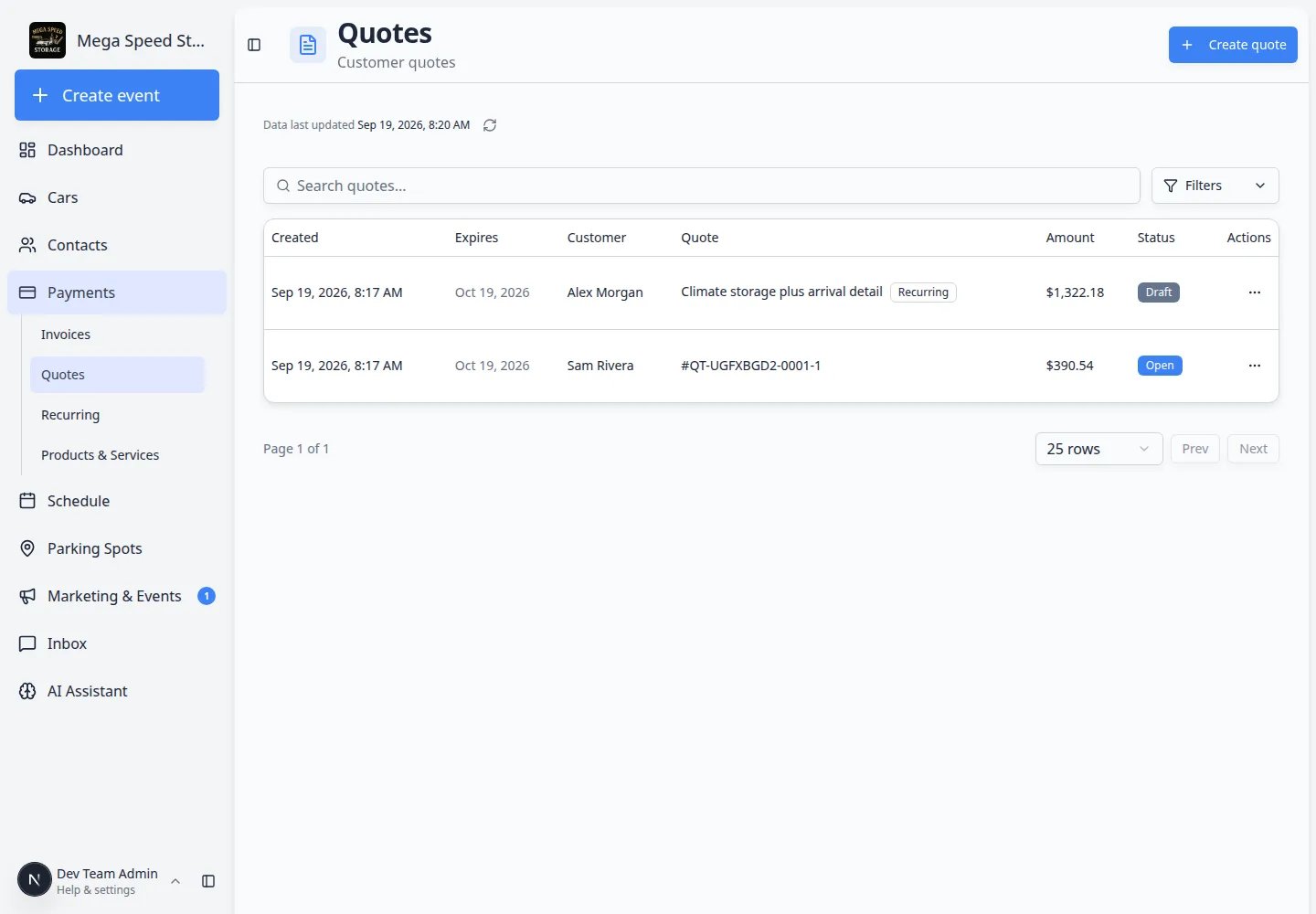 ***Open** means the customer can still accept. **Draft** is only visible to your team until you send it.*
## What your team sees on an open quote
The staff quote page is your source of truth while you wait.
***Open** means the customer can still accept. **Draft** is only visible to your team until you send it.*
## What your team sees on an open quote
The staff quote page is your source of truth while you wait.
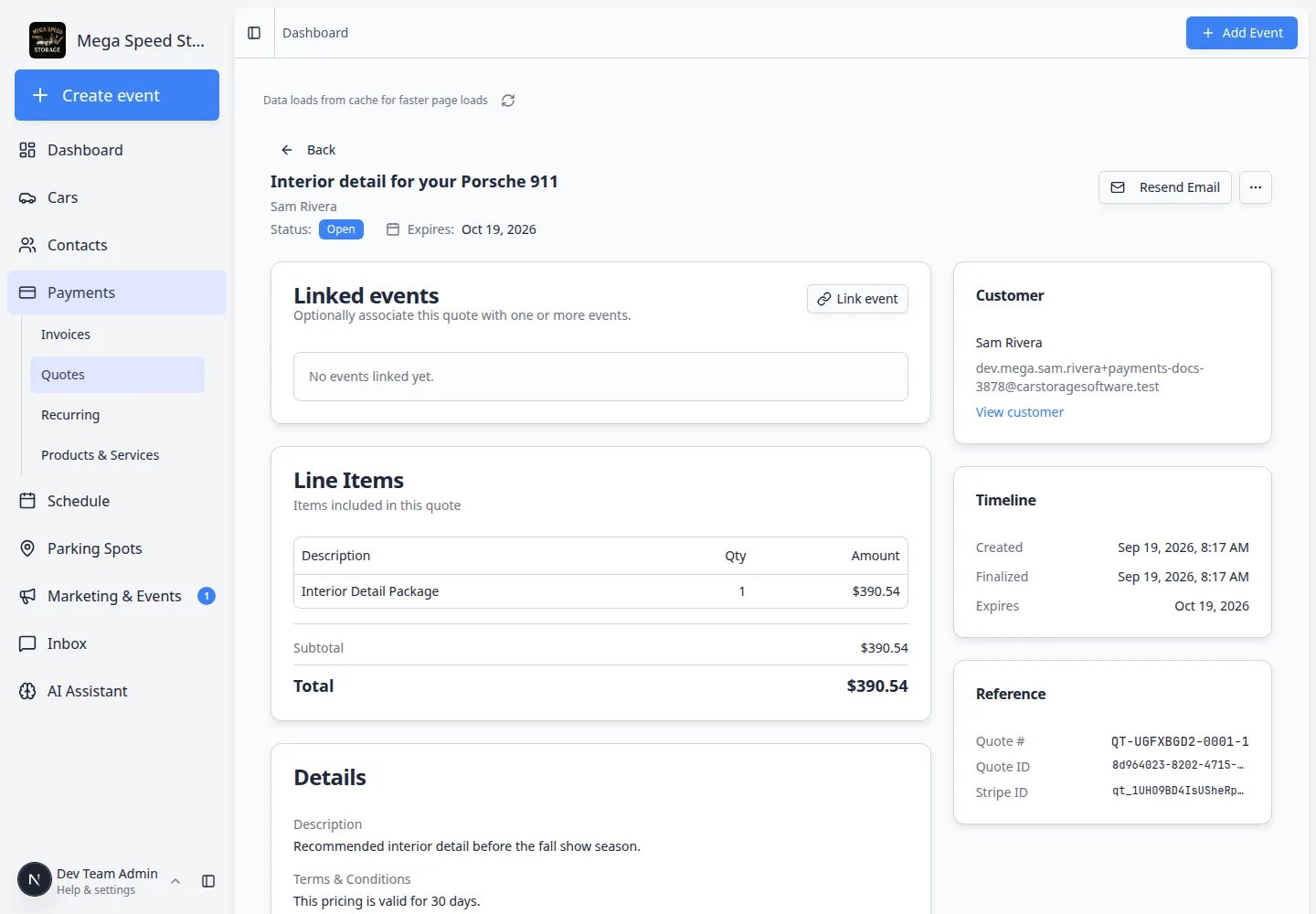 *Confirm the customer, line items, and **Total** before you remind them to accept. Use **Resend Email** if they cannot find the link.*
**Status: Open** — The customer has not accepted yet. They can still say yes.
**Expires** — After this date they should not accept this quote. Send a new quote if pricing changed.
**Line items** — Each service or storage charge they are approving.
**Resend Email** — Sends the quote link again. Use this when the customer says “I never got it.”
## What the customer sees
The customer opens the quote from their email or a link you sent. They do **not** use [Payments > Quotes](https://www.carstoragesoftware.com/dashboard/payments/quotes). That page is for staff.
They see:
* Your facility name
* A status badge of **Awaiting Response**
* Who the quote is **Prepared for**
* When it is **Valid until**
* Each item, quantity, and amount
* The **Total**
* A large **Accept Quote & Pay** button
* **Download PDF** if they want a copy to keep or forward
*Confirm the customer, line items, and **Total** before you remind them to accept. Use **Resend Email** if they cannot find the link.*
**Status: Open** — The customer has not accepted yet. They can still say yes.
**Expires** — After this date they should not accept this quote. Send a new quote if pricing changed.
**Line items** — Each service or storage charge they are approving.
**Resend Email** — Sends the quote link again. Use this when the customer says “I never got it.”
## What the customer sees
The customer opens the quote from their email or a link you sent. They do **not** use [Payments > Quotes](https://www.carstoragesoftware.com/dashboard/payments/quotes). That page is for staff.
They see:
* Your facility name
* A status badge of **Awaiting Response**
* Who the quote is **Prepared for**
* When it is **Valid until**
* Each item, quantity, and amount
* The **Total**
* A large **Accept Quote & Pay** button
* **Download PDF** if they want a copy to keep or forward
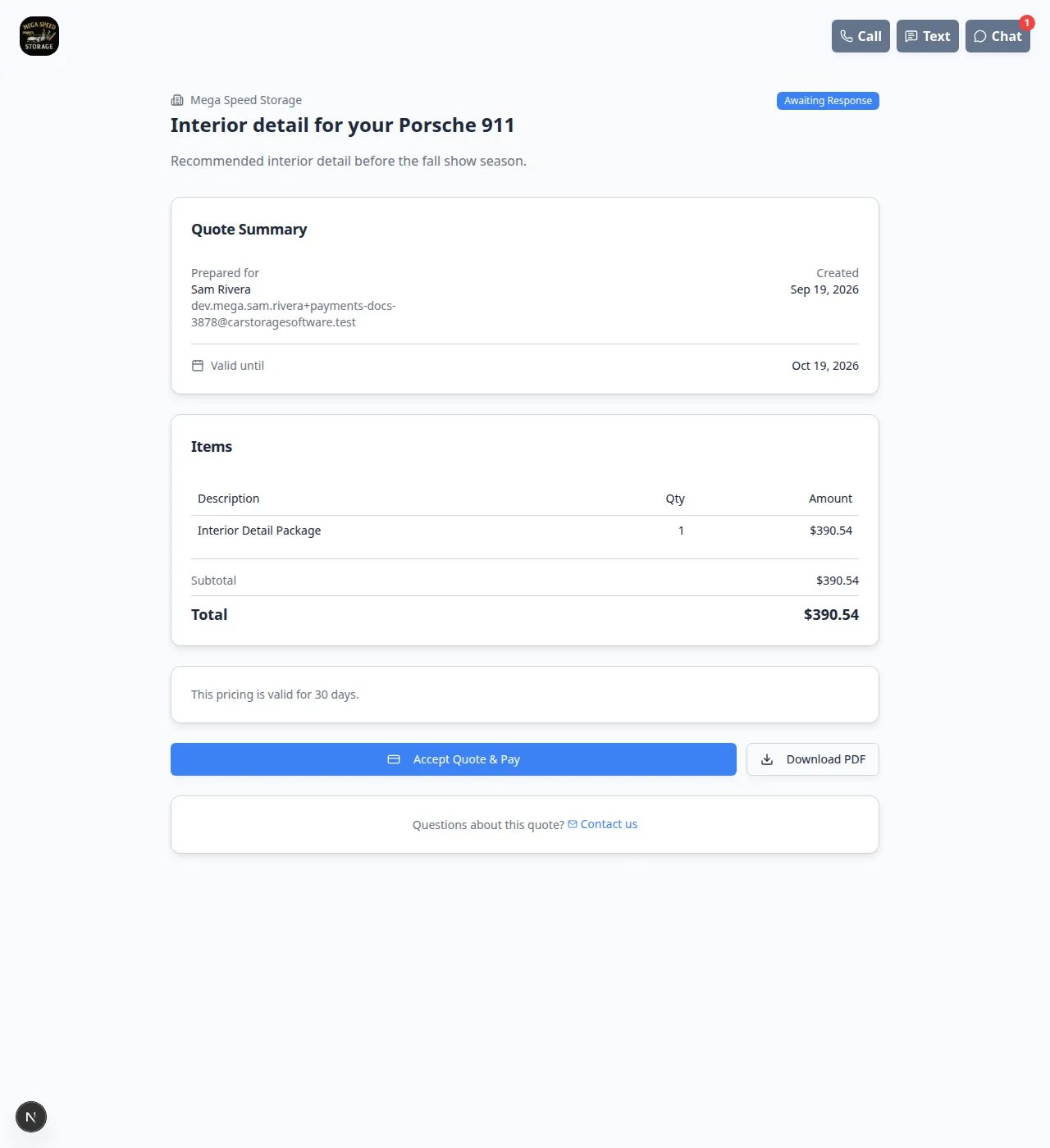 *This is the customer’s view. The important button is **Accept Quote & Pay**. **Download PDF** does not accept the quote.*
**Awaiting Response means the same as Open**
Your staff list says **Open**. The customer page says **Awaiting Response**. Both mean “not accepted yet.”
## How the customer accepts
They should read every line. If something looks wrong, they should contact your facility **before** they accept—not after.
This opens a confirmation window titled **Accept Quote**.
**Why this matters:** Acceptance is their formal yes. After this, your facility can bill the approved amount.
The window restates the total (for example **\$390.54**). It also says their default payment method will be charged when they accept.
They can click **Cancel** to stop, or **Accept & Pay \$…** to finish.
**Expected result:** The badge changes to **Accepted**, and a thank-you message appears. Your team then sees **Accepted** on [Payments > Quotes](https://www.carstoragesoftware.com/dashboard/payments/quotes).
*This is the customer’s view. The important button is **Accept Quote & Pay**. **Download PDF** does not accept the quote.*
**Awaiting Response means the same as Open**
Your staff list says **Open**. The customer page says **Awaiting Response**. Both mean “not accepted yet.”
## How the customer accepts
They should read every line. If something looks wrong, they should contact your facility **before** they accept—not after.
This opens a confirmation window titled **Accept Quote**.
**Why this matters:** Acceptance is their formal yes. After this, your facility can bill the approved amount.
The window restates the total (for example **\$390.54**). It also says their default payment method will be charged when they accept.
They can click **Cancel** to stop, or **Accept & Pay \$…** to finish.
**Expected result:** The badge changes to **Accepted**, and a thank-you message appears. Your team then sees **Accepted** on [Payments > Quotes](https://www.carstoragesoftware.com/dashboard/payments/quotes).
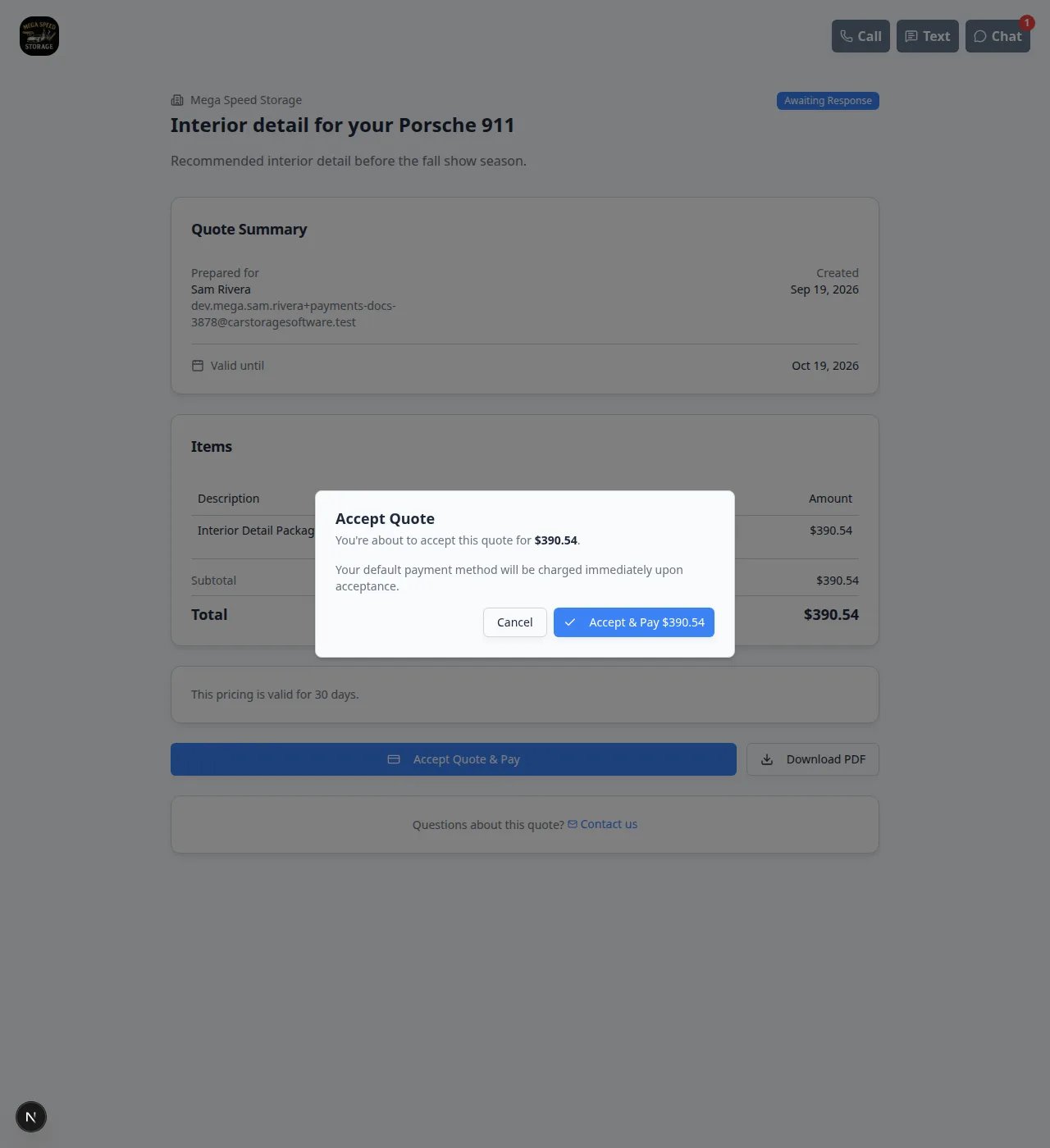 *The customer must click **Accept & Pay** in this window. Closing it or clicking **Cancel** leaves the quote **Open**.*
**If the quote includes monthly storage**
The customer page shows a warning that they agree to be billed on a schedule. After they accept, check [Payments > Recurring](https://www.carstoragesoftware.com/dashboard/payments/recurring) as well as [Invoices](https://www.carstoragesoftware.com/dashboard/payments/invoices).
## What your team does after they accept
Car Storage Software usually creates the billing record **automatically**. You do not click a separate “convert to invoice” button on the quote.
Open [Payments > Quotes](https://www.carstoragesoftware.com/dashboard/payments/quotes) and click the quote. Status should be **Accepted**.
* **One-time work** (detailing, transport, a setup fee) → [Payments > Invoices](https://www.carstoragesoftware.com/dashboard/payments/invoices)
* **Repeat charges** (monthly storage, annual membership) → [Payments > Recurring](https://www.carstoragesoftware.com/dashboard/payments/recurring)
**Why this matters:** The totals should match what the customer already approved. If they do not, stop and ask a manager before you send another bill.
* New **invoice** → [Send and collect customer payments](/docs/payments/send-and-collect-customer-payments)
* New **recurring plan** → [Manage recurring billing](/docs/payments/manage-recurring-billing)
*The customer must click **Accept & Pay** in this window. Closing it or clicking **Cancel** leaves the quote **Open**.*
**If the quote includes monthly storage**
The customer page shows a warning that they agree to be billed on a schedule. After they accept, check [Payments > Recurring](https://www.carstoragesoftware.com/dashboard/payments/recurring) as well as [Invoices](https://www.carstoragesoftware.com/dashboard/payments/invoices).
## What your team does after they accept
Car Storage Software usually creates the billing record **automatically**. You do not click a separate “convert to invoice” button on the quote.
Open [Payments > Quotes](https://www.carstoragesoftware.com/dashboard/payments/quotes) and click the quote. Status should be **Accepted**.
* **One-time work** (detailing, transport, a setup fee) → [Payments > Invoices](https://www.carstoragesoftware.com/dashboard/payments/invoices)
* **Repeat charges** (monthly storage, annual membership) → [Payments > Recurring](https://www.carstoragesoftware.com/dashboard/payments/recurring)
**Why this matters:** The totals should match what the customer already approved. If they do not, stop and ask a manager before you send another bill.
* New **invoice** → [Send and collect customer payments](/docs/payments/send-and-collect-customer-payments)
* New **recurring plan** → [Manage recurring billing](/docs/payments/manage-recurring-billing)
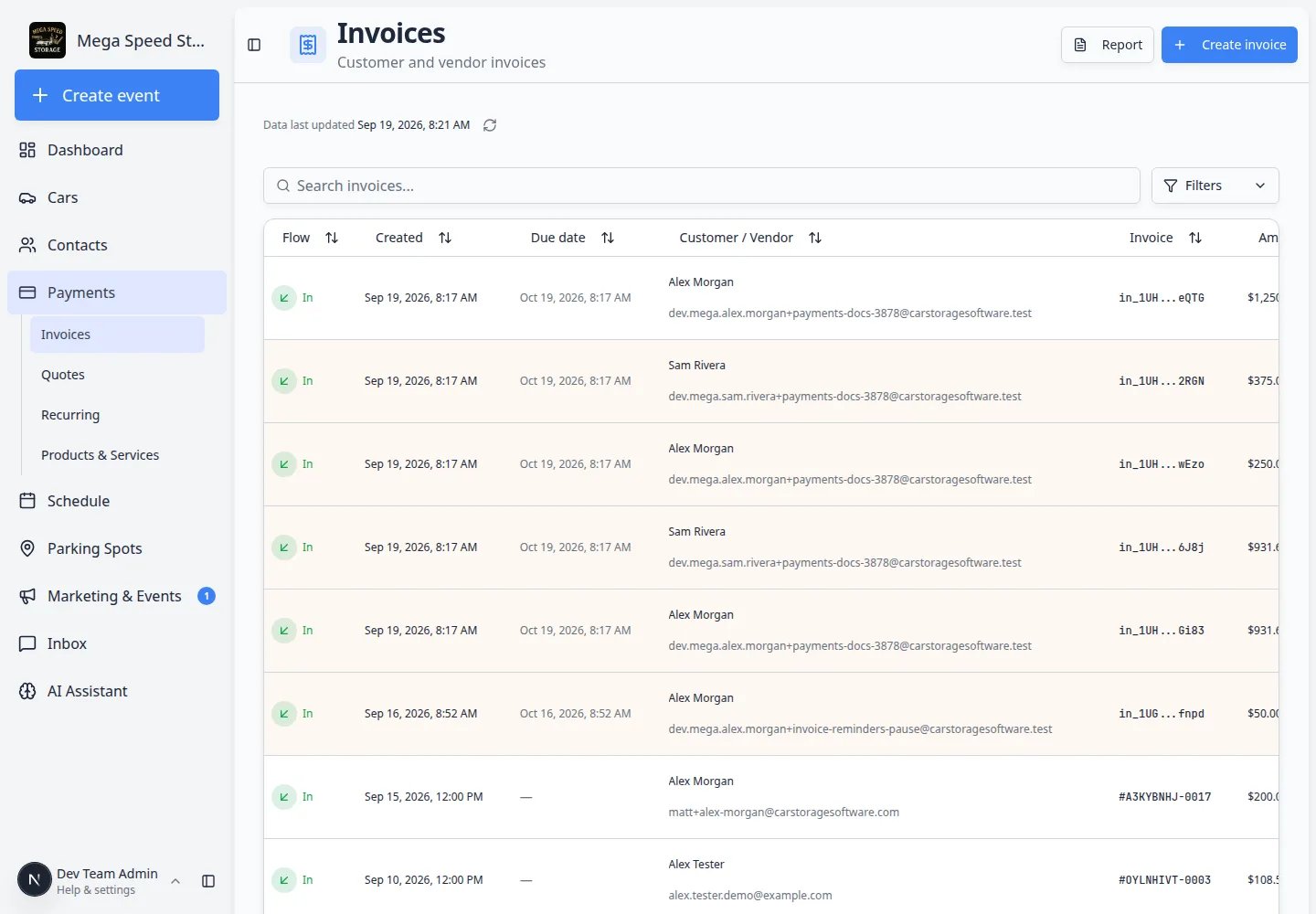 *After a one-time quote is accepted, look here for the matching customer invoice. Filter by the customer name if the list is long.*
## If you need to bill by hand instead
Use this only when your manager asks you to (for example the customer approved pricing on the phone and never clicked **Accept Quote & Pay**).
Match the customer, descriptions, and amounts exactly.
* One-time work → [Create an invoice](/docs/payments/create-an-invoice)
* Repeat charges → [Manage recurring billing](/docs/payments/manage-recurring-billing)
**Do not bill from an expired quote**
If the quote is **Expired** or **Canceled**, create a new quote with today’s pricing. Do not copy old numbers onto an invoice unless a manager says the old price still stands.
## Common mistakes to avoid
* Do not tell the customer to “log into Payments.” They use the email link or the customer portal.
* Do not treat **Download PDF** as acceptance. Only **Accept Quote & Pay** (then **Accept & Pay**) accepts the quote.
* Do not create a second invoice for the same accepted quote unless the automatic bill failed and a manager asked you to.
* Do not ignore a quote that includes storage or a membership. Check [Recurring](https://www.carstoragesoftware.com/dashboard/payments/recurring), not only Invoices.
## Troubleshooting
**The customer says they cannot open the quote**
Open the quote on [Payments > Quotes](https://www.carstoragesoftware.com/dashboard/payments/quotes) and click **Resend Email**. Ask them to check junk mail. If the quote is still **Draft**, finalize and send it first.
**They clicked accept but you do not see an invoice**
Refresh [Payments > Invoices](https://www.carstoragesoftware.com/dashboard/payments/invoices) and search the customer name. If the quote included only recurring items, look on [Recurring](https://www.carstoragesoftware.com/dashboard/payments/recurring) instead.
**The quote stayed Draft after you tried to send it**
Quotes that mix a one-time item and a monthly storage price sometimes need extra setup. Split them: one quote for the one-time work, and a recurring plan for storage. Ask a manager if you are unsure.
**The customer is worried they will be charged twice**
Show them the **Accepted** quote and the single matching invoice or recurring plan. Acceptance creates the bill. It does not create a second mystery charge.
## What success looks like
* You can explain **Accept Quote & Pay** in one sentence: “You are approving this price so we can bill you.”
* After acceptance, the quote shows **Accepted** on [Payments > Quotes](https://www.carstoragesoftware.com/dashboard/payments/quotes).
* The matching invoice or recurring plan exists and the total matches the quote.
* Your team knows the next step: collect the invoice or watch the recurring plan.
## What to do next
* Build the next quote → [Create a quote](/docs/payments/create-a-quote)
* Collect an invoice from this acceptance → [Send and collect customer payments](/docs/payments/send-and-collect-customer-payments)
* Check monthly storage after a membership quote → [Manage recurring billing](/docs/payments/manage-recurring-billing)
* See facility-wide totals → [Use the Payments overview dashboard](/docs/payments/use-the-payments-overview-dashboard)
## Related topics
- [Create a quote](/docs/payments/create-a-quote.md)
- [Use the Payments overview dashboard](/docs/payments/use-the-payments-overview-dashboard.md)
- [Manage recurring billing](/docs/payments/manage-recurring-billing.md)
- [Connect payment processing](/docs/settings/connect-payment-processing.md)
- [Accept Manual ACH bank transfers](/docs/payments/accept-manual-ach-bank-transfers.md)
This documentation is built and hosted on [Mintlify](https://mintlify.com), a developer documentation platform.
*After a one-time quote is accepted, look here for the matching customer invoice. Filter by the customer name if the list is long.*
## If you need to bill by hand instead
Use this only when your manager asks you to (for example the customer approved pricing on the phone and never clicked **Accept Quote & Pay**).
Match the customer, descriptions, and amounts exactly.
* One-time work → [Create an invoice](/docs/payments/create-an-invoice)
* Repeat charges → [Manage recurring billing](/docs/payments/manage-recurring-billing)
**Do not bill from an expired quote**
If the quote is **Expired** or **Canceled**, create a new quote with today’s pricing. Do not copy old numbers onto an invoice unless a manager says the old price still stands.
## Common mistakes to avoid
* Do not tell the customer to “log into Payments.” They use the email link or the customer portal.
* Do not treat **Download PDF** as acceptance. Only **Accept Quote & Pay** (then **Accept & Pay**) accepts the quote.
* Do not create a second invoice for the same accepted quote unless the automatic bill failed and a manager asked you to.
* Do not ignore a quote that includes storage or a membership. Check [Recurring](https://www.carstoragesoftware.com/dashboard/payments/recurring), not only Invoices.
## Troubleshooting
**The customer says they cannot open the quote**
Open the quote on [Payments > Quotes](https://www.carstoragesoftware.com/dashboard/payments/quotes) and click **Resend Email**. Ask them to check junk mail. If the quote is still **Draft**, finalize and send it first.
**They clicked accept but you do not see an invoice**
Refresh [Payments > Invoices](https://www.carstoragesoftware.com/dashboard/payments/invoices) and search the customer name. If the quote included only recurring items, look on [Recurring](https://www.carstoragesoftware.com/dashboard/payments/recurring) instead.
**The quote stayed Draft after you tried to send it**
Quotes that mix a one-time item and a monthly storage price sometimes need extra setup. Split them: one quote for the one-time work, and a recurring plan for storage. Ask a manager if you are unsure.
**The customer is worried they will be charged twice**
Show them the **Accepted** quote and the single matching invoice or recurring plan. Acceptance creates the bill. It does not create a second mystery charge.
## What success looks like
* You can explain **Accept Quote & Pay** in one sentence: “You are approving this price so we can bill you.”
* After acceptance, the quote shows **Accepted** on [Payments > Quotes](https://www.carstoragesoftware.com/dashboard/payments/quotes).
* The matching invoice or recurring plan exists and the total matches the quote.
* Your team knows the next step: collect the invoice or watch the recurring plan.
## What to do next
* Build the next quote → [Create a quote](/docs/payments/create-a-quote)
* Collect an invoice from this acceptance → [Send and collect customer payments](/docs/payments/send-and-collect-customer-payments)
* Check monthly storage after a membership quote → [Manage recurring billing](/docs/payments/manage-recurring-billing)
* See facility-wide totals → [Use the Payments overview dashboard](/docs/payments/use-the-payments-overview-dashboard)
## Related topics
- [Create a quote](/docs/payments/create-a-quote.md)
- [Use the Payments overview dashboard](/docs/payments/use-the-payments-overview-dashboard.md)
- [Manage recurring billing](/docs/payments/manage-recurring-billing.md)
- [Connect payment processing](/docs/settings/connect-payment-processing.md)
- [Accept Manual ACH bank transfers](/docs/payments/accept-manual-ach-bank-transfers.md)
This documentation is built and hosted on [Mintlify](https://mintlify.com), a developer documentation platform.