> ## Documentation Index
> Fetch the complete documentation index at: https://www.carstoragesoftware.com/docs/llms.txt
> Use this file to discover all available pages before exploring further.
# Connect accounting integrations
> Send invoices and payments to QuickBooks Online, QuickBooks Desktop, or Xero so your bookkeeper is not typing the same bills twice.
Accounting cards live on [Settings > Integrations](https://www.carstoragesoftware.com/dashboard/settings/integrations). They send customer invoices and payments to the books your facility already uses.
Shopmonkey, HubSpot, QR codes, cameras, the API, and a custom domain stay available even if payments are off. See [Connect Shopmonkey](/docs/settings/connect-shopmonkey), [Connect HubSpot](/docs/settings/connect-hubspot), and [Connect the API](/docs/settings/connect-api).
Only **one** accounting tool can be on at a time. Turning on QuickBooks Online, QuickBooks Desktop, or Xero turns the others off.
Use this guide after [Connect payment processing](/docs/settings/connect-payment-processing). Most live updates follow invoices, payments, refunds, and payouts that already went through Stripe.
## What you will accomplish
* Find QuickBooks Online, QuickBooks Desktop, or Xero in the Integrations catalog.
* Understand why the cards stay locked until payments are on.
* Pick one accounting tool and finish sign-in or a file export.
## When to connect the books
Connect accounting when you are ready to stop re-typing paid invoices into QuickBooks or Xero.
Wait if you have not sent a real invoice yet. Set up [Billing](https://www.carstoragesoftware.com/dashboard/settings/billing) first, send a small test invoice, then come back here.
## Before you start
* You need Schedule permission to open [Settings > Integrations](https://www.carstoragesoftware.com/dashboard/settings/integrations).
* You need Payments permission to turn an accounting card on.
* Finish [Connect payment processing](/docs/settings/connect-payment-processing) so the accounting cards can be used.
* Ask your bookkeeper whether they use **QuickBooks Online**, **QuickBooks Desktop**, or **Xero**. You can only run one of these at a time.
## If the cards are locked
When payments are not on yet, the three accounting cards look faded. Each one says **Enable payments to turn on QuickBooks or Xero.** and shows an **Enable payments** button.
Open [Settings > Integrations](https://www.carstoragesoftware.com/dashboard/settings/integrations) and scroll to the bottom of the catalog. You should see QuickBooks Online, QuickBooks Desktop, and Xero.
Click **Enable payments**. You go to [Settings > Billing](https://www.carstoragesoftware.com/dashboard/settings/billing).
Follow [Connect payment processing](/docs/settings/connect-payment-processing). When payments are ready, return to Integrations. The overlay goes away so you can open a card.
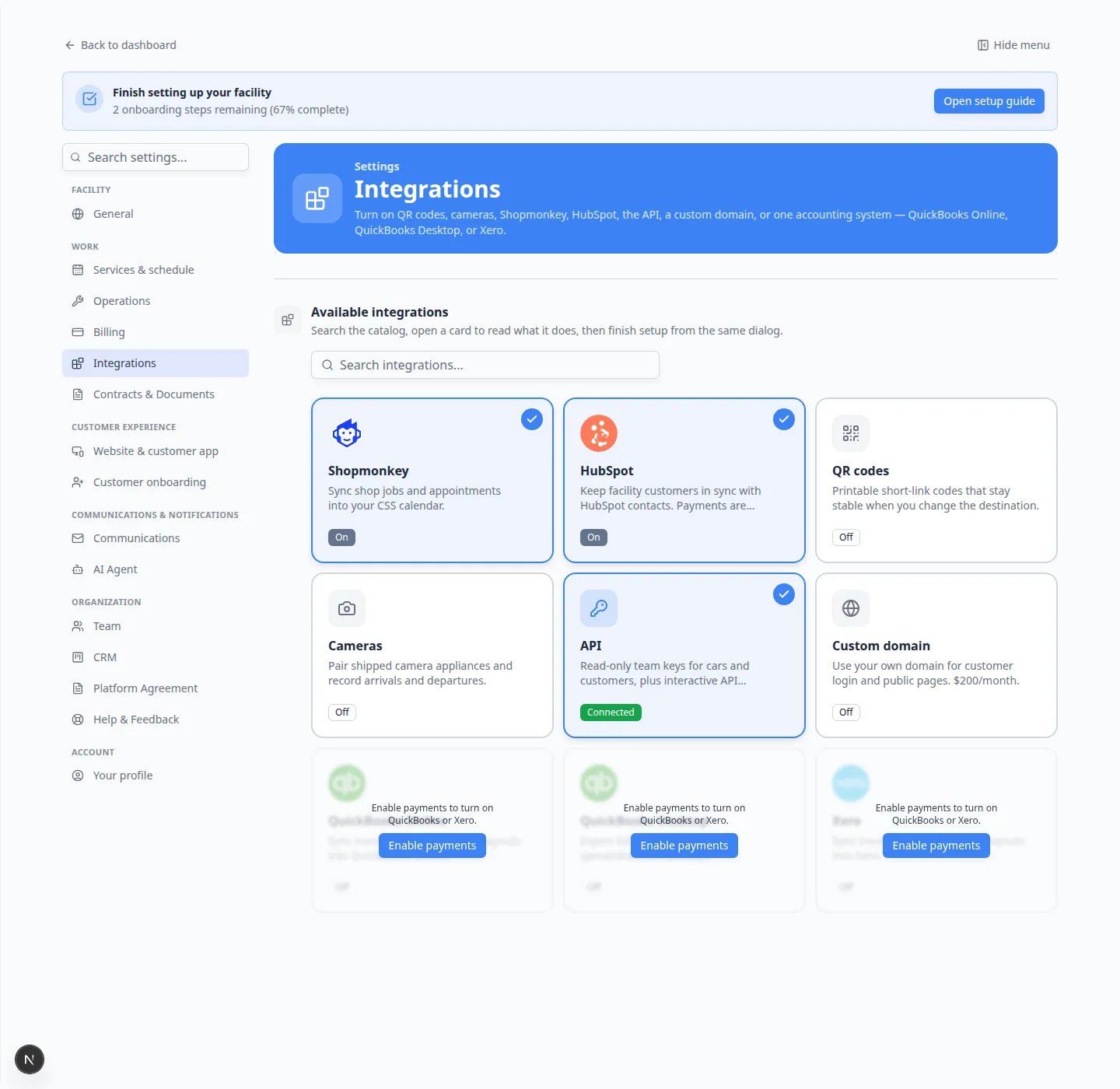 *QuickBooks and Xero stay locked until you click Enable payments and finish Billing setup. Other cards stay available.*
## Choose the right accounting tool
**QuickBooks Online** stays connected. After you sign in, new invoices and payments can post to the books on their own.
**Xero** works the same way for facilities that already use Xero. If you have more than one Xero organisation, you pick the right one during sign-in.
**QuickBooks Desktop** does **not** stay connected. You download a file for a date range and import that file in Desktop. Use this only if your bookkeeper still runs Desktop on a computer.
**Only one accounting integration at a time**
If QuickBooks Online is already on, turning on Xero turns QuickBooks Online off. Invoices and exports use the tool that is currently on.
## Connect QuickBooks Online or Xero
Go to [Settings > Integrations](https://www.carstoragesoftware.com/dashboard/settings/integrations) and click **QuickBooks Online** or **Xero**.
Turn on **Enable this integration**. If another accounting tool was on, this one replaces it.
Use the connect button in the window and finish the QuickBooks or Xero sign-in.
For Xero, confirm the organisation if more than one is listed.
After QuickBooks Online connects, choose where cash and check deposits, card payments, income, and fees should land.
**Why this matters:** Some books use a custom undeposited-funds account. New payments follow the accounts you pick here, so your bookkeeper is not moving money later.
Create or pay a small test invoice, then ask your bookkeeper to confirm it landed the way they expect.
## Export to QuickBooks Desktop
Open the **QuickBooks Desktop** card and turn on **Enable this integration**.
Type the income, A/R, and undeposited-funds names exactly as they appear in the Desktop company file.
Choose a date range and download the file your bookkeeper asked for. Import that file in QuickBooks Desktop.
**Expected result:** You can download another file any time from the same window. There is no live connection to keep signed in.
## Confirm it worked
* The accounting card you chose shows **On** or **Connected**.
* The other two accounting cards are off.
* A test invoice or export looks correct to your bookkeeper.
## Troubleshooting
**I cannot turn on QuickBooks or Xero**
The cards stay locked until Stripe payments are enabled on [Settings > Billing](https://www.carstoragesoftware.com/dashboard/settings/billing). You also need the Payments permission to flip the switch.
**I cannot see Integrations in Settings**
Integrations uses the Schedule permission. Ask a team admin to update access in [Settings > Team](https://www.carstoragesoftware.com/dashboard/settings/team).
**Connect is missing from the window**
Turn on **Enable this integration** first. Sign-in, account mapping, and Desktop download appear after the tool is on.
**Numbers do not match the books**
Reconnect QuickBooks Online or Xero from the same window if the sign-in expired. Then ask your bookkeeper to check the account mapping before you send more invoices.
## What to do next
Return to [Connect payment processing](/docs/settings/connect-payment-processing) if taxes or quotes still need setup. Then continue with [Payments](/docs/payments/overview) to send the next real invoice.
## Related topics
- [Browse the Integrations catalog](/docs/settings/browse-the-integrations-catalog.md)
- [Connect Shopmonkey](/docs/settings/connect-shopmonkey.md)
- [Connect HubSpot](/docs/settings/connect-hubspot.md)
- [Settings overview](/docs/settings/overview.md)
- [Connect the API](/docs/settings/connect-api.md)
This documentation is built and hosted on [Mintlify](https://mintlify.com), a developer documentation platform.
*QuickBooks and Xero stay locked until you click Enable payments and finish Billing setup. Other cards stay available.*
## Choose the right accounting tool
**QuickBooks Online** stays connected. After you sign in, new invoices and payments can post to the books on their own.
**Xero** works the same way for facilities that already use Xero. If you have more than one Xero organisation, you pick the right one during sign-in.
**QuickBooks Desktop** does **not** stay connected. You download a file for a date range and import that file in Desktop. Use this only if your bookkeeper still runs Desktop on a computer.
**Only one accounting integration at a time**
If QuickBooks Online is already on, turning on Xero turns QuickBooks Online off. Invoices and exports use the tool that is currently on.
## Connect QuickBooks Online or Xero
Go to [Settings > Integrations](https://www.carstoragesoftware.com/dashboard/settings/integrations) and click **QuickBooks Online** or **Xero**.
Turn on **Enable this integration**. If another accounting tool was on, this one replaces it.
Use the connect button in the window and finish the QuickBooks or Xero sign-in.
For Xero, confirm the organisation if more than one is listed.
After QuickBooks Online connects, choose where cash and check deposits, card payments, income, and fees should land.
**Why this matters:** Some books use a custom undeposited-funds account. New payments follow the accounts you pick here, so your bookkeeper is not moving money later.
Create or pay a small test invoice, then ask your bookkeeper to confirm it landed the way they expect.
## Export to QuickBooks Desktop
Open the **QuickBooks Desktop** card and turn on **Enable this integration**.
Type the income, A/R, and undeposited-funds names exactly as they appear in the Desktop company file.
Choose a date range and download the file your bookkeeper asked for. Import that file in QuickBooks Desktop.
**Expected result:** You can download another file any time from the same window. There is no live connection to keep signed in.
## Confirm it worked
* The accounting card you chose shows **On** or **Connected**.
* The other two accounting cards are off.
* A test invoice or export looks correct to your bookkeeper.
## Troubleshooting
**I cannot turn on QuickBooks or Xero**
The cards stay locked until Stripe payments are enabled on [Settings > Billing](https://www.carstoragesoftware.com/dashboard/settings/billing). You also need the Payments permission to flip the switch.
**I cannot see Integrations in Settings**
Integrations uses the Schedule permission. Ask a team admin to update access in [Settings > Team](https://www.carstoragesoftware.com/dashboard/settings/team).
**Connect is missing from the window**
Turn on **Enable this integration** first. Sign-in, account mapping, and Desktop download appear after the tool is on.
**Numbers do not match the books**
Reconnect QuickBooks Online or Xero from the same window if the sign-in expired. Then ask your bookkeeper to check the account mapping before you send more invoices.
## What to do next
Return to [Connect payment processing](/docs/settings/connect-payment-processing) if taxes or quotes still need setup. Then continue with [Payments](/docs/payments/overview) to send the next real invoice.
## Related topics
- [Browse the Integrations catalog](/docs/settings/browse-the-integrations-catalog.md)
- [Connect Shopmonkey](/docs/settings/connect-shopmonkey.md)
- [Connect HubSpot](/docs/settings/connect-hubspot.md)
- [Settings overview](/docs/settings/overview.md)
- [Connect the API](/docs/settings/connect-api.md)
This documentation is built and hosted on [Mintlify](https://mintlify.com), a developer documentation platform.