> ## Documentation Index
> Fetch the complete documentation index at: https://www.carstoragesoftware.com/docs/llms.txt
> Use this file to discover all available pages before exploring further.
# Export your facility data
> Download CSV or Excel files of cars, contacts, and events from Settings > Team.
Use this guide when you need a spreadsheet of your cars, contacts, or scheduled work — for your bookkeeper, an insurance list, or a backup you can open in Excel.
Exports live on [Settings > Team](https://www.carstoragesoftware.com/dashboard/settings/team) in the **Data export** section. The old [Settings > Export](https://www.carstoragesoftware.com/dashboard/settings/export) link still works. It sends you to the same Team page.
## What you will accomplish
* Open [Settings > Team](https://www.carstoragesoftware.com/dashboard/settings/team) and find **Data export**.
* Choose **Cars**, **Contacts**, or **Events**.
* Download a **CSV** or **Excel** file you can open on your computer.
## When to export
Export when you need a file you can email or open outside the app. Common reasons include:
* Sending your bookkeeper a list of stored cars
* Reviewing contacts in a spreadsheet
* Sharing a date range of scheduled work with a partner shop
Export does **not** delete anything in the app. It only downloads a copy.
## Before you start
* You should be signed in as someone allowed to export cars, contacts, or events. If you do not see **Data export**, ask a team admin to review your access in [Settings > Team](https://www.carstoragesoftware.com/dashboard/settings/team).
* Know which list you need: cars, contacts, or events.
* If you need events, decide how far back to include (last 30 days, 90 days, 12 months, or all).
## Open Data export
From the [Dashboard](https://www.carstoragesoftware.com/dashboard), click **Settings** at the bottom of the left sidebar.
Click **Team**.
Direct link: [Settings > Team](https://www.carstoragesoftware.com/dashboard/settings/team).
Scroll past team members and **API keys**.
**Expected result:** You see three cards: **Cars**, **Contacts**, and **Events**. The heading is **Data export**. The line under it says you can download CSV or Excel files of cars, contacts, and events.
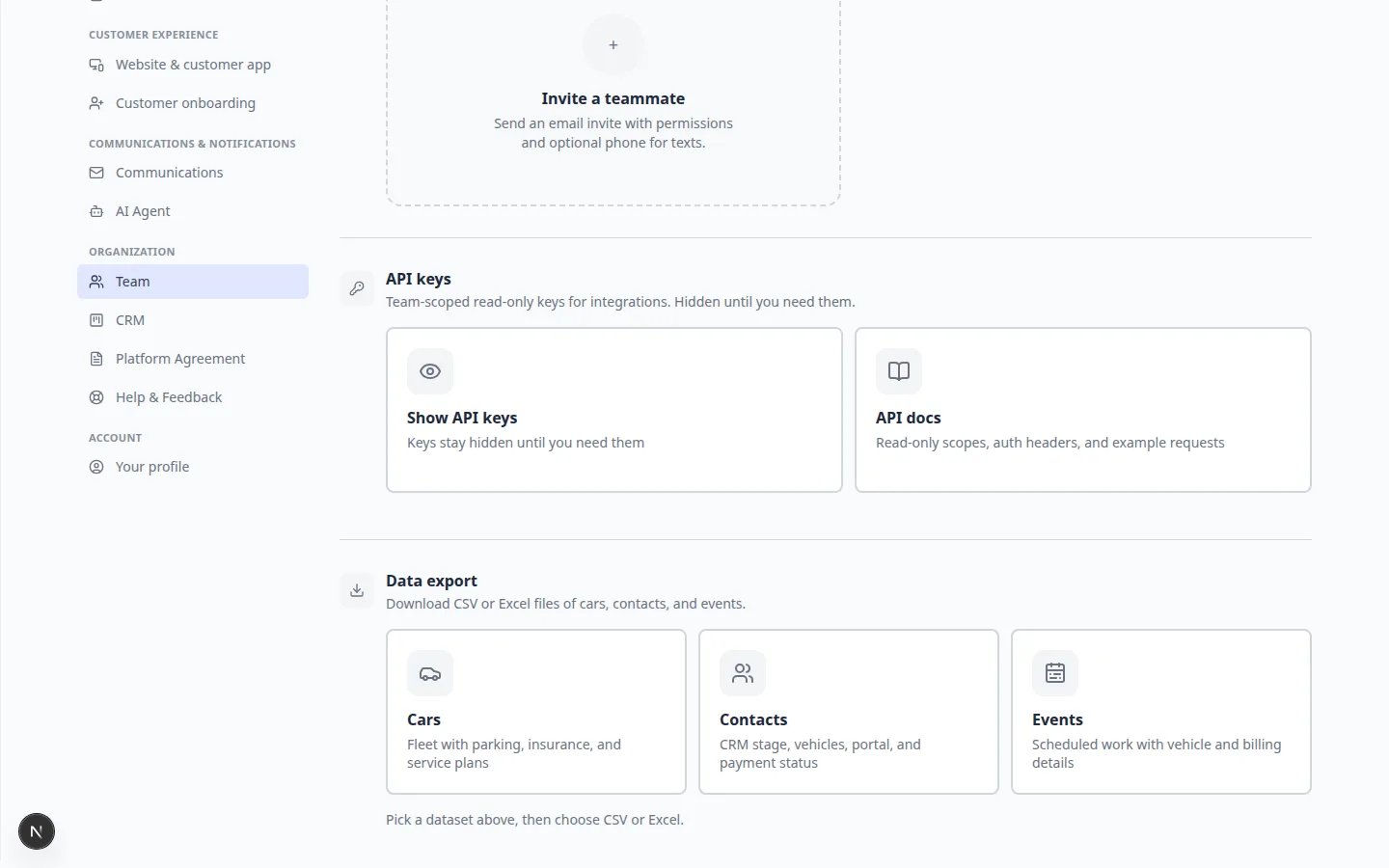 ***Data export** is on the Team page. Pick a card, then choose CSV or Excel.*
## Download a file
Click one card:
* **Cars** — fleet with parking, insurance, and service plans
* **Contacts** — CRM stage, vehicles, portal, and payment status
* **Events** — scheduled work with vehicle and billing details
A detail panel opens. Under **Format**, choose **CSV** or **Excel**.
**CSV** opens in almost any spreadsheet program. **Excel** is easier if your team already uses Microsoft Excel.
If you picked **Events**, also choose **Date range**:
* **Last 30 days**
* **Last 90 days**
* **Last 12 months**
* **All time**
Click **Export cars**, **Export contacts**, or **Export events**.
**Expected result:** A file saves to your computer. A short success message appears with the number of records exported.
**A message says no records found**
The export is empty when that list has nothing in the range you chose. Try a wider date range for events, or confirm you are signed in to the right facility.
## What is in each file
**Cars** includes vehicle details plus parking, insurance, and service plan fields your team already stores.
**Contacts** includes CRM stage, linked vehicles, whether the person can use the customer portal, and payment status if billing is on.
**Events** includes scheduled work plus the related vehicle and billing details for the date range you chose.
**Treat export files as private**
These files can include customer names, phone numbers, and vehicle information. Save them in a place only your team should open. Do not post an export in a group chat or public folder.
## What success looks like
* You found **Data export** on [Settings > Team](https://www.carstoragesoftware.com/dashboard/settings/team).
* You downloaded the list you needed as CSV or Excel.
* The file opens and the row count matches what you expected.
## Troubleshooting
**I do not see Data export**
Your role may not include export permission. Ask a team admin to review your access in [Manage team members and permissions](/docs/settings/manage-team-permissions).
**The download failed**
Try again. If it still fails, try **CSV** instead of **Excel**, or export a shorter events date range.
**The old Export page is gone**
[Settings > Export](https://www.carstoragesoftware.com/dashboard/settings/export) now opens [Settings > Team](https://www.carstoragesoftware.com/dashboard/settings/team). Scroll to **Data export**.
## What to do next
* Need to change who can export? Use [Manage team members and permissions](/docs/settings/manage-team-permissions).
* Need printed labels instead of a spreadsheet? See [Set up printable QR codes](/docs/settings/set-up-printable-qr-codes).
* Still setting up the facility? Return to [Settings overview](/docs/settings/overview).
## Related topics
- [Manage your profile and alerts](/docs/settings/manage-your-profile-and-alerts.md)
- [Settings overview](/docs/settings/overview.md)
- [View and edit vehicle details](/docs/cars/view-and-edit-vehicle-details.md)
- [Export your vehicle inventory report](/docs/cars/export-your-vehicle-inventory-report.md)
- [Export and use the customer report](/docs/contacts/export-and-use-the-customer-report.md)
This documentation is built and hosted on [Mintlify](https://mintlify.com), a developer documentation platform.
***Data export** is on the Team page. Pick a card, then choose CSV or Excel.*
## Download a file
Click one card:
* **Cars** — fleet with parking, insurance, and service plans
* **Contacts** — CRM stage, vehicles, portal, and payment status
* **Events** — scheduled work with vehicle and billing details
A detail panel opens. Under **Format**, choose **CSV** or **Excel**.
**CSV** opens in almost any spreadsheet program. **Excel** is easier if your team already uses Microsoft Excel.
If you picked **Events**, also choose **Date range**:
* **Last 30 days**
* **Last 90 days**
* **Last 12 months**
* **All time**
Click **Export cars**, **Export contacts**, or **Export events**.
**Expected result:** A file saves to your computer. A short success message appears with the number of records exported.
**A message says no records found**
The export is empty when that list has nothing in the range you chose. Try a wider date range for events, or confirm you are signed in to the right facility.
## What is in each file
**Cars** includes vehicle details plus parking, insurance, and service plan fields your team already stores.
**Contacts** includes CRM stage, linked vehicles, whether the person can use the customer portal, and payment status if billing is on.
**Events** includes scheduled work plus the related vehicle and billing details for the date range you chose.
**Treat export files as private**
These files can include customer names, phone numbers, and vehicle information. Save them in a place only your team should open. Do not post an export in a group chat or public folder.
## What success looks like
* You found **Data export** on [Settings > Team](https://www.carstoragesoftware.com/dashboard/settings/team).
* You downloaded the list you needed as CSV or Excel.
* The file opens and the row count matches what you expected.
## Troubleshooting
**I do not see Data export**
Your role may not include export permission. Ask a team admin to review your access in [Manage team members and permissions](/docs/settings/manage-team-permissions).
**The download failed**
Try again. If it still fails, try **CSV** instead of **Excel**, or export a shorter events date range.
**The old Export page is gone**
[Settings > Export](https://www.carstoragesoftware.com/dashboard/settings/export) now opens [Settings > Team](https://www.carstoragesoftware.com/dashboard/settings/team). Scroll to **Data export**.
## What to do next
* Need to change who can export? Use [Manage team members and permissions](/docs/settings/manage-team-permissions).
* Need printed labels instead of a spreadsheet? See [Set up printable QR codes](/docs/settings/set-up-printable-qr-codes).
* Still setting up the facility? Return to [Settings overview](/docs/settings/overview).
## Related topics
- [Manage your profile and alerts](/docs/settings/manage-your-profile-and-alerts.md)
- [Settings overview](/docs/settings/overview.md)
- [View and edit vehicle details](/docs/cars/view-and-edit-vehicle-details.md)
- [Export your vehicle inventory report](/docs/cars/export-your-vehicle-inventory-report.md)
- [Export and use the customer report](/docs/contacts/export-and-use-the-customer-report.md)
This documentation is built and hosted on [Mintlify](https://mintlify.com), a developer documentation platform.