

What you will accomplish
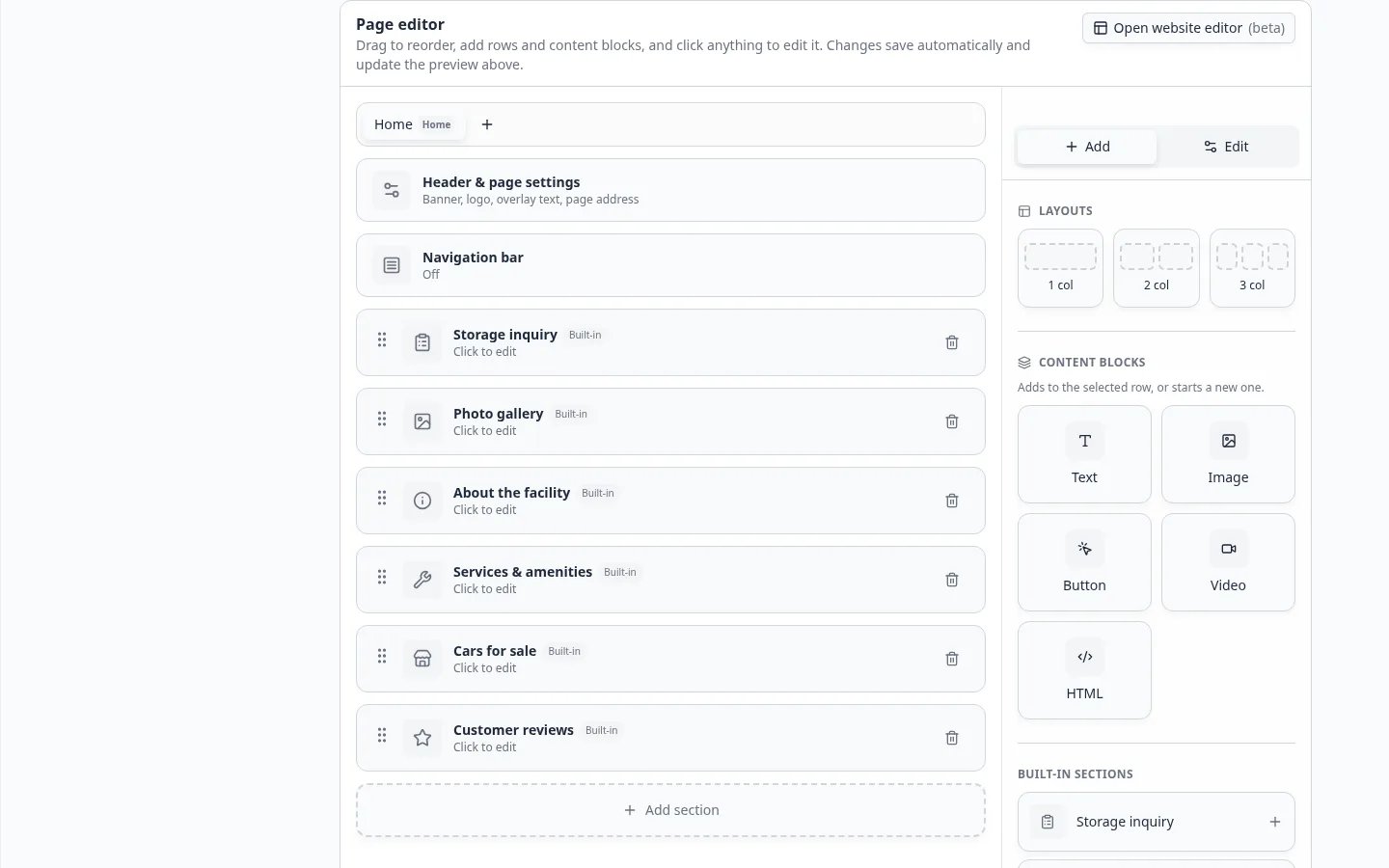
You will change your public facility page by describing what you want, for example “Add a winter storage section with a button to inquire.” The website editor updates the page in a live preview and keeps your page changes in a draft until you publish.This editor is in betaWe are turning the website editor on team by team. If you do not see Open website editor (beta), your team does not have it yet. Contact support if you would like to try it. The classic Page editor keeps working either way, and both edit the same website.
Before you start
- You need edit access to Marketing. Without it, the Open website editor (beta) button does not appear.
- Public Facility Pages must be on, and your Facility slug must be saved. See Configure the facility landing page.
- Check your logo and colors in Settings > Branding. The editor designs with your brand colors.
Open the website editor
1
Go to Public website
Open Settings > Website & customer app and scroll to Public website.
2
Click Open website editor (beta)
The button sits at the top right of the Page editor card. The words are Open website editor with (beta) in lighter text beside them.Expected result: The website editor opens full screen with your team’s draft. If there is no draft yet, it starts from your live page.
Find your way around
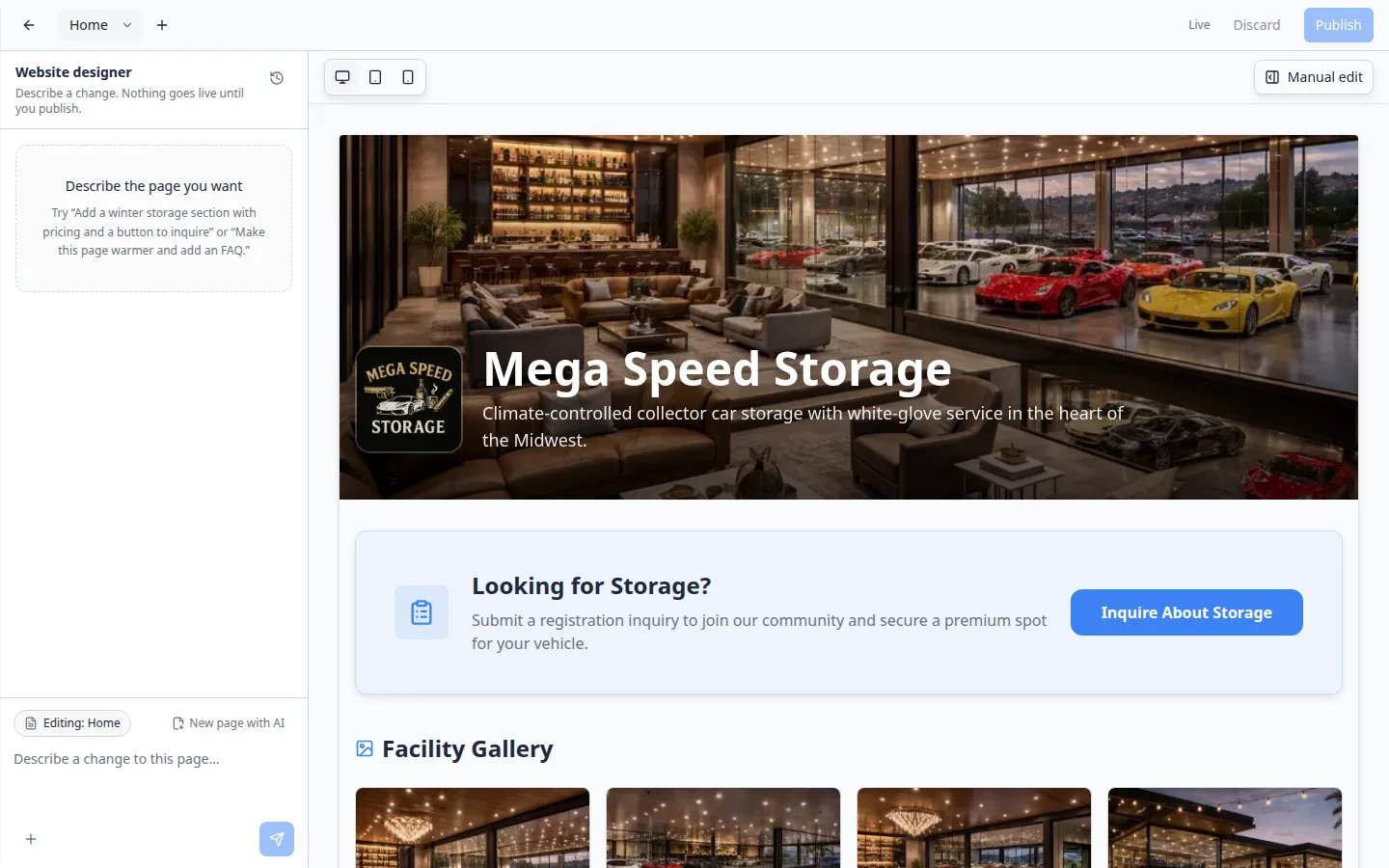
Describe a change
1
Type what you want
Write the request in the box at the bottom of the chat. Press Enter to send, or Shift+Enter for a new line.Example: “Add a winter storage section: indoor spots from $150 a month, open until November 1, and a button to the storage inquiry form.”
2
Watch the progress
A progress card shows what the designer is doing, such as finding photos, writing the page, or reviewing it. Click Cancel to stop. The page is locked while the designer works.
3
Check the result
The page updates in the middle, and the designer explains what it changed. Ask for more changes in the same chat, or adjust anything by hand in Manual edit.
Prompts that work well
- “Make this page warmer and more welcoming, and add an FAQ about winter storage.”
- “Add a section about our detailing service with a photo of a classic car being polished.”
- “Move the reviews higher and add a short line above them about 20 years in business.”
- “Add a button to our Cars and Coffee event.” The designer can look up your upcoming events.
- “Add a ‘Call us’ button for (555) 123-4567.” For another website, paste the full address, starting with
https://.
Edit the whole page or one section
Above the message box, a small label shows what your next message will change:Editing: Home (or another page name) changes the whole page.Editing: About the facility (or another section name) appears after you click a section on the page. Only that section changes. Small section edits are also faster.Click the x on the label to go back to the whole page.
Create a new page with AI
Click New page with AI next to the label, then describe the page, for example “Winter storage with pricing and an FAQ.” The designer creates the page and opens it. If your site has a navigation bar, the new page is added to it. If it does not, a message offers Turn on navigation, which turns on the bar with a link to each of your pages. To start from a blank page instead, click + next to the page tabs and add sections from Manual edit. The blank page is called New page until you rename it (see below), and it is not added to the navigation bar. Add a link to it under Structure > Navigation bar.Rename, reorder, or delete a page
Open the page, then click the small arrow next to its name in the page tabs. The menu has:Rename page changes the page name and its address (
/p/…). The home page has no address. Navigation bar links that show the old name switch to the new one.Move left and Move right change the order of the page tabs. The home page always stays first.Delete page removes the page after you confirm, together with its navigation bar links. You cannot delete the home page.Use your own photos
1
Attach images
Click the + button (Attach images) in the message box and choose up to five images, such as your building, your team, or your logo.
2
Say how to use them
Example: “Use the attached photo of our front gate in the new winter storage section.”
Preview on desktop, tablet, and phone
Use the three device buttons above the page to switch between Desktop view, Tablet view, and Phone view. The page rearranges itself exactly as it will for visitors on that screen size. Check the phone view before you publish, because many prospects open your link from a text message.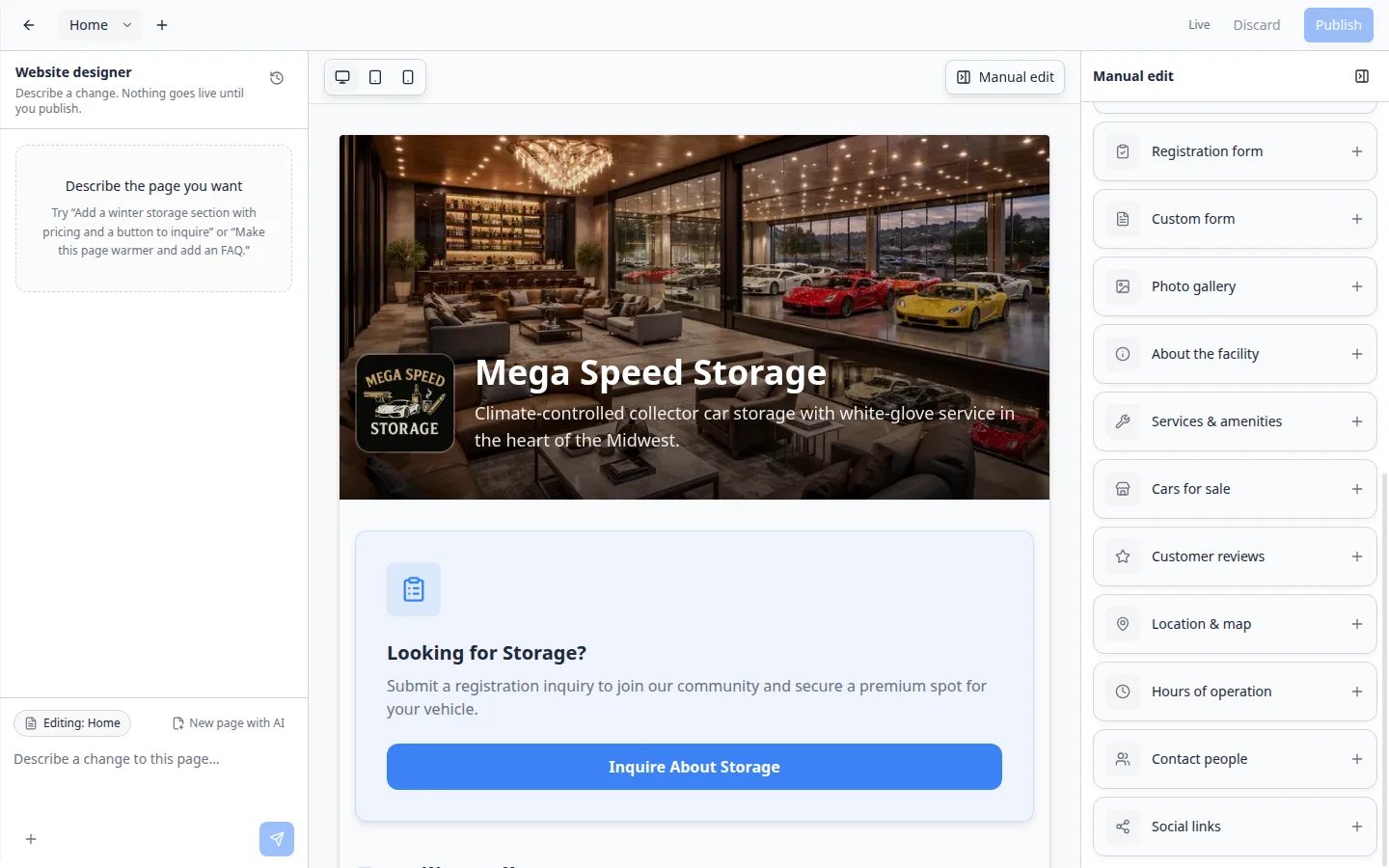
Undo a change
Every change the designer makes is saved as a version, and the chat stays with your draft, even after you close the editor or switch devices.- Undo from here under one of your messages puts the page back the way it was before that message.
- Preview this version under one of the designer’s replies switches your draft to the page as it was after that reply.
- The history button in the chat lists every update and has a search box, which helps when the chat gets long.
Publish or discard
The editor works on a draft. Your public page does not change until you click Publish. Your team shares one draft, so teammates who open the editor see the same changes.1
Review the draft
Check each page tab on desktop and phone views. Click every button on the page and check where it goes.
2
Click Publish
Expected result: A short Published message appears, and the status changes to Live. Open Main page from Shareable links to see what visitors see.
When someone changed the live page
If a teammate changed the live page in the classic editor after your draft started, Publish stops and shows Your live website changed:- Review live changes discards your draft and starts a new one from the live page, so you keep your teammate’s changes.
- Publish anyway replaces the live page with your draft. Your teammate’s changes are lost. You are asked to confirm first.
What the designer cannot change
The designer writes page sections, text, photos, and buttons. It does not change the facility details below. Change them yourself: click the matching part of the page or open Manual edit, or use the classic Page editor. The designer keeps your HTML blocks exactly as they are and never writes HTML. To change or remove custom HTML, click the block on the page and edit it in Manual edit. If a request would change your custom HTML, the designer stops without changing your page. It tells you to edit custom HTML by hand in Manual edit, or to ask for changes to other sections. Rows with custom HTML also keep their row settings as they are, Full width (edge to edge) included. A row without HTML that the designer rewrites comes back at the normal contained width.Stock photo credits
When the designer picks a photo from a public photo library, it adds a small credit line under the photo, with the photo title, the photographer, and the license, such as “Photo: Red convertible by (photographer), CC BY 2.0”. The photo license requires it, so keep the credit whenever you keep the photo. Your own uploaded photos get no credit line.Tips and troubleshooting
A section on the page shows a gray hintSome built-in sections stay hidden on your public page until they have something to show. In the editor, they show a hint instead, such as Customer reviews: hidden until you select reviews or Photo gallery: hidden until you add facility photos. Click the section to fill it in, or remove it in Structure.
I do not see the Open website editor buttonCheck that Public Facility Pages is on. If it is, your team may not have the beta yet, or your role may not include Marketing edit access. Ask a team admin to check your permissions in Settings > Team, or contact support.