

What you will accomplish
- Open Settings > Team and find Data export.
- Choose Cars, Contacts, or Events.
- Download a CSV or Excel file you can open on your computer.
When to export
Export when you need a file you can email or open outside the app. Common reasons include:- Sending your bookkeeper a list of stored cars
- Reviewing contacts in a spreadsheet
- Sharing a date range of scheduled work with a partner shop
Before you start
- You should be signed in as someone allowed to export cars, contacts, or events. If you do not see Data export, ask a team admin to review your access in Settings > Team.
- Know which list you need: cars, contacts, or events.
- If you need events, decide how far back to include (last 30 days, 90 days, 12 months, or all).
Open Data export
1
Open Settings
From the Dashboard, click Settings at the bottom of the left sidebar.
2
Choose Team
Click Team.Direct link: Settings > Team.
3
Scroll to Data export
Scroll past team members and API keys.Expected result: You see three cards: Cars, Contacts, and Events. The heading is Data export. The line under it says you can download CSV or Excel files of cars, contacts, and events.
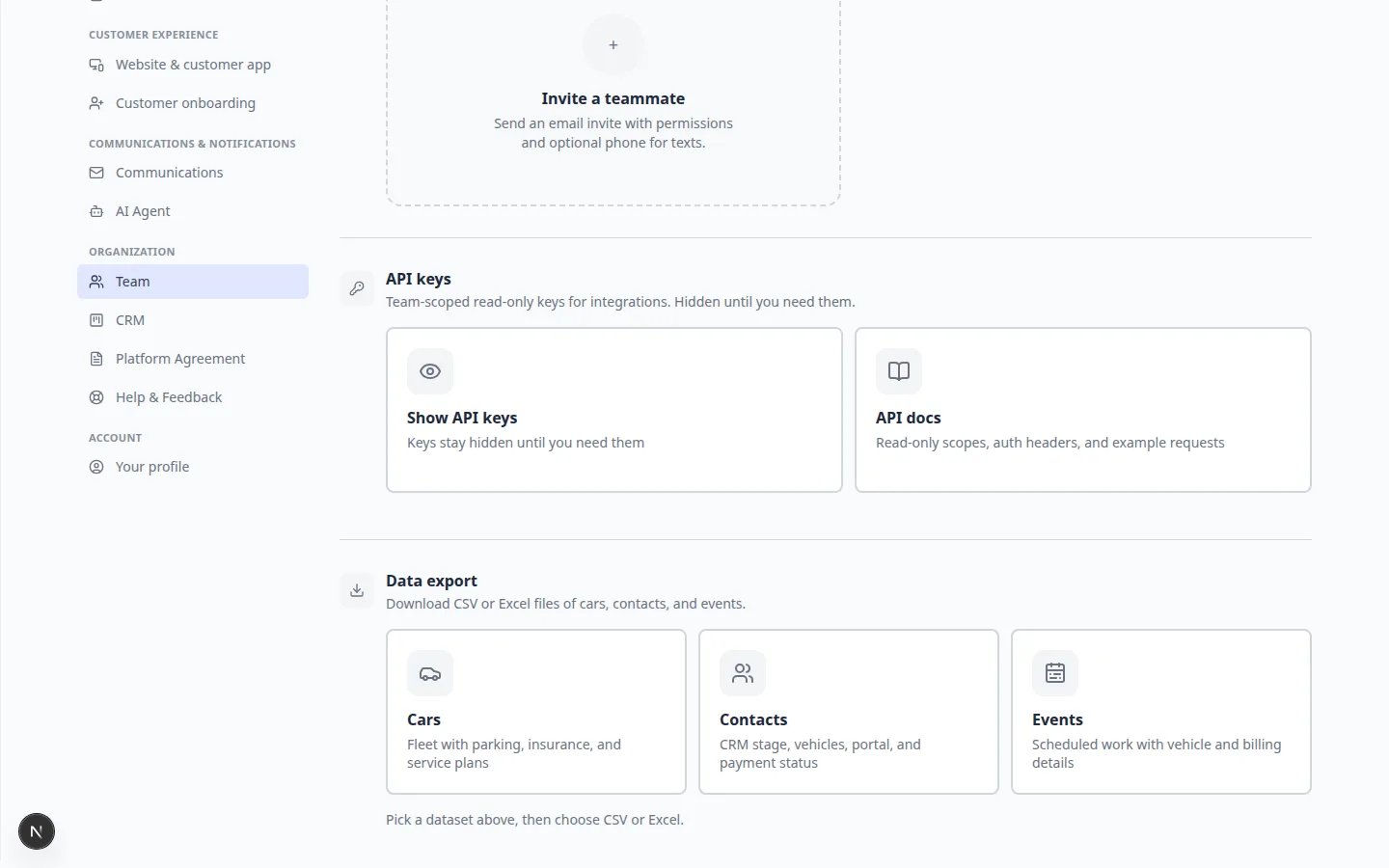
Download a file
1
Pick a dataset
Click one card:
- Cars — fleet with parking, insurance, and service plans
- Contacts — CRM stage, vehicles, portal, and payment status
- Events — scheduled work with vehicle and billing details
2
Choose a format
A detail panel opens. Under Format, choose CSV or Excel.CSV opens in almost any spreadsheet program. Excel is easier if your team already uses Microsoft Excel.
3
Choose a date range for events (if needed)
If you picked Events, also choose Date range:
- Last 30 days
- Last 90 days
- Last 12 months
- All time
4
Download the file
Click Export cars, Export contacts, or Export events.Expected result: A file saves to your computer. A short success message appears with the number of records exported.
A message says no records foundThe export is empty when that list has nothing in the range you chose. Try a wider date range for events, or confirm you are signed in to the right facility.
What is in each file
Cars includes vehicle details plus parking, insurance, and service plan fields your team already stores.Contacts includes CRM stage, linked vehicles, whether the person can use the customer portal, and payment status if billing is on.Events includes scheduled work plus the related vehicle and billing details for the date range you chose.
What success looks like
- You found Data export on Settings > Team.
- You downloaded the list you needed as CSV or Excel.
- The file opens and the row count matches what you expected.
Troubleshooting
The old Export page is goneSettings > Export now opens Settings > Team. Scroll to Data export.
What to do next
- Need to change who can export? Use Manage team members and permissions.
- Need printed labels instead of a spreadsheet? See Set up printable QR codes.
- Still setting up the facility? Return to Settings overview.