

What you will accomplish
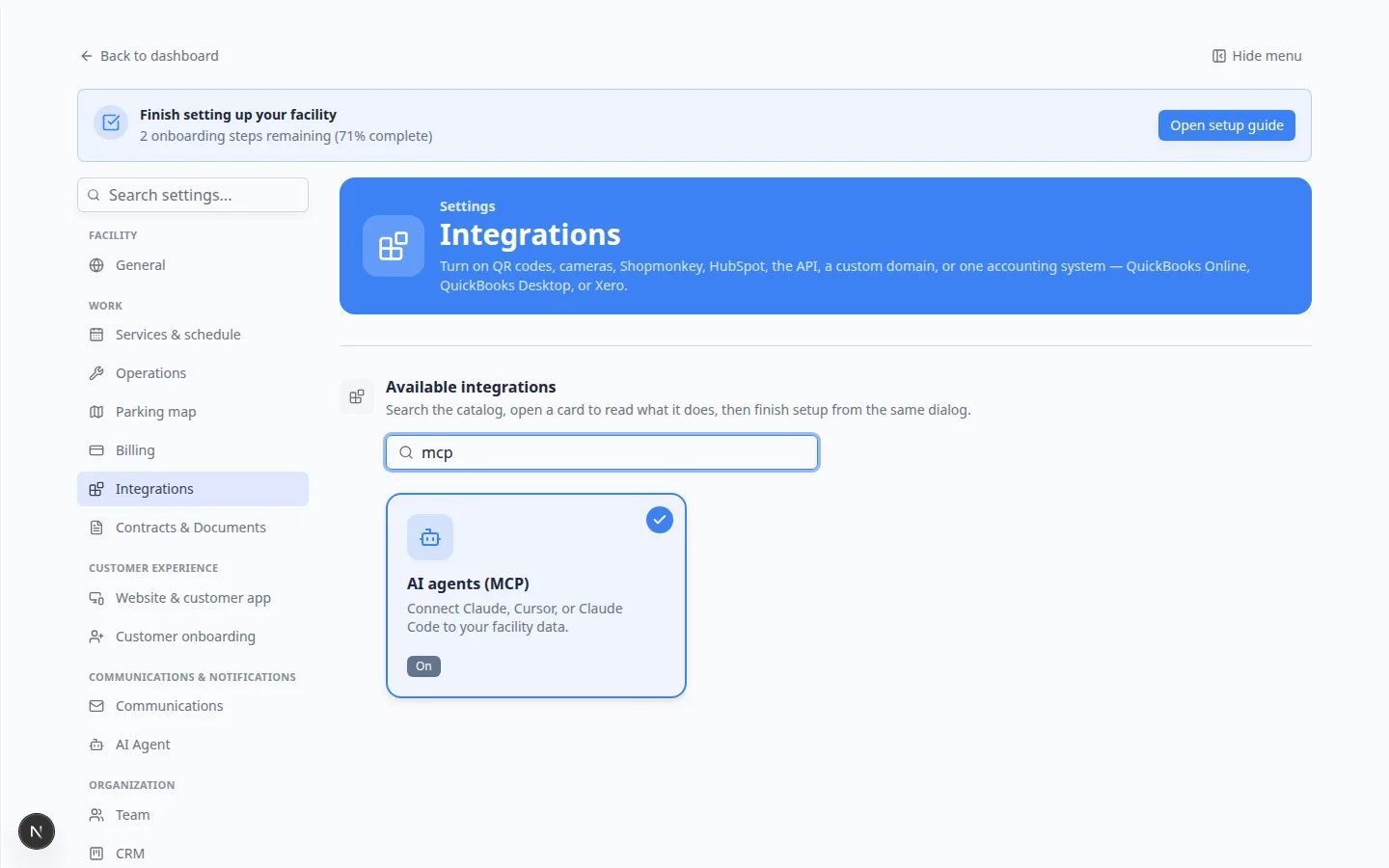
- Find the AI agents (MCP) card and open its window.
- Turn the switch from Enable this integration to Enabled.
- Copy the Connector URL and add it in Claude, Cursor, or Claude Code.
- Sign in as staff, choose look-up access first, and try one question about cars or customers.
When to use this page
Use this when someone on your team already chats in Claude (or Cursor) and you want that helper to see your cars, customers, and schedule. You do not need this to use AI Assistant in the dashboard sidebar. That helper is already inside Car Storage Software.Plain-English namesAI agents (MCP) is the card name. MCP is a technical nickname for the connection. The Connector URL is the address you paste into Claude. You do not create an API key for this card.
Before you start
- Sign in as a team admin. The window says Admin access is required to turn this on or off if you are not an admin.
- Have Claude, Cursor, or Claude Code ready.
- Use a staff account when the helper asks you to sign in—not a customer portal login.
Open the card
1
Go to Integrations
Open Settings > Integrations.
2
Search if needed
In Search integrations…, type claude or mcp.
3
Click AI agents (MCP)
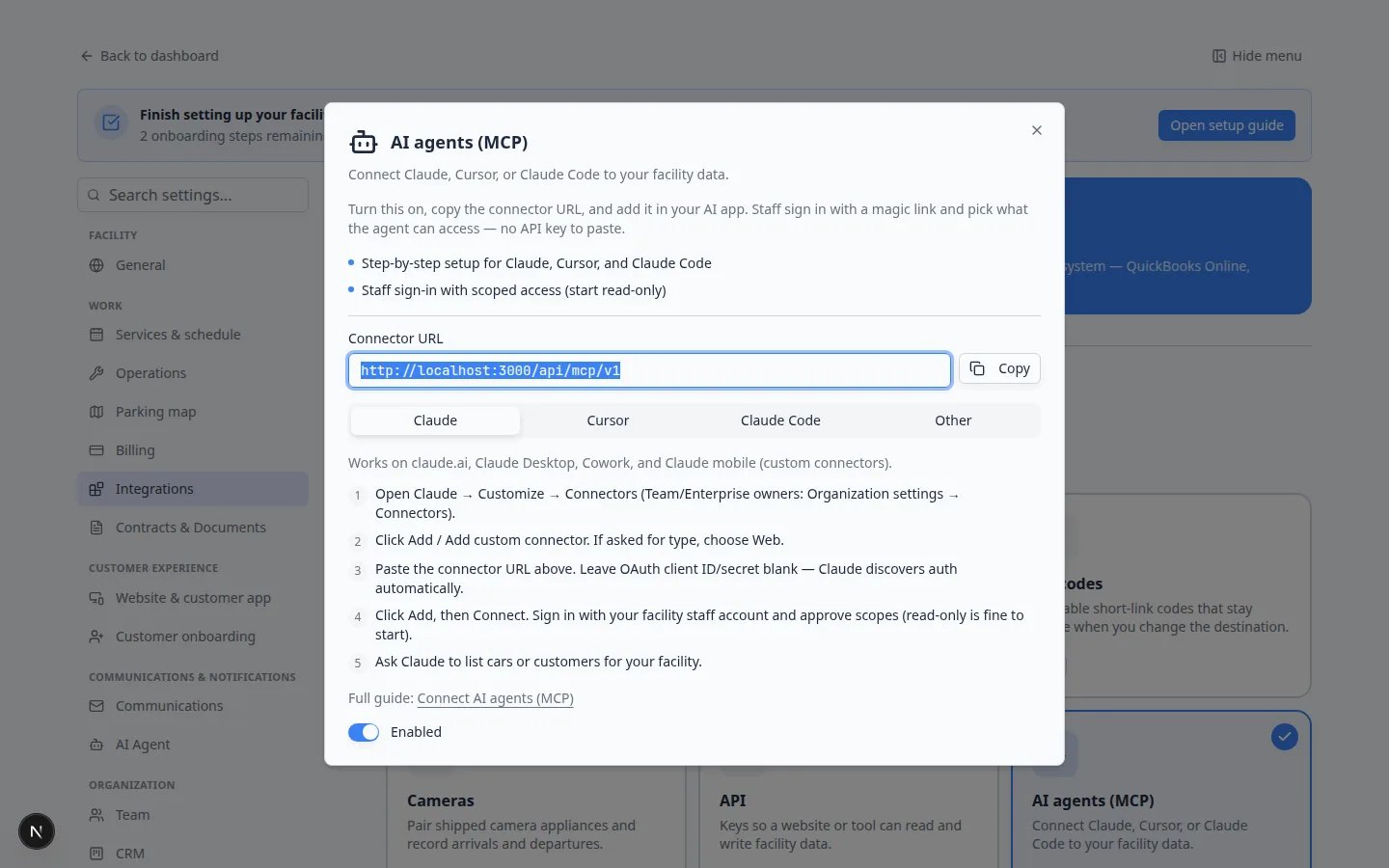
The window title is AI agents (MCP). The subtitle is Connect Claude, Cursor, or Claude Code to your facility data.
Turn it on
1
Read the reminder if it is Off
When the switch still says Enable this integration, a box titled Turn it on to connect explains that you can add the connector in your helper first—or turn the switch on now.
2
Flip the switch
At the bottom of the window, turn the switch so it says Enabled.Expected result: The card on the catalog shows On. (It says Connected only after a staff member has finished sign-in from Claude or Cursor.)
3
Copy Connector URL
Click Copy next to Connector URL.On a live facility this is:
https://www.carstoragesoftware.com/api/mcp/v1A practice site may show a different address. Always copy the value from your Settings page.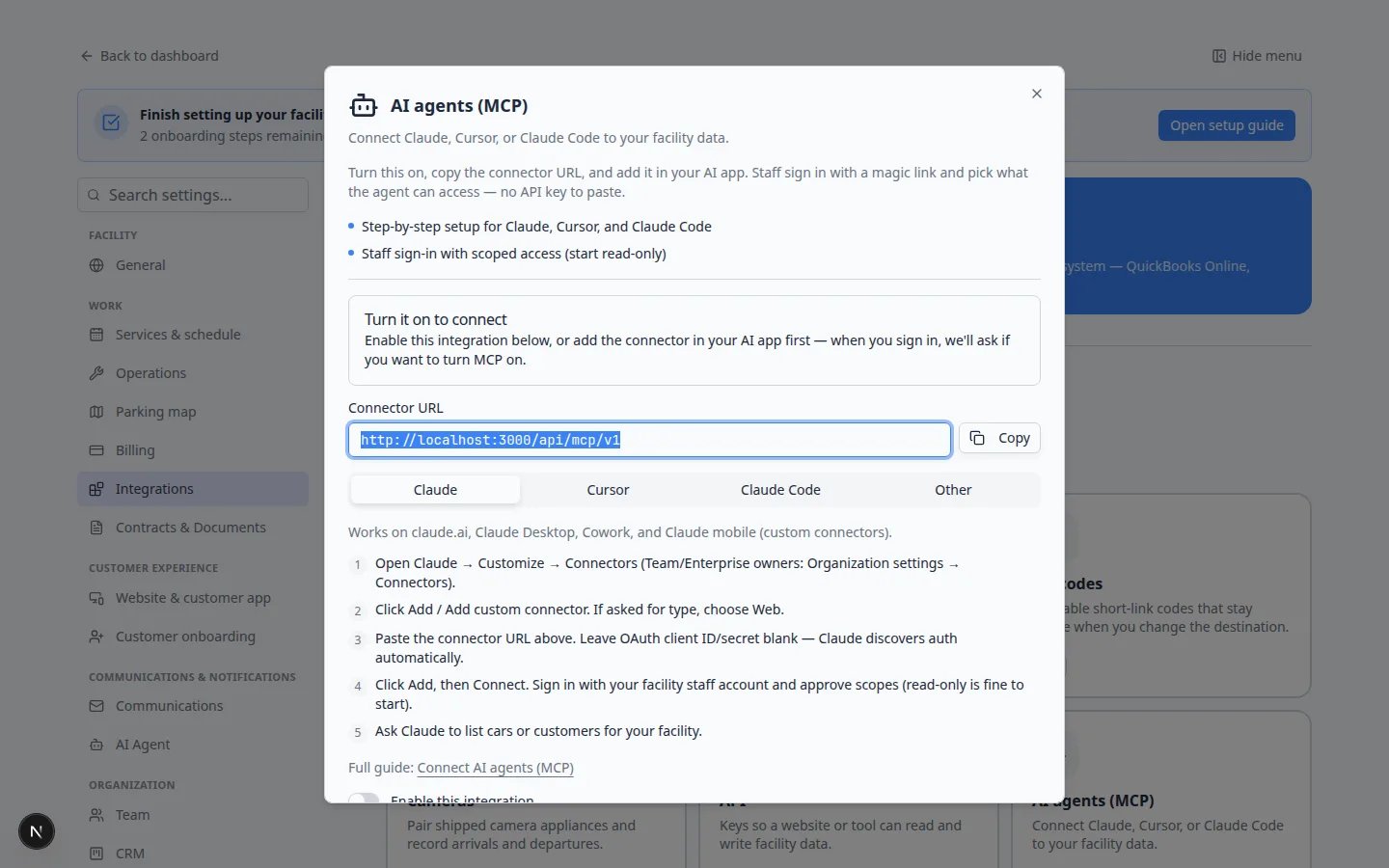
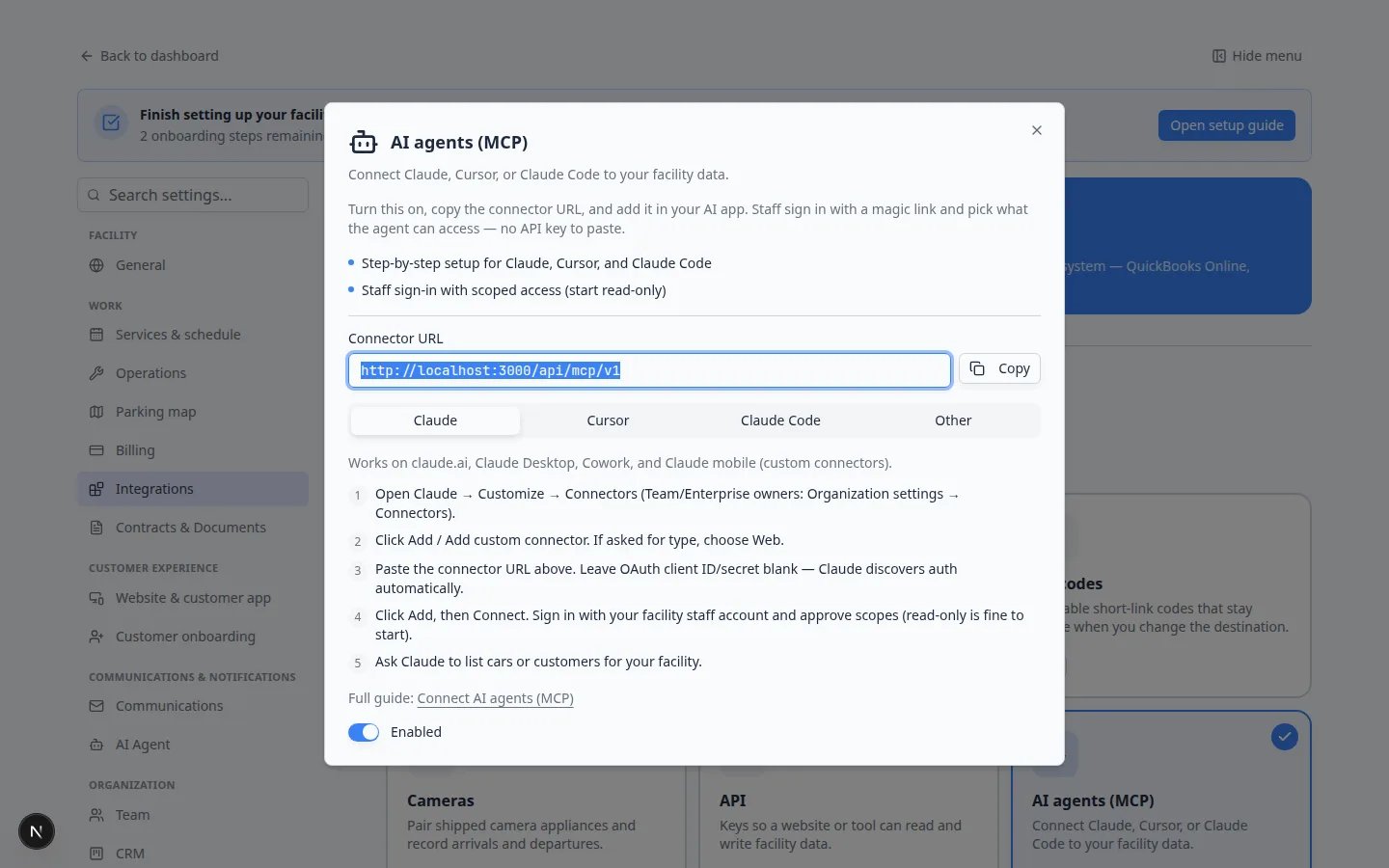
Claude (claude.ai / Desktop / mobile)
The Claude tab in the window is the source of truth. Follow it in order:1
Open Connectors in Claude
Open Customize → Connectors (team or company owners: Organization settings → Connectors).
2
Add a Web connector
Click Add / Add custom connector. If asked for type, choose Web.
3
Paste the URL
Paste the Connector URL. Leave client ID and secret blank.
4
Connect and try it
Click Add, then Connect. Sign in as facility staff. Approve look-up access first. Ask Claude to list cars or customers.
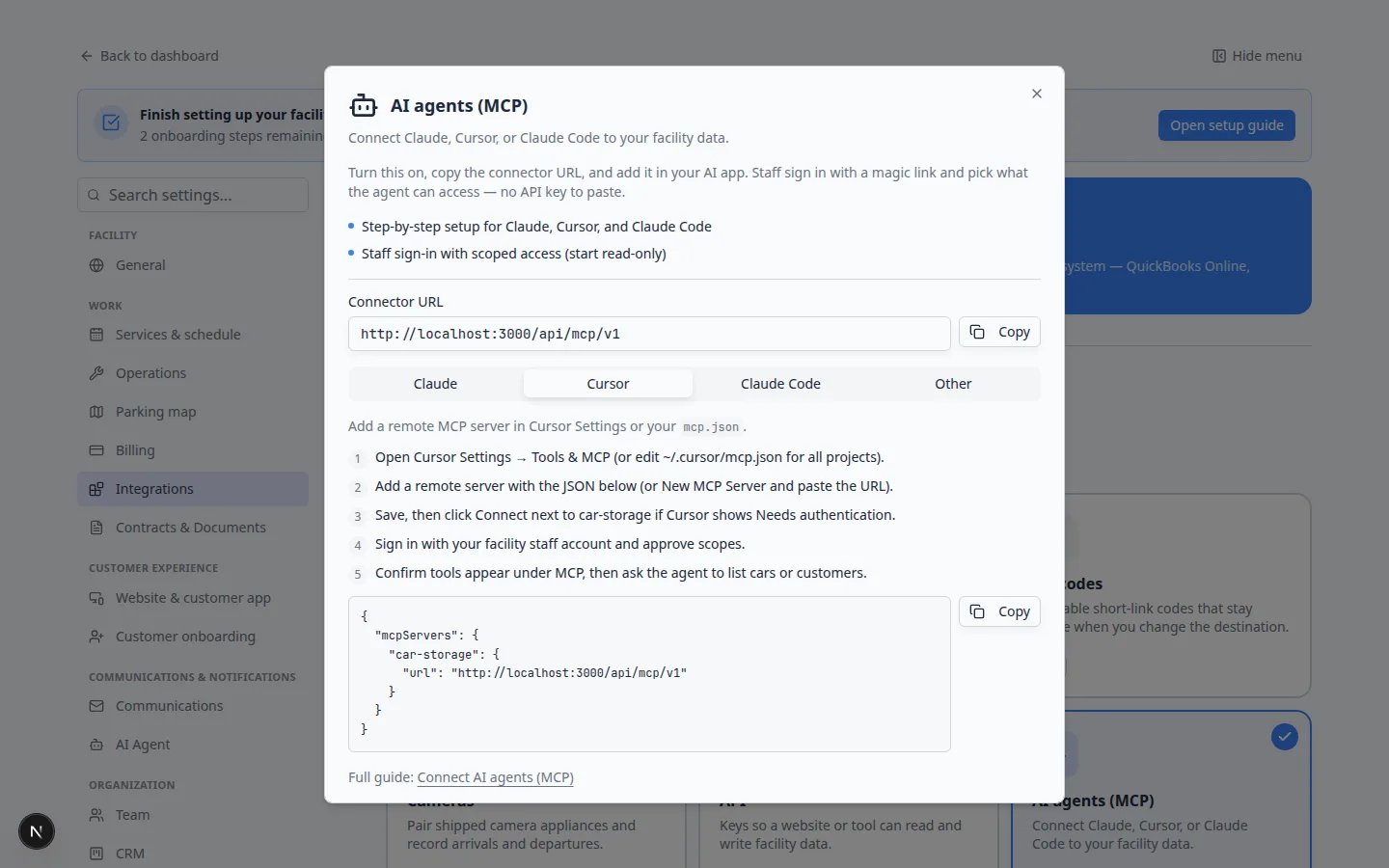
Cursor
Use the Cursor tab if your team already works in Cursor.1
Keep the switch Enabled
Confirm Settings → Integrations → AI agents (MCP) says Enabled.
2
Follow the Cursor tab
Click Cursor. Use Copy on the example block if you are editing Cursor’s tools file, or add a remote server and paste the Connector URL.
3
Connect
Click Connect if Cursor shows Needs authentication. Sign in as staff and approve access.
Claude Code
The Claude Code tab is for an IT partner who works in a terminal. Everyday staff can skip it and use AI Assistant or Claude on the web. If you do use it: run the command shown on that tab, then in Claude Code run/mcp, choose car-storage, pick Authenticate, and sign in as staff.
Other helpers
The Other tab is for any helper that can add a remote web connector and open a staff sign-in page. Paste the same Connector URL. Sign in as staff. Helpers that only run on one computer with no web sign-in should use Connect the API and a team key instead.What you allow the helper to see
When you sign in, you choose access such as look-up for cars or customers. That list matches the same areas as a team API key.Read = look up records. Start here.Write = create or change records. Turn this on only if you trust the helper to add cars, events, or photos.If a write fails and Claude asks you to sign in again, reconnect and approve the extra access. Many teams never enable write and keep creating records in the dashboard, where Review AI proposals shows cards first.
Confirm it worked
- The catalog card says On (or Connected after the first successful sign-in).
- Claude (or Cursor) can list a customer or car that you can also see in Contacts or Cars.
- A customer portal login cannot finish the sign-in page.
Troubleshooting
No tools or empty answersConfirm the Connector URL ends with
/api/mcp/v1 and that you approved at least one look-up area. Copy the URL again from Settings if you typed it by hand.What to do next
- Staff who will stay in the dashboard: Connect Claude to your facility and Use the AI Assistant.
- For team keys and the API docs window, see Connect the API.