

What you will accomplish
You will know what the customer sees when they accept a quote, what your team should check afterward, and where the money record appears. A quote is a price the customer reviews before you start billable work. When they accept it, Car Storage Software usually creates the matching bill for you.Quote — “Here is what we propose to charge. Please review and approve.”Accept Quote & Pay — The customer’s formal yes. The amount they approved can then be collected.Invoice — The bill that is ready to be paid (one-time work).Recurring plan — The repeat charge that continues on a schedule (monthly storage or a membership).
When you would use this guide
- You already sent a quote and the customer says they accepted it—or they asked what happens next.
- You need to tell a customer, in plain words, what Accept Quote & Pay will do.
- You want to confirm the new invoice or monthly plan matches the approved price.
Before you start
- An owner or admin has turned on quotes in Settings > Billing.
- The quote is on Payments > Quotes with a status of Open (ready for the customer) or Accepted (already approved).
- The customer can open email or the customer portal. They do not need to use the staff dashboard.
Find the quote on your team list
1
Open Quotes
Go to Payments > Quotes.Expected result: You see each quote, the customer, the amount, and a status such as Draft, Open, or Accepted.
2
Open the customer’s quote
Click the row for that customer. In this example, Sam Rivera has an Open quote for an interior detail.Expected result: The quote detail page shows the line items, total, and expiration date.
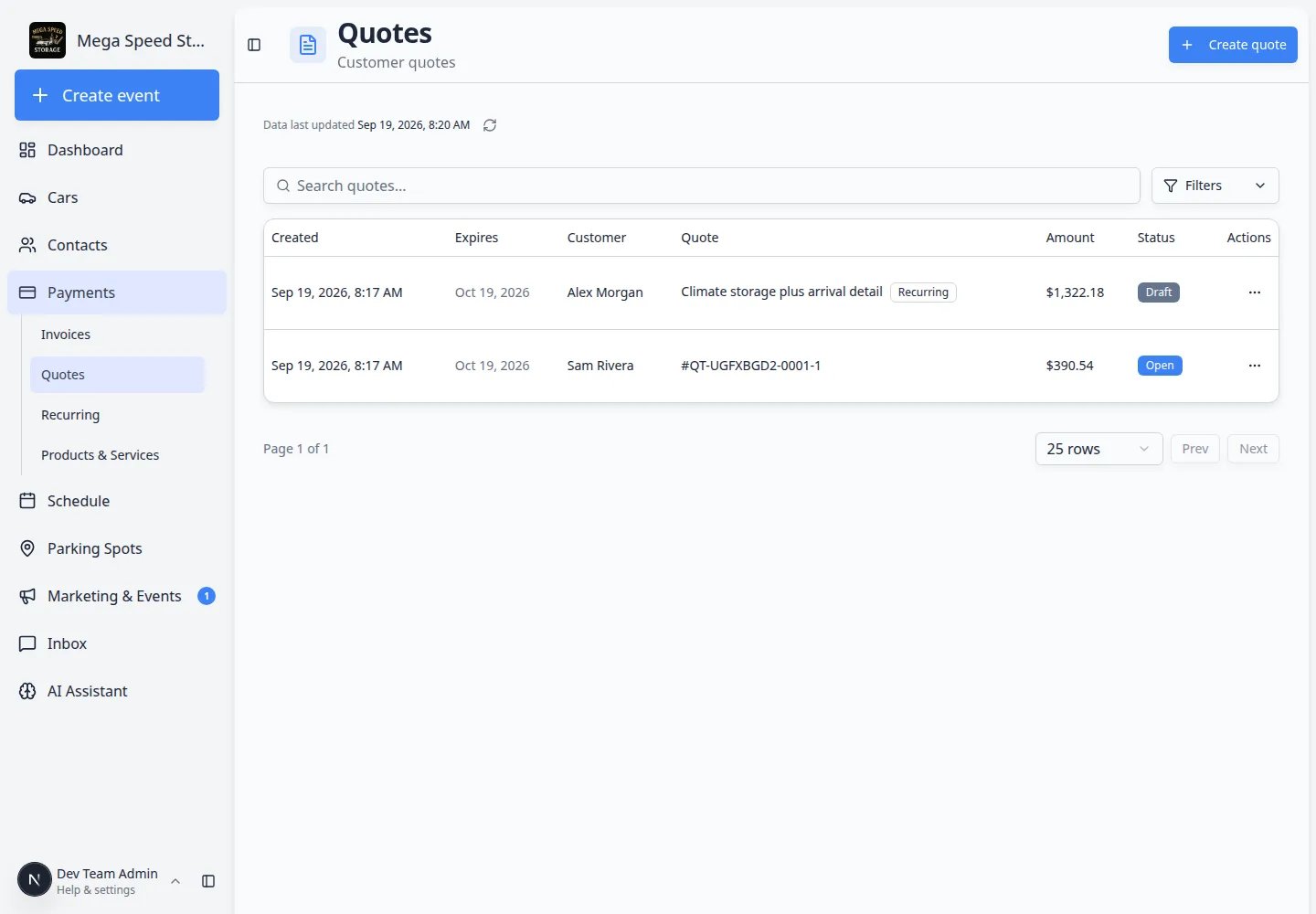
What your team sees on an open quote
The staff quote page is your source of truth while you wait.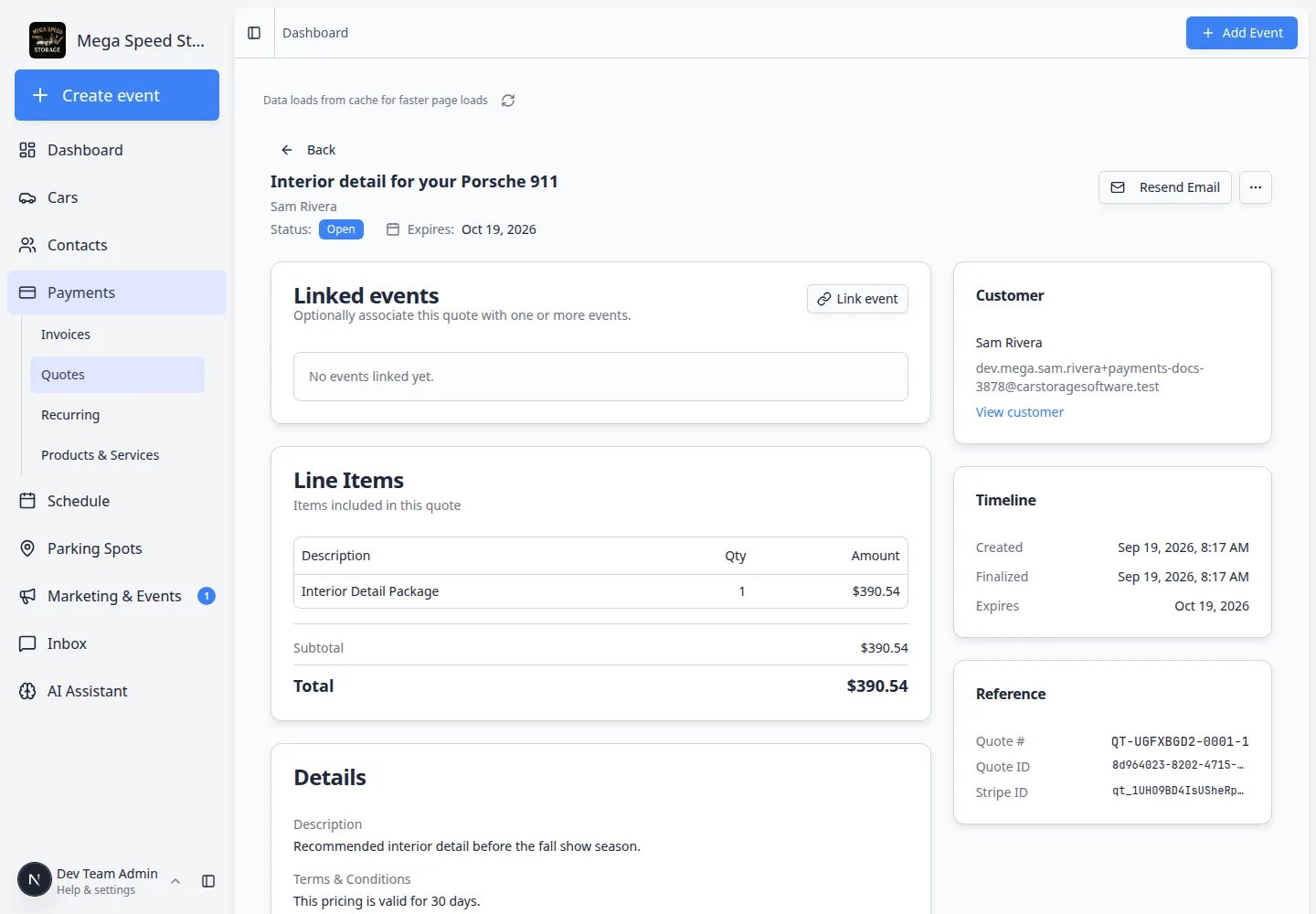
Status: Open — The customer has not accepted yet. They can still say yes.Expires — After this date they should not accept this quote. Send a new quote if pricing changed.Line items — Each service or storage charge they are approving.Resend Email — Sends the quote link again. Use this when the customer says “I never got it.”
What the customer sees
The customer opens the quote from their email or a link you sent. They do not use Payments > Quotes. That page is for staff. They see:- Your facility name
- A status badge of Awaiting Response
- Who the quote is Prepared for
- When it is Valid until
- Each item, quantity, and amount
- The Total
- A large Accept Quote & Pay button
- Download PDF if they want a copy to keep or forward
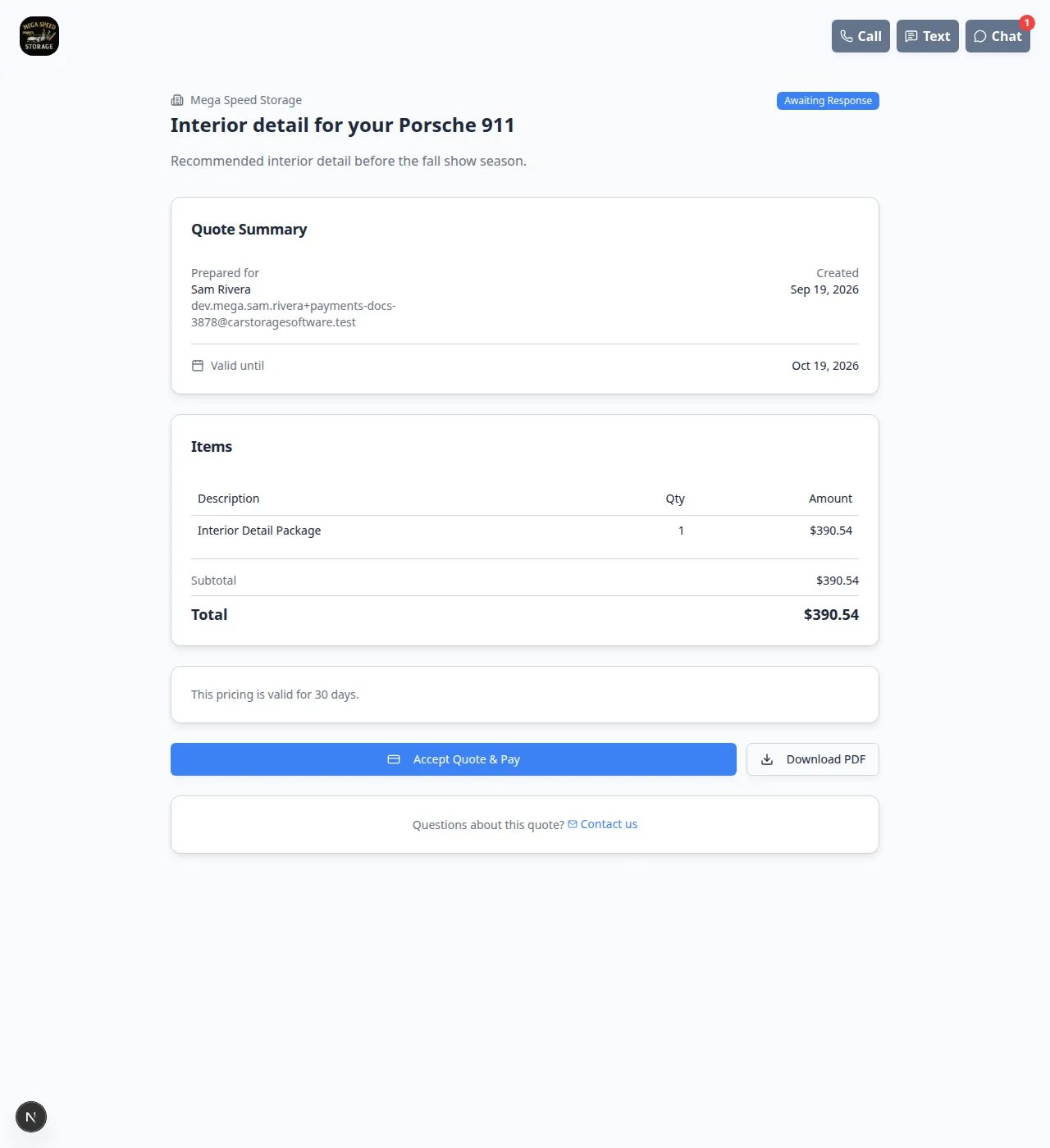
How the customer accepts
1
The customer reviews the items and total
They should read every line. If something looks wrong, they should contact your facility before they accept—not after.
2
They click Accept Quote & Pay
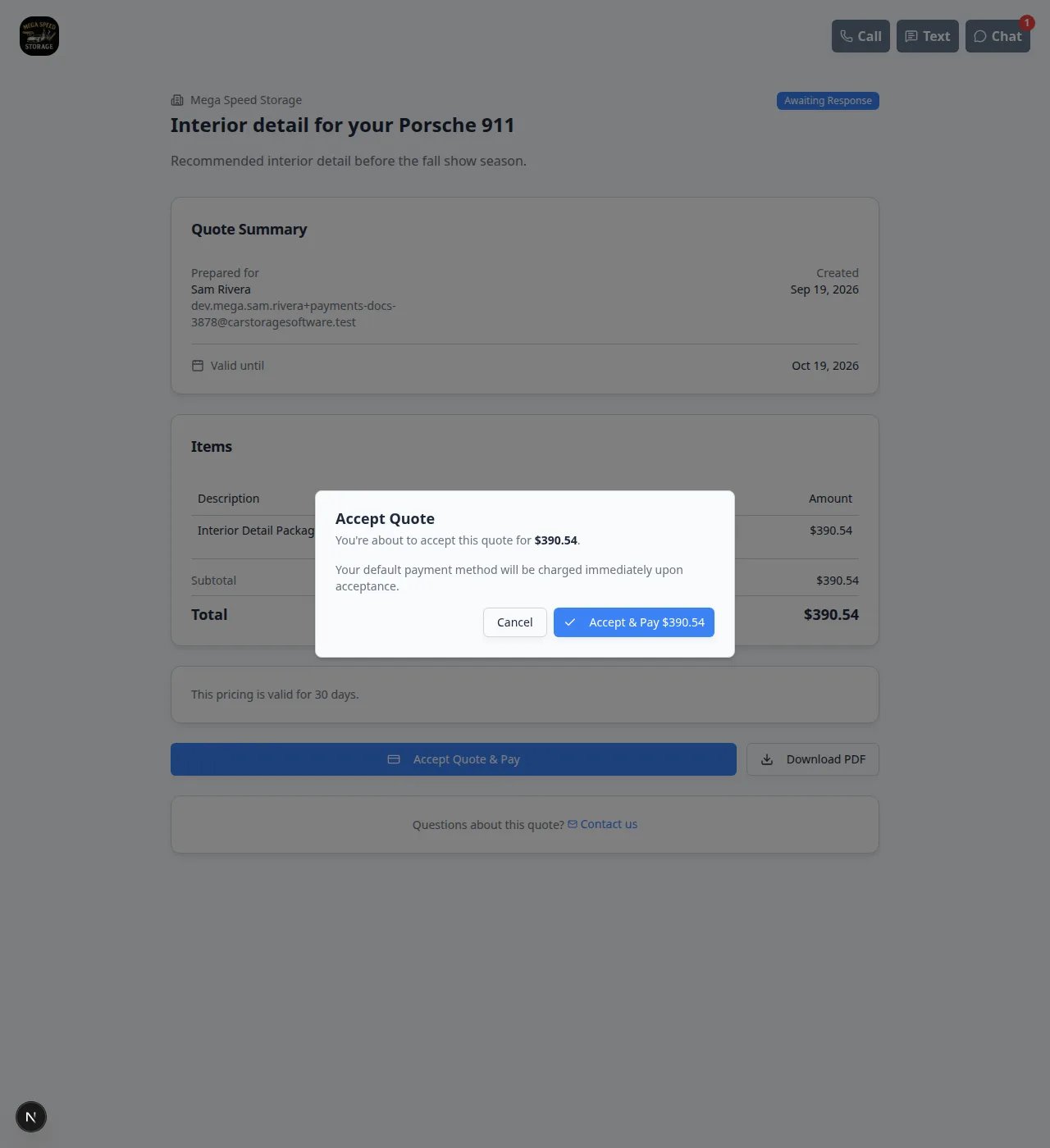
This opens a confirmation window titled Accept Quote.Why this matters: Acceptance is their formal yes. After this, your facility can bill the approved amount.
3
They confirm Accept & Pay
The window restates the total (for example $390.54). It also says their default payment method will be charged when they accept.They can click Cancel to stop, or Accept & Pay $… to finish.Expected result: The badge changes to Accepted, and a thank-you message appears. Your team then sees Accepted on Payments > Quotes.
If the quote includes monthly storageThe customer page shows a warning that they agree to be billed on a schedule. After they accept, check Payments > Recurring as well as Invoices.
What your team does after they accept
Car Storage Software usually creates the billing record automatically. You do not click a separate “convert to invoice” button on the quote.1
Confirm the quote status
Open Payments > Quotes and click the quote. Status should be Accepted.
2
Find the new invoice or recurring plan
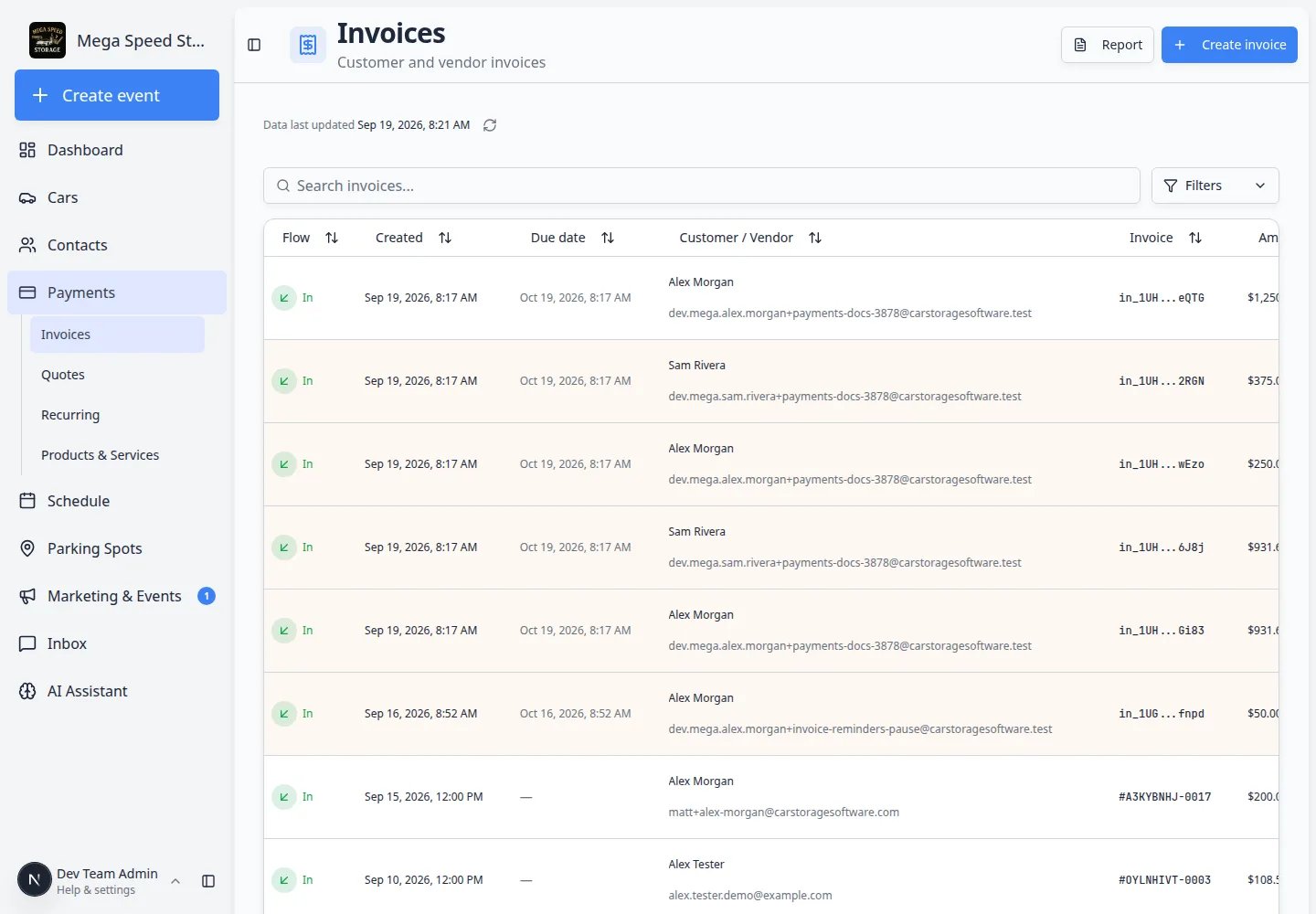
- One-time work (detailing, transport, a setup fee) → Payments > Invoices
- Repeat charges (monthly storage, annual membership) → Payments > Recurring
3
Collect payment or watch the plan
- New invoice → Send and collect customer payments
- New recurring plan → Manage recurring billing
If you need to bill by hand instead
Use this only when your manager asks you to (for example the customer approved pricing on the phone and never clicked Accept Quote & Pay).1
Keep the accepted or printed quote open
Match the customer, descriptions, and amounts exactly.
2
Create the right billing record
- One-time work → Create an invoice
- Repeat charges → Manage recurring billing
Common mistakes to avoid
- Do not tell the customer to “log into Payments.” They use the email link or the customer portal.
- Do not treat Download PDF as acceptance. Only Accept Quote & Pay (then Accept & Pay) accepts the quote.
- Do not create a second invoice for the same accepted quote unless the automatic bill failed and a manager asked you to.
- Do not ignore a quote that includes storage or a membership. Check Recurring, not only Invoices.
Troubleshooting
What success looks like
- You can explain Accept Quote & Pay in one sentence: “You are approving this price so we can bill you.”
- After acceptance, the quote shows Accepted on Payments > Quotes.
- The matching invoice or recurring plan exists and the total matches the quote.
- Your team knows the next step: collect the invoice or watch the recurring plan.
What to do next
- Build the next quote → Create a quote
- Collect an invoice from this acceptance → Send and collect customer payments
- Check monthly storage after a membership quote → Manage recurring billing
- See facility-wide totals → Use the Payments overview dashboard